Every afternoon at 2pm, the sun hits your office window at precisely the angle that turns your monitor into a mirror. You cannot see your spreadsheet, your video call participants become silhouettes, and you spend an hour squinting until the angle changes. You have tried tilting the screen, closing one curtain (too dark), and repositioning your desk (impossible — the room is too small). Monitor glare is one of those problems that feels trivial until you deal with it daily, and the fix is rarely a single solution but a combination of positioning, filtering, and lighting that eliminates reflections without turning your workspace into a cave.
In This Article
- Why Glare Happens and Why It Matters
- Monitor Positioning: The Free Fix
- Anti-Glare Screen Filters
- Matte vs Glossy Screens
- Ambient Lighting Solutions
- Window Treatments for Office Use
- Monitor Settings That Reduce Eye Strain
- Our Recommended Products
- Frequently Asked Questions
Why Glare Happens and Why It Matters
Glare occurs when light from external sources (windows, overhead lights, desk lamps) reflects off your screen surface directly into your eyes. Your pupils constrict to handle the bright reflection, which simultaneously makes the darker screen content harder to see — your eyes are constantly adjusting between the bright reflection and the dimmer display underneath.
The Health Impact
Prolonged glare exposure causes eye strain, headaches, neck tension (from tilting your head to avoid reflections), and fatigue. The Vision Council reports that 65% of computer users experience digital eye strain, and glare is one of the top three contributing factors alongside blue light and screen distance. If you finish each workday with tired, dry eyes and a tension headache at the temples, glare is a likely culprit.
Two Types of Glare
- Direct glare — light sources visible in your peripheral vision (uncovered windows, bare overhead bulbs) that are brighter than your screen. Your pupils constrict for the bright source, making the screen appear darker.
- Reflected glare — light bouncing off your screen surface back into your eyes. You see the ceiling light, window, or your own face superimposed on the display content.
Both need addressing, but reflected glare is the more common complaint in home offices with glossy screens near windows.
Monitor Positioning: The Free Fix
Before buying anything, try repositioning. The goal: no window or light source should be directly behind you (reflecting off the screen toward your face) or directly behind the monitor (creating a bright background that makes the screen appear dim by contrast).
The 90-Degree Rule
Position your monitor perpendicular to windows — so the window is to your side, not behind you or facing you. Light enters from the side without reflecting off the screen surface, and your eyes do not face a bright window behind the display. This single change resolves most home office glare problems.
Tilt and Height
Tilt the monitor slightly downward (5-10 degrees from vertical). This angles the reflective surface away from overhead lights — instead of bouncing ceiling light into your eyes, it redirects it toward the desk surface where it does no harm. Combine with correct monitor height ergonomics for both glare reduction and neck comfort.
Distance from Windows
Every metre further from a window reduces glare intensity. If your desk must face or back onto a window, moving it even 50cm further into the room makes a measurable difference. The inverse square law applies — double the distance, quarter the reflected light intensity.
Anti-Glare Screen Filters
If repositioning is impossible (many home offices have only one viable desk position), a physical anti-glare filter eliminates reflected glare by changing the screen surface from glossy/semi-glossy to matte. If you are exploring this area, our guide on Monitor Size Guide: What Size Do You Need for Your Desk? covers the essentials. If you are exploring this area, our guide on Monitor Size Guide: What Size Do You Need for Your Desk? covers the essentials.
How They Work
Anti-glare filters are thin sheets of matte-finish plastic or glass that attach to your monitor via adhesive strips, magnetic edges, or clip-on frames. They diffuse incoming light in all directions rather than reflecting it directly back, eliminating mirror-like reflections. The trade-off: very slight reduction in colour vibrancy and sharpness due to the diffusion layer.
Types Available
- Adhesive film — sticks directly to the screen. Cheapest (£10-20) but can be difficult to apply without bubbles. Permanent-ish (removable but may leave residue).
- Hanging/clip-on filters — a rigid panel that clips or hangs over the screen. Easy to remove when not needed. More expensive (£25-60) but no residue risk and sharper image than film.
- Magnetic mount — for MacBooks and some monitors with metal bezels. Snaps on and off instantly. Premium option (£30-50) with the cleanest aesthetic.
What to Look For
- Match your screen size exactly — measure the viewable area (not the bezel), buy the corresponding filter size
- Matte grade — “25% haze” is standard anti-glare; “40%+ haze” is heavy diffusion that heavily softens the image
- Blue light filtering — some combine anti-glare with blue light reduction. Useful if you work late evenings; unnecessary if your OS already has night mode.
Matte vs Glossy Screens
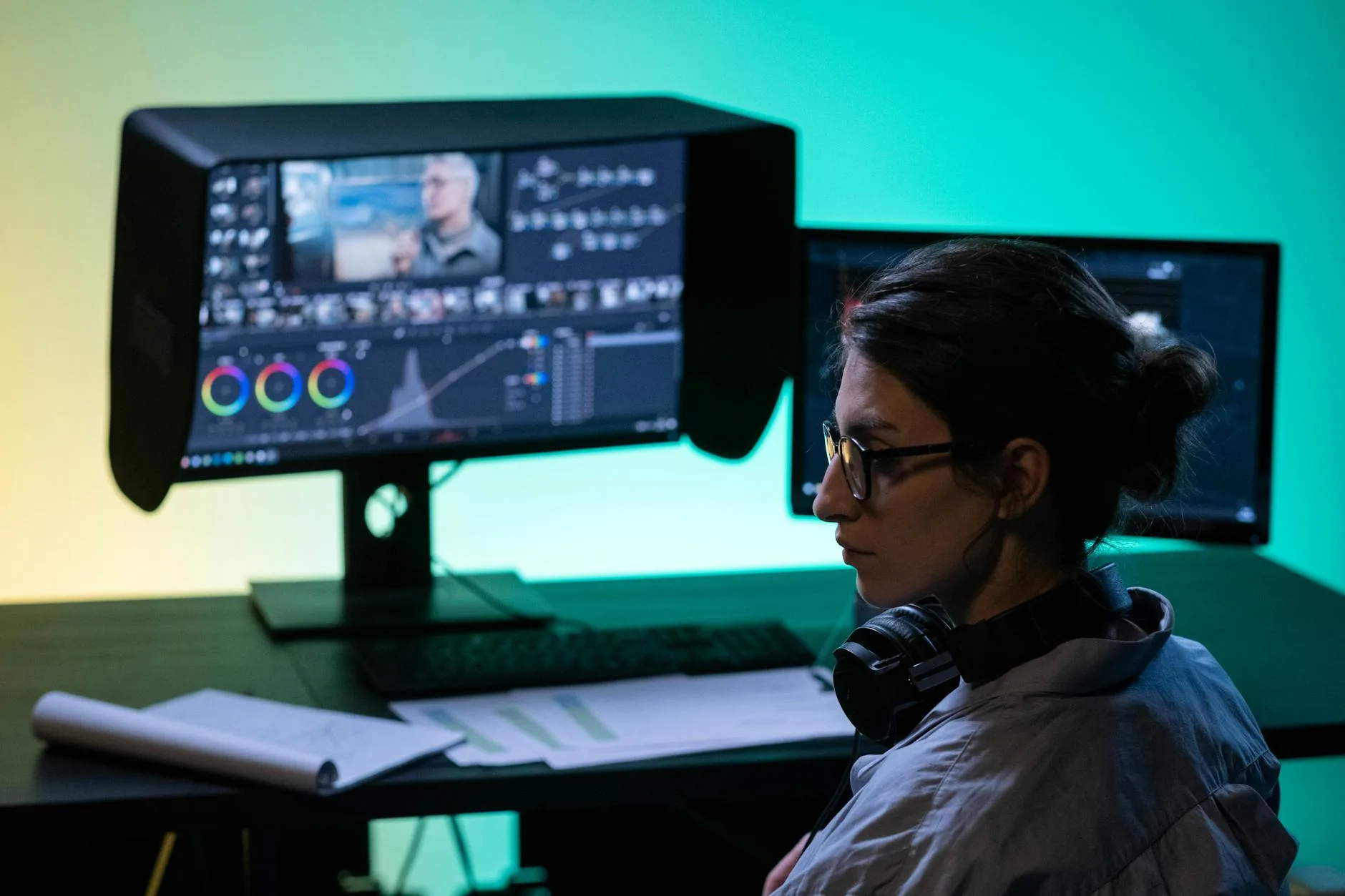
If you are buying a new monitor, the panel finish matters more for glare than any aftermarket filter.
Glossy Screens
Vibrant colours, deep blacks, and crisp text — but they reflect everything. In a dark room, glossy screens look stunning. In a room with any ambient light, they become mirrors. Almost all laptop screens are glossy (Apple, Dell XPS, most consumer models). Desktop monitors offer the choice.
Matte Screens
A textured anti-glare coating diffuses reflections at the surface. You cannot see the window behind you — only a vague glow rather than a sharp reflection. Colours appear slightly less vivid and the image can look marginally “grainier” due to the texture, but for text-heavy productivity work, this trade-off is overwhelmingly worthwhile.
Semi-Glossy (Low Haze)
Some newer monitors (particularly high-end options like the Apple Studio Display or Dell UltraSharp range) use a very light matte coating that minimises reflections without the heavy grain of traditional matte. This is the best compromise — check reviews that specifically mention the “coating” or “surface treatment” quality. Our panel types guide covers more display technology considerations.
Ambient Lighting Solutions
Monitor Light Bars (The Best Single Purchase)
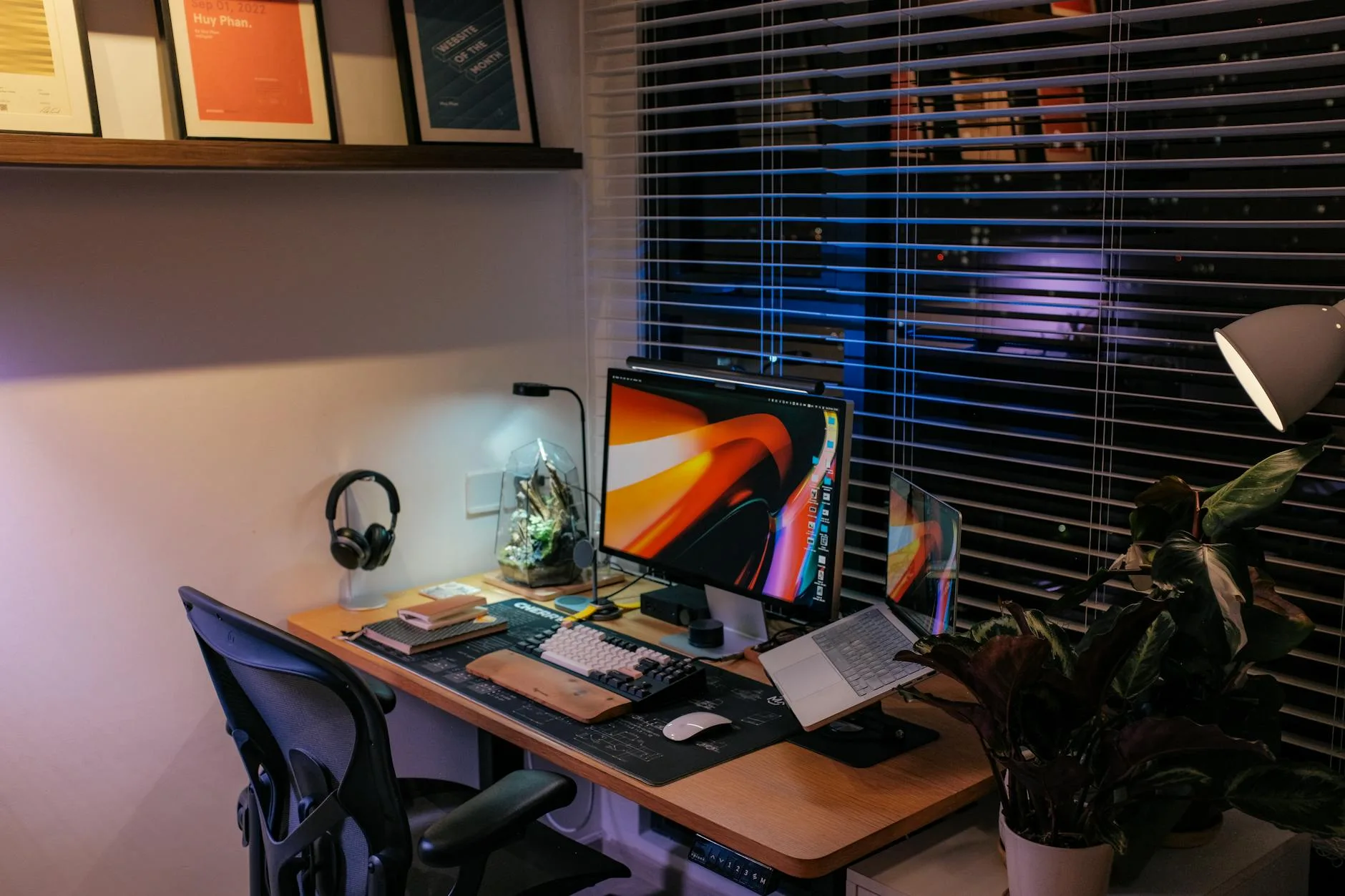
A light bar (BenQ ScreenBar, Quntis, Baseus) mounts on top of your monitor and illuminates your desk and keyboard without any light hitting the screen surface. The asymmetric optical design throws light forward and down — never backward onto the display. This eliminates the contrast problem: your desk is well-lit (so your eyes do not strain adjusting between bright screen and dark surroundings) without creating reflections.
Prices range from £25 (Quntis, Amazon basics) to £100+ (BenQ ScreenBar Plus with ambient sensor). All work on the same principle. The cheaper options lack auto-dimming but the light quality is perfectly adequate for desk illumination.
Bias Lighting (Behind the Monitor)
LED strips behind your monitor (illuminating the wall behind the screen) reduce perceived glare by raising the ambient light level around the display. Your eyes face a uniformly lit field rather than a bright rectangle surrounded by darkness. This reduces pupil fluctuation and perceived eye strain.
A warm-white LED strip (3000-4000K, non-RGB) costs £10-15 from Amazon. Stick it to the back of your monitor, plug it into a USB port, and the wall behind glows gently. The effect is subtle but measurable — most users report reduced eye fatigue within a week.
Overhead Lighting
Ceiling lights directly above your desk reflect off the screen surface. Solutions:
- Move your desk — position it between overhead lights rather than directly beneath one
- Replace with indirect lighting — uplighters that bounce light off the ceiling create diffused ambient light without direct reflections
- Use task lighting instead — turn off the overhead and use a monitor bar plus desk lamp for localised illumination
Window Treatments for Office Use
Roller Blinds (Best for Offices)
Light-filtering roller blinds reduce incoming glare while maintaining ambient light and a view. Choose “screen” fabric (5-10% openness) rather than blackout — you want diffused daylight, not total darkness. Position the blind to cover the lower portion of the window where the sun angle creates direct glare while leaving the top open for ambient light.
Venetian Blinds
Adjustable slats let you redirect incoming light precisely — angle them up to bounce direct sun toward the ceiling rather than across the room toward your screen. The fine control makes venetians excellent for home offices, though they collect dust and require more maintenance than rollers.
Window Film
Semi-transparent UV-filtering film applied directly to glass. Reduces light transmission by 30-70% depending on the grade, while maintaining the view. One-way privacy film also prevents passers-by seeing in. The HSE display screen equipment guidance recommends adjustable window coverings for workstations positioned near windows.
Monitor Settings That Reduce Eye Strain
Brightness Matching
Your monitor should match the brightness of your surroundings — not brighter, not dimmer. In a bright room, increase brightness. In a dim room, decrease it. A screen that is much brighter than its surroundings causes the same pupil-fighting effect as glare. Most monitors have an auto-brightness sensor — use it.
Night Mode / Warm Colour Temperature
After sunset, shift your colour temperature to warmer tones (3400K or lower) using your OS night mode (Windows Night Light, macOS Night Shift). This does not reduce glare but reduces eye strain from blue light exposure in evenings.
Contrast Adjustment
If glare is partially obscuring your content, increasing contrast can make text more readable through the reflection. This is a workaround rather than a fix — address the glare source first, then fine-tune monitor brightness and contrast settings for comfort.
Our Recommended Products
Best Monitor Bar: BenQ ScreenBar (about £90)
The original and still the benchmark. Auto-dimming ambient sensor, adjustable colour temperature, and USB-powered (draws from any USB-A port). The asymmetric optics are perfectly engineered — zero light reaches the screen. Expensive compared to alternatives but the build quality justifies the premium for daily use over years.
Best Budget Bar: Quntis Monitor Light Bar (about £30)
90% of the BenQ performance at one-third the price. No ambient sensor (manual dimming) but the optics are excellent — no screen reflection in any position. Touch controls on the bar itself. Outstanding value for the function. Available on Amazon UK with next-day delivery.
Best Anti-Glare Filter: 3M Anti-Glare Filter (about £35-50)
The industry standard for aftermarket screen filters. Available in every standard screen size from 13″ to 34″. Minimal image quality loss, solid anti-reflection performance, and a clean frameless design that is barely noticeable once installed. Attaches via small adhesive tabs.
Best Bias Lighting: Luminoodle USB LED Strip (about £15)
Warm white (4000K) LED strip that sticks to the back of any monitor 24″ or larger. Powered via USB, dimmable, and produces an even wall-wash that eliminates the “bright screen in dark room” effect. Takes 5 minutes to install and makes an immediate perceptible difference in evening working comfort.
Best Window Film: Coavas Frosted Privacy Film (about £12 per metre)
No-adhesive static-cling film that attaches with water and removes cleanly (ideal for renters). Reduces glare by 40-50% while maintaining diffused natural light. Applies to any window in minutes and peels off without residue when you move.
Frequently Asked Questions
Does dark mode reduce glare? Dark mode (dark background, light text) reduces the overall brightness of your screen, which can reduce the contrast between the display and a bright reflection. But it does not eliminate glare — you will still see reflections on a dark background, just as light patches rather than obscured content. Dark mode helps eye strain from brightness; it does not solve glare from external light sources.
Is a matte screen always better for offices? For text-heavy productivity work near windows: yes, matte is almost always the better choice. For colour-critical creative work (photo editing, video grading) in controlled lighting environments: glossy or semi-glossy produces more accurate colours. Most people doing office work should choose matte without hesitation.
Can I use my monitor in front of a window? You can, but you will fight glare constantly. The bright backlight of the window makes your screen appear dim by comparison, forcing you to increase brightness (which causes eye fatigue). If this is your only option, use a monitor bar for local desk illumination, increase screen brightness to maximum, and install window film or blinds to reduce the background brightness differential.
Do anti-glare screen protectors reduce image quality? Slightly. Standard matte filters reduce perceived sharpness by 5-10% and mute colours marginally. For spreadsheets, documents, and web browsing, the quality reduction is imperceptible. For photo editing or colour-critical work, it matters — use bias lighting and positioning solutions instead of a physical filter.
Why is my laptop worse for glare than my desktop monitor? Most laptops have glossy screens (for vibrant colours in marketing demos) and fixed positions (the screen angle is limited by the hinge). Desktop monitors often have matte options and full tilt/swivel/height adjustment. If you use a laptop at a desk regularly, connect an external matte monitor for daily work and use the laptop screen as a secondary or close it entirely.