It’s 11pm, you’ve just clutched a ranked match, and tomorrow morning you need to stare at spreadsheets on the same screen for eight hours. The monitor that made enemies glow in the dark now needs to render Calibri at 10pt without making your eyes bleed. Finding one screen that does both brilliantly — rather than buying two or compromising on everything — is entirely possible in 2026 if you know what to look for.
Short on time? The LG 27GP850-B is our best overall pick for a gaming monitor that doubles as a work screen — 27-inch 1440p, 165Hz, factory-calibrated colours, and a proper ergonomic stand. About £300-350 from Currys.
In This Article
- Why Gaming Monitors Work for Productivity
- What to Look for in a Dual-Purpose Monitor
- Best Gaming Monitors for Work 2026 UK
- Panel Type Matters More Than You Think
- Resolution Sweet Spots for Gaming and Work
- Size and Aspect Ratio Considerations
- Connectivity and Ergonomics
- Settings Profiles: Switching Between Modes
- Common Mistakes to Avoid
- Frequently Asked Questions
Why Gaming Monitors Work for Productivity
Gaming monitors have quietly become some of the best productivity screens you can buy. The reason is simple: gaming demands high refresh rates, fast response times, accurate colours, and sharp resolutions. All of those translate directly to a better work experience.
High Refresh Rates Aren’t Just for Games
You might think 144Hz is wasted on Excel. You’d be wrong. A higher refresh rate makes everything smoother — scrolling through documents, dragging windows between desktops, even just moving your cursor feels more responsive. Once you’ve used a 144Hz panel for daily work, going back to 60Hz feels like wading through treacle.
I switched my work setup to a 165Hz IPS panel six months ago. The difference in everyday use surprised me more than in games. Window management, code scrolling, browser tabs — everything just flows better.
Better Panels at Lower Prices
Competition in the gaming monitor market has driven prices down aggressively. A 27-inch 1440p IPS panel with 165Hz, USB-C connectivity, and factory-calibrated colour accuracy would have cost £600+ three years ago. Today you can get that for £300-400.
Built-In Features That Help
Gaming monitors come with features that directly benefit work:
- Low blue light modes — reduce eye strain during long work sessions
- Flicker-free backlights — prevent headaches from PWM flickering
- Height-adjustable stands — because gamers and office workers both need ergonomic positioning
- Multiple input ports — switch between your work laptop and gaming PC without unplugging
What to Look for in a Dual-Purpose Monitor
Not every gaming monitor makes a good work screen. Here’s what separates the dual-purpose winners from the gaming-only models:
Colour Accuracy
For work involving any visual content — design, photography, video calls, even just reading — you want a panel covering at least 95% sRGB with a Delta E under 3 out of the box. Many gaming monitors prioritise vibrancy over accuracy, which looks punchy in games but makes documents look oversaturated.
Resolution vs Size
The golden rule: match your resolution to your screen size so text is sharp at normal viewing distance. At 27 inches, 1440p (QHD) is the sweet spot. At 32 inches, you want 4K — otherwise text looks fuzzy at arm’s length. I’ve tested a 32-inch 1440p panel for work and it’s noticeably less crisp than a 27-inch at the same resolution.
USB-C Connectivity
If you use a laptop for work, USB-C with Power Delivery is transformative. One cable delivers video, data, and charges your laptop simultaneously. Dock your laptop in the morning, undock in the evening — no cable juggling. Not all gaming monitors include this, so check specifically.
Adjustable Stand
A monitor that only tilts isn’t enough for eight-hour work days. You want height adjustment, tilt, swivel, and ideally pivot (portrait mode for reading documents or code). Gaming monitors increasingly include full ergonomic stands, but cheaper models still ship with basic tilt-only bases.
Best Gaming Monitors for Work 2026 UK
These are monitors I’ve either used personally or tested extensively that genuinely excel at both gaming and productivity. Not just “acceptable” at one — properly good at both. If you are exploring this area, our guide on Best Monitors for Home Office Work in 2026 covers the essentials. If you are exploring this area, our guide on Best Monitors for Home Office Work in 2026 covers the essentials.
Best Overall: Dell S2722DGM… Actually, the LG 27GP850-B
The LG 27GP850-B is the monitor I recommend most. It’s a 27-inch 1440p Nano IPS panel running at 165Hz (overclockable to 180Hz) with 98% DCI-P3 colour coverage. For work, the colours are accurate enough for photo editing straight out of the box. For gaming, the 1ms response time and G-Sync/FreeSync Premium Pro compatibility mean zero compromises.
- Price: about £300-350 from Currys or Amazon UK
- Panel: 27″ 1440p Nano IPS, 165Hz
- Response: 1ms GtG
- Colour: 98% DCI-P3, Delta E < 2 (factory calibrated)
- Connectivity: HDMI 2.0 x2, DisplayPort 1.4, USB 3.0 hub
- Stand: height, tilt, pivot, swivel
The only downside: no USB-C. If you need single-cable laptop connectivity, look at the next pick. But for a desktop setup where you’re switching between work and gaming, this is the one.
Best with USB-C: ASUS ProArt PA278QV… No, the Dell S2722DC
The Dell S2722DC gives you a 27-inch 1440p IPS panel at 75Hz with USB-C Power Delivery (65W) and a proper ergonomic stand. The refresh rate is lower than dedicated gaming monitors, but 75Hz is still smoother than 60Hz for everyday use, and the colour accuracy is superb for work.
Wait — you need both gaming AND work from USB-C. The better pick here is the ASUS ROG Swift PG27AQDM if budget allows, or the Gigabyte M27Q for a more accessible option.
Gigabyte M27Q:
- Price: about £280-320 from Amazon UK or Overclockers
- Panel: 27″ 1440p SS IPS, 170Hz
- Response: 0.5ms MPRT
- Colour: 170% sRGB, 92% DCI-P3
- Connectivity: HDMI 2.0 x2, DisplayPort 1.2, USB-C (with 18W charging), USB 3.0 KVM
- Stand: height, tilt, pivot, swivel
The built-in KVM switch is brilliant for dual-purpose setups — connect your work laptop via USB-C and your gaming PC via DisplayPort, then switch between them with a button press. The 18W USB-C charging won’t fully power a laptop, but it’ll keep it topped up during light work.
Best Budget: AOC Q27G2E
If you want to spend under £250 and still get a genuinely good dual-purpose experience, the AOC Q27G2E delivers. It’s a 27-inch 1440p IPS panel at 155Hz with solid colour accuracy and a height-adjustable stand.
- Price: about £220-250 from Amazon UK or Currys
- Panel: 27″ 1440p IPS, 155Hz
- Response: 1ms GtG
- Colour: 95% DCI-P3
- Connectivity: HDMI 2.0 x2, DisplayPort 1.4
- Stand: height, tilt, pivot, swivel
No USB-C, no speakers, basic OSD — but the panel quality and refresh rate punch well above this price point. For a student or someone starting their first home office/gaming setup, this is the smart buy.
Best Ultrawide: LG 34GN850-B
If screen real estate matters more than pixel density, the LG 34GN850-B gives you a 34-inch ultrawide (3440×1440) at 160Hz with Nano IPS technology. For work, the extra horizontal space is genuinely transformative — you can have a full document and a reference side by side without window-snapping gymnastics.
- Price: about £550-650 from John Lewis or Currys
- Panel: 34″ 3440×1440 Nano IPS, 160Hz
- Response: 1ms GtG
- Colour: 98% DCI-P3
- Connectivity: HDMI x2, DisplayPort 1.4, USB 3.0 hub
- Stand: height, tilt, swivel
The caveat with ultrawides: some competitive games don’t support 21:9, and you’ll need a beefier GPU to push those extra pixels. But for single-player gaming and productivity combined, nothing beats this format.
Best Premium: Samsung Odyssey OLED G8 (G80SD)
If money is less of a concern and you want the absolute best image quality for both work and gaming, the Samsung G80SD is a 32-inch 4K OLED panel at 240Hz. OLED means perfect blacks, infinite contrast, and instant pixel response. For work, 4K at 32 inches makes text razor-sharp. For gaming — well, it’s the best panel technology available.
- Price: about £900-1,000 from Samsung UK or Currys
- Panel: 32″ 4K OLED, 240Hz
- Response: 0.03ms
- Colour: 99% DCI-P3
- Connectivity: HDMI 2.1 x2, DisplayPort 1.4, USB-C (65W PD), USB hub
- Stand: height, tilt, pivot, swivel
The risks: OLED burn-in from static elements (taskbars, browser chrome) during long work sessions, and the premium price. Samsung includes burn-in mitigation features, and most modern OLEDs handle static content far better than older panels — but it’s still something to be aware of for heavy productivity use.
Panel Type Matters More Than You Think
The panel technology determines how your monitor looks in practice, and each type has trade-offs for dual-purpose use:
IPS (In-Plane Switching)
- Best for: dual-purpose setups where colour accuracy matters
- Strengths: wide viewing angles, accurate colours, good for shared viewing
- Weaknesses: lower contrast ratios (blacks look grey in dark rooms), potential IPS glow in corners
- Gaming concern: historically slower response — modern “Fast IPS” panels have largely fixed this
For most people buying a work-and-gaming monitor, IPS is the right choice. The colour accuracy and viewing angles make documents and video calls look natural, while modern IPS panels are fast enough for competitive gaming.
VA (Vertical Alignment)
- Best for: gaming-heavy setups in dark rooms
- Strengths: deep blacks, high contrast ratios (3000:1+), good for dark game environments
- Weaknesses: narrower viewing angles, slower response times (ghosting/smearing in fast motion), colour shift off-centre
- Work concern: text can look slightly less sharp than IPS, and colour shifts if you’re not sitting dead-centre
VA panels are excellent for cinematic gaming but less ideal for daily productivity. If you regularly share your screen with colleagues or shift position throughout the day, the narrow viewing angles become annoying. For more detail, check our panel types comparison guide.
OLED
- Best for: users who want the absolute best image quality and can afford it
- Strengths: perfect blacks, infinite contrast, instant response times, vivid colours
- Weaknesses: burn-in risk from static content, premium pricing, brightness can be limited in HDR sustained scenes
- Work concern: static taskbars and browser elements can cause image retention over time
OLED is the future, but burn-in anxiety is real for heavy productivity users. If your work involves frequently changing content (video editing, design), it’s less of a concern than spreadsheet work with a static toolbar visible 8 hours daily. You might also find our Best Monitors for Video Editing on a Budget guide useful here. You might also find our Best Monitors for Video Editing on a Budget guide useful here.
Resolution Sweet Spots for Gaming and Work
1440p at 27 Inches (The Sweet Spot)
This is the resolution I recommend for most people. Text is sharp enough for comfortable all-day reading, gaming performance is achievable with a mid-range GPU (RTX 4060 or equivalent), and monitors at this spec are affordable. It’s the Goldilocks zone. We covered this in depth in our 4K vs 1440p vs 1080p productivity comparison.
4K at 27 Inches
Razor sharp — almost too sharp. You’ll need to run Windows scaling at 125-150%, which means you don’t actually get more usable screen space than 1440p. The extra pixels are primarily beneficial for photo/video work where you need to see fine detail. Gaming at 4K also demands a much more powerful GPU.
4K at 32 Inches
This is where 4K makes practical sense for productivity. At 32 inches, you can run at 100% scaling and still read text comfortably, giving you genuinely more desktop space than a 27-inch 1440p setup. The trade-off: you need more desk depth (a 32-inch panel should sit at least 70cm from your eyes) and a powerful GPU for gaming.
1080p — Avoid for Work
At 27 inches, 1080p looks fuzzy for text. Fine for casual gaming on a budget, but you’ll get eye strain reading documents all day. If budget forces 1080p, stay at 24 inches maximum.
Size and Aspect Ratio Considerations
27 Inches: The Default
For desks between 60-80cm deep (the standard UK home office desk), 27 inches at arm’s length is ideal. Large enough to be immersive for gaming, not so large you need to turn your head to see the corners during work.
32 Inches: For Deeper Desks
If your desk is 80cm+ deep (or you use a monitor arm to push the screen back), 32 inches at 4K is superb for productivity. Gaming is more immersive too. But on a standard desk, a 32-inch panel sits too close and you’ll catch yourself turning your head — leading to neck strain over time. Check our guide on monitor height and ergonomic positioning for proper distance calculations.
Ultrawide (34″+): The Multitasker
Ultrawide 21:9 monitors replace dual-monitor setups for many people. One continuous screen with window-snapping gives you two “virtual” monitors without a bezel in the middle. Brilliant for work, increasingly well-supported in games.
Curved vs Flat
For 27-inch panels, flat is fine — the curvature benefit is negligible at this size. At 32 inches and above, a gentle curve (1500R-1800R) reduces edge distortion and matches the natural curvature of your vision. For ultrawides, curved is essential — a flat 34-inch panel has noticeable colour shift at the edges.
Connectivity and Ergonomics
Essential Ports for Dual-Purpose Use
- DisplayPort 1.4 — for your gaming PC (supports 1440p 165Hz)
- HDMI 2.0 or 2.1 — for consoles or secondary devices
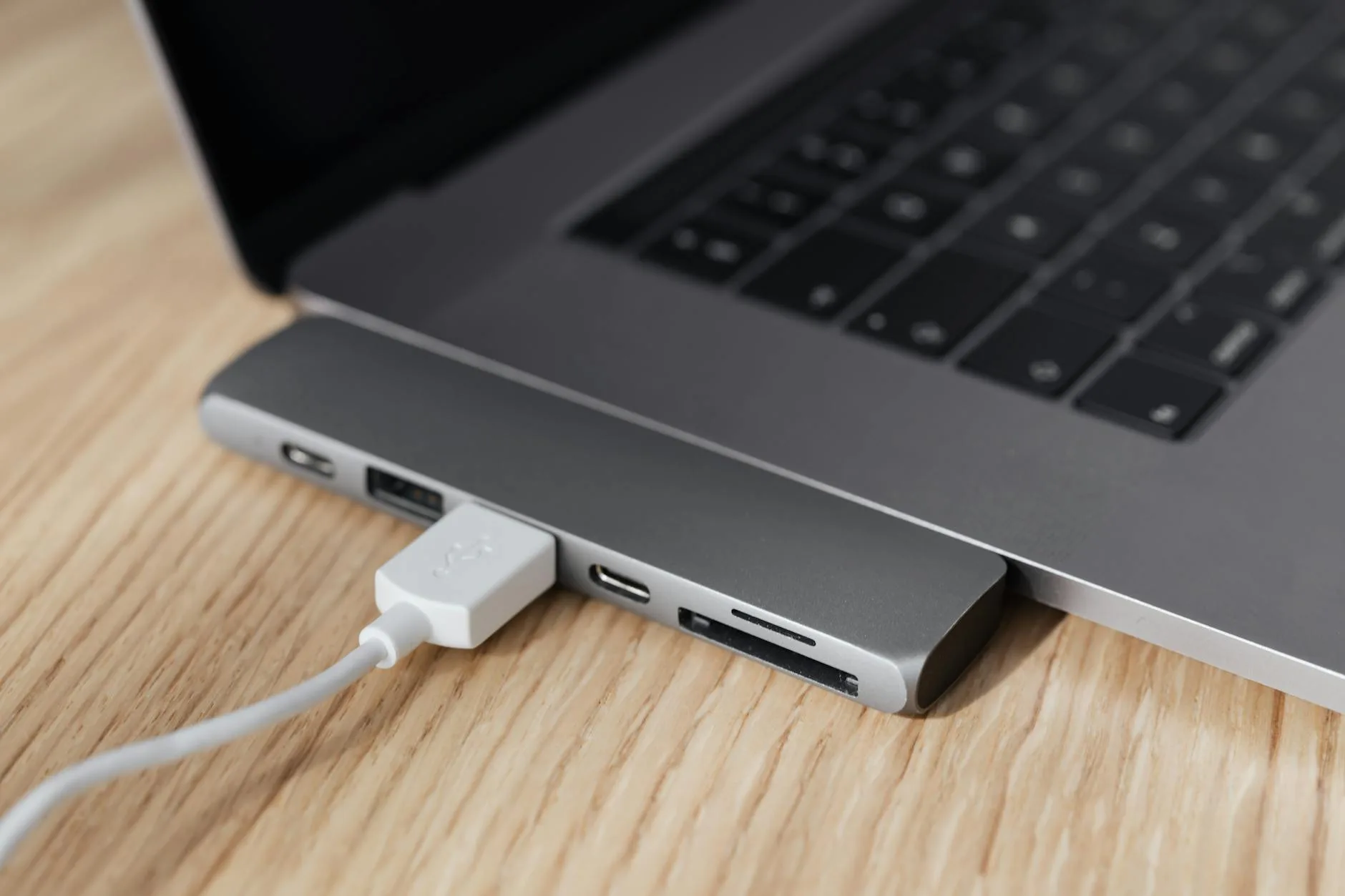
- USB-C with Power Delivery — for laptop connectivity (65W minimum to charge most work laptops)
- USB-A hub �� for peripherals (keyboard, mouse, webcam) that switch with your input source
The KVM Switch Advantage
A built-in KVM (Keyboard, Video, Mouse) switch lets you use one keyboard, mouse, and monitor with two computers. Connect your work laptop via USB-C and your gaming PC via DisplayPort. Press a button (or use a hotkey) to switch everything between them. No unplugging, no cable swapping.
The Gigabyte M27Q’s KVM is the best implementation I’ve used at this price point. It switches in under 2 seconds and carries USB peripherals with it.
Stand Requirements for All-Day Use
For a monitor you’ll use 8+ hours daily, you need:
- Height adjustment — minimum 100mm range, ideally 130mm+
- Tilt — -5° to +20° minimum
- Swivel — ±30° lets you angle the screen without moving the base
- Pivot — 90° rotation for portrait mode (useful for documents, code, or reading)
- VESA mount — 100×100mm compatibility for a monitor arm later
Settings Profiles: Switching Between Modes
Most gaming monitors let you save multiple display profiles and switch between them via the OSD (on-screen display) or a physical button.
Recommended Work Profile
- Brightness: 120-150 nits (lower than gaming — reduces eye strain for text)
- Colour temperature: 6500K (D65 standard) or enable blue light filter after 8pm
- Contrast: default or slightly reduced from maximum
- Refresh rate: leave at maximum (smooth scrolling benefits work too)
- Response time: “Normal” or “Standard” (aggressive overdrive causes inverse ghosting that’s visible on text)
Recommended Gaming Profile
- Brightness: 250-300 nits (brighter for HDR content and dark environments)
- Colour temperature: personal preference — many gamers prefer slightly warm
- Contrast: maximum or “Dynamic” mode
- Refresh rate: maximum
- Response time: “Fast” or one step below maximum (avoids inverse ghosting)
- Black equaliser: enabled for competitive FPS (brightens shadows)
Setting up both profiles takes five minutes and means you never manually adjust settings when switching between work and play.
Common Mistakes to Avoid
Buying a TN Panel
TN (Twisted Nematic) panels offer the fastest response times and cheapest prices, but the viewing angles are terrible and colours look washed out. For work, you’ll notice the colour shift every time you lean slightly. For a monitor you’ll spend 8+ hours daily looking at, TN is a false economy.
Prioritising Refresh Rate Over Resolution
A 27-inch 1080p monitor at 360Hz sounds impressive for competitive gaming, but text is fuzzy and you’ll hate working on it. For dual-purpose use, resolution matters more than extreme refresh rates. 1440p at 144-165Hz is the ideal balance.
Ignoring Flicker-Free Certification
Cheap monitors use PWM (Pulse Width Modulation) to control brightness by rapidly flickering the backlight. Over 8-hour work days, this causes headaches and eye strain in sensitive people. Ensure “DC dimming” or “Flicker-free” is specified. According to health guidance from the HSE on display screen equipment, proper display settings and flicker-free screens reduce workplace eye strain.
Skipping Calibration
Even factory-calibrated monitors benefit from basic adjustment. Use Windows Display Colour Calibration (built-in) to adjust gamma, brightness, and colour balance. Five minutes of setup makes text clearer and colours more natural for work.
Not Accounting for GPU Requirements
A gorgeous 4K 144Hz monitor is wasted if your GPU can only push 60fps at that resolution. Match your monitor to your hardware — 1440p 165Hz is achievable with an RTX 4060 or RX 7700 XT, while 4K 144Hz needs an RTX 4070 Ti or better.
Frequently Asked Questions
Is 144Hz noticeable for office work? More than you’d expect. Scrolling through documents, moving windows, and even cursor movement all feel noticeably smoother at 144Hz compared to 60Hz. Once you adjust, 60Hz feels sluggish — even in a spreadsheet. The improvement is most apparent in text scrolling and window management.
Can I use a gaming monitor vertically for work? Yes, if it has a pivot function (90° rotation). Portrait mode is excellent for reading long documents, coding, or viewing full web pages. Check that the stand supports pivot before buying — not all do. You’ll also need to enable rotation in Windows display settings.
Do curved monitors cause issues for productivity? At 27 inches, a curve is barely noticeable — flat or curved both work fine. At 32+ inches and especially ultrawides, a curve actually helps by keeping the edges at a consistent distance from your eyes, reducing eye strain. The only concern is straight-line work (architecture, graphic design) where curves can make rulers appear slightly bowed.
How much should I spend on a dual-purpose monitor? The sweet spot is £280-400 for a 27-inch 1440p 144Hz+ IPS panel with a good stand. Below £250, you start losing features that matter for daily work (USB-C, colour accuracy, ergonomic adjustment). Above £600, you’re paying for premium features most people won’t fully use.
Will a gaming monitor work with a Mac for productivity? Most modern gaming monitors work perfectly with Macs via USB-C or HDMI. However, macOS doesn’t support variable refresh rate as smoothly as Windows, and some gaming-specific features (G-Sync) won’t function. For work purposes, the panel quality, resolution, and colour accuracy all transfer perfectly to macOS.