You’ve just set up your home office — nice monitor, decent keyboard, maybe even a proper desk chair — and now you’re crawling under the desk every morning to plug in HDMI, USB, power, and ethernet cables. Four connections, every single day. By Wednesday you’re leaving half of them unplugged and wondering why you bothered buying that external monitor. A docking station fixes this in one click, but picking the wrong one means compatibility headaches, flickering displays, or ports you’ll never use. This docking station laptop guide walks you through what actually matters so you spend your money once, not twice.
Why a Docking Station Changes Your Desk Setup
The pitch is simple: one cable connects your laptop to everything. Monitor, keyboard, mouse, webcam, external drives, ethernet — all through a single USB-C or Thunderbolt connection. Unplug that one cable and you’re mobile again.
But beyond convenience, a good dock transforms a laptop into a proper desktop replacement. You get full-size monitor real estate, a mechanical keyboard if that’s your thing, and none of the compromises that come with working on a 13-inch screen all day. If you’re setting up an ergonomic home office on a budget, a dock is the piece that ties everything together — Which? recommends pairing your laptop with an external display for extended work sessions — it means your laptop can sit closed on a stand while you work on a big screen at eye level.
For anyone who hot-desks between home and an office, or moves between rooms, the single-cable promise is genuinely life-changing. No exaggeration. I spent years plugging four things in every morning before getting a dock, and the difference is immediate.
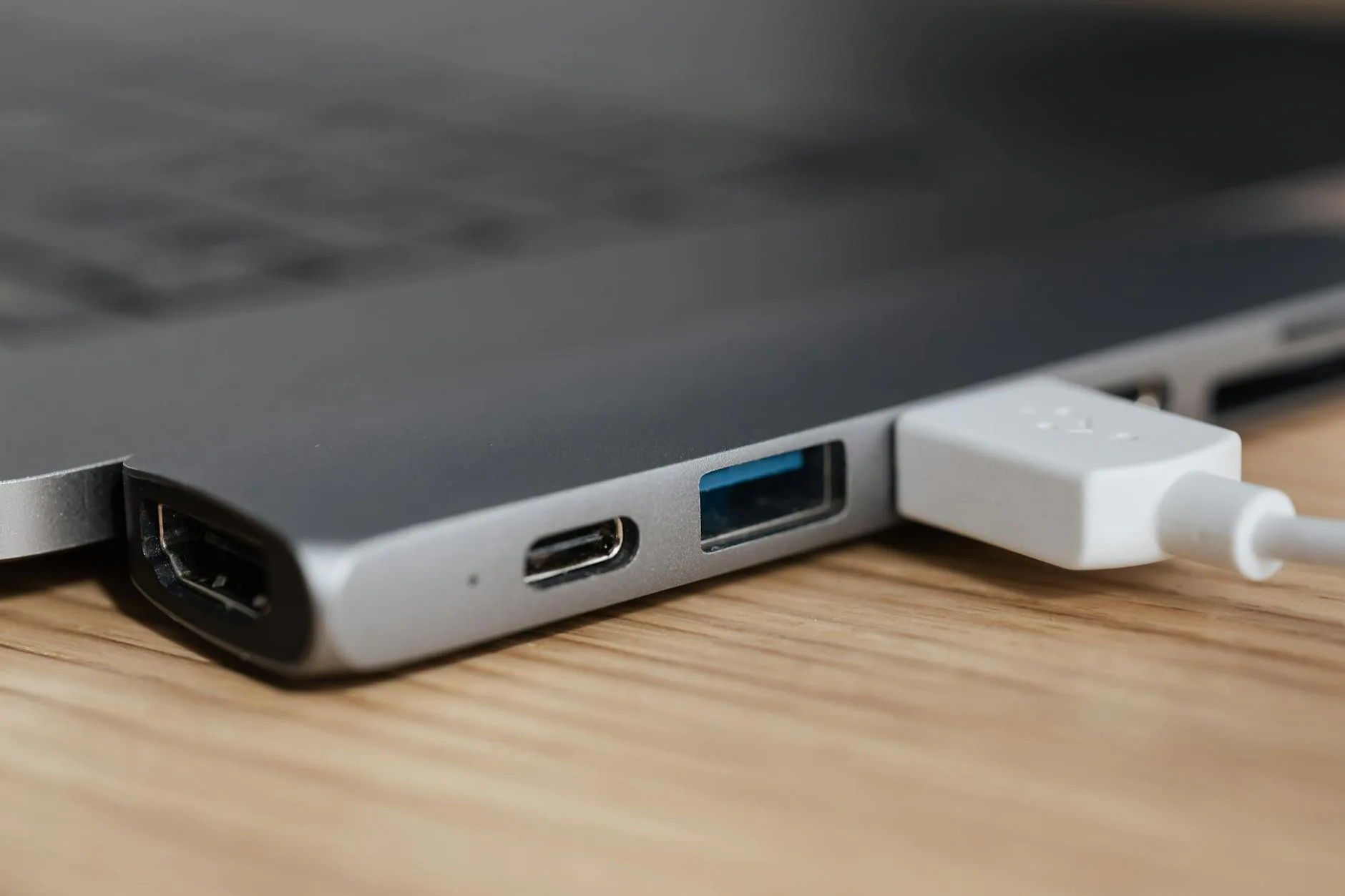
Understanding Connection Types: Thunderbolt, USB-C, and USB-A
This is where most people get confused, so let’s clear it up.
Thunderbolt 4 / Thunderbolt 3 — The gold standard. These use the USB-C shaped port but carry far more data bandwidth (40 Gbps). A Thunderbolt dock can drive two 4K monitors at 60Hz, deliver power to your laptop, and handle multiple USB peripherals without breaking a sweat. The catch: your laptop needs a Thunderbolt port, not just USB-C. Check your laptop specs — a small lightning bolt icon next to the port usually means Thunderbolt.
USB-C (non-Thunderbolt) — Most modern laptops have at least one USB-C port. USB-C docks work well for single-monitor setups and basic peripherals. USB4 ports offer Thunderbolt-like bandwidth on newer machines, but older USB-C 3.1 ports max out at 10 Gbps. A USB-C dock on a basic port will struggle with dual 4K displays.
USB-A docks — These are the older, cheaper option. They rely on DisplayLink technology to push video over a standard USB-A connection. The advantage: they work with virtually any laptop. The downside: DisplayLink uses software compression, which means slightly laggy video playback and higher CPU usage. Fine for office work, not ideal for video editing or design.
The key question: check what ports your laptop actually has before you buy anything. Open your laptop’s spec sheet or look at the manufacturer’s website. Buying a Thunderbolt dock for a laptop with only USB-C is like buying a 4K Blu-ray player for a 1080p telly — you won’t get what you paid for.
How Many Monitors Do You Need to Drive?
This is the make-or-break question for most buyers, and getting it wrong is the most common mistake.
Single monitor — Almost any dock handles this. Even a basic USB-C hub (about £30-50 from Amazon UK) can output to one 4K display at 60Hz. If you only ever need one external screen, don’t overspend on a Thunderbolt dock.
Dual monitors — This is where you need to be careful. Thunderbolt 3/4 docks handle dual 4K at 60Hz natively. USB-C docks might support dual monitors but often cap one at 30Hz (which looks noticeably choppy when scrolling). Check the specs carefully — “supports two monitors” and “supports two monitors at 60Hz” are very different claims.
Triple monitors or ultrawide — You’ll want Thunderbolt 4 or a dock with DisplayLink built in alongside native video output. Expect to pay £200+ for something reliable at this level. If you are exploring this area, our guide on Best Standing Desks 2026: UK Tested for Home Offices covers the essentials.
Apple Silicon caveat — If you have an M1 or M2 MacBook (non-Pro/Max), Apple limits native external display output to a single monitor. A Thunderbolt dock alone won’t fix this. You’ll need a DisplayLink-based dock like the Plugable UD-6950PDZ (about £150) to get around this limitation. M3 Pro, M4 Pro, and Max chips don’t have this restriction.
Power Delivery: Can Your Dock Charge Your Laptop Too?
This is one of the best reasons to go with a proper dock over a cheap hub. Many docking stations deliver power through the same cable that carries your data and video — so that’s one fewer cable on your desk.
What wattage do you need? Check your laptop’s charger. Most ultrabooks need 45-65W, gaming laptops and workstations want 90-100W+. A dock that delivers 60W to a laptop that needs 90W will work, but your battery will slowly drain during heavy use. Not ideal.
Good power delivery targets:
- Ultrabooks (Dell XPS, MacBook Air, ThinkPad X1): 65W is plenty
- Larger laptops (MacBook Pro 16″, ThinkPad P-series): Look for 90-100W
- Gaming laptops: Most need their own charger regardless — docks rarely deliver enough
Budget tip: If your laptop charges via USB-C, a dock with power delivery means you can ditch the original charger at your desk entirely. Worth the premium. If your laptop uses a proprietary barrel connector for charging, power delivery through the dock won’t help and you shouldn’t pay extra for it.
Essential Ports to Look For
Not all docks are created equal, and manufacturers love padding spec sheets with ports nobody uses. Here’s what actually matters:
- USB-A 3.0 or 3.2 ports — You still need these for mice, keyboards, webcams, and USB drives. Four is a good number; two feels tight quickly.
- USB-C port (downstream) — Useful for newer peripherals and fast phone charging.
- HDMI and/or DisplayPort — Match your monitor’s input. HDMI 2.0 or later for 4K at 60Hz. Some docks offer both HDMI and DisplayPort, which gives flexibility.
- Ethernet (RJ45) — Gigabit ethernet is a genuine upgrade over Wi-Fi for video calls and large file transfers. If you work from home, plug in.
- 3.5mm audio jack — Handy if your monitor doesn’t have speakers or you use a headset.
- SD card reader — Essential for photographers, irrelevant for everyone else. Don’t pay extra for one you’ll never use.
Ports to ignore: VGA (ancient), DVI (dying), USB 2.0 (too slow for anything useful in 2026).
Thunderbolt Docks vs USB-C Hubs: When to Spend More
Here’s the honest breakdown. The price gap between a USB-C hub and a Thunderbolt dock is significant — about £30-50 versus £150-300 — so you need to know whether the upgrade is worth it.
Buy a USB-C hub (£30-50) if you:
- Only need one external monitor
- Don’t need ethernet or lots of USB ports
- Want something portable for travel
- Have a tight budget
Buy a USB-C dock (£80-150) if you:
- Need dual monitors (check your laptop supports it)
- Want power delivery and plenty of ports
- Have a permanent desk setup
- Don’t have Thunderbolt ports
Buy a Thunderbolt dock (£150-300) if you:
- Need dual 4K monitors at 60Hz
- Do video editing, design, or other bandwidth-heavy work
- Want the fastest data transfer to external drives
- Have a Thunderbolt-equipped laptop and plan to keep your setup long-term
The best desk shelf risers can help manage the extra cables and keep your dock accessible without cluttering your workspace. You might also find our Monitor Size Guide: What Size Do You Need for Your Desk? guide useful here.
Top Docking Station Picks for 2026
Best Overall: CalDigit TS4 (about £340)
Eighteen ports, 98W power delivery, Thunderbolt 4, and rock-solid reliability. It’s expensive, but this is the dock you buy once and never think about again. Drives two 4K displays at 60Hz, has 2.5 Gigabit ethernet, and works flawlessly with both Mac and Windows. Available from Amazon UK and Apple’s online store.
Best Mid-Range: Anker 568 USB-C Docking Station (about £180)
If you don’t need Thunderbolt, this USB-C dock covers most needs. Dual HDMI, 100W power delivery, and a solid build. It handles dual 1440p or single 4K at 60Hz without issues. Good value from Amazon UK.
Best Budget: Anker 341 USB-C Hub (about £28)
Seven ports including HDMI, two USB-A, and a microSD slot. No power delivery and single-monitor only, but for under thirty quid it’s hard to argue. Perfect as a travel companion or for a simple setup. Amazon UK has it.
Best for Mac Users: OWC Thunderbolt Go Dock (about £250)
Designed with Mac compatibility in mind (though it works with Windows too). 100W power delivery, Thunderbolt 4, and it even has a carry handle for portability. Solves the M1/M2 single-monitor limitation with built-in DisplayLink support.
Best DisplayLink Option: Plugable UD-6950PDZ (about £150)
The go-to for M1/M2 MacBook users who need dual monitors, or anyone with a laptop that lacks Thunderbolt. Uses DisplayLink over USB-C to drive two 4K displays from practically any laptop. The DisplayLink software adds slight overhead, but for office work it’s barely noticeable.
Setting Up Your Docking Station Properly
Getting the most out of your dock means more than just plugging it in. A few setup tips that make a real difference:
Position the dock within reach. You’ll occasionally need to plug in a USB drive or headphone cable. Don’t hide it behind your monitor. A desk shelf riser is perfect for keeping a dock accessible on your desktop.
Update your drivers first. Thunderbolt docks especially benefit from having the latest Thunderbolt firmware and drivers installed. On Windows, check Intel’s Thunderbolt software. On Mac, make sure you’re on the latest macOS — Apple bakes Thunderbolt support into the OS. According to Which? technology reviews, this is worth keeping in mind.
Set your display arrangement. Once your monitors are connected, go to Display Settings (Windows) or System Preferences > Displays (Mac) and arrange your screens to match their physical position. This prevents the maddening experience of your mouse exiting the wrong edge of the screen.
Enable ethernet over dock. Some docks need you to manually select the wired connection. On Windows, go to Network & Internet settings and make sure the ethernet adapter from your dock is prioritised over Wi-Fi. The speed difference for video calls is worth it.
Manage power settings. If your dock charges your laptop, you might want to adjust your laptop’s battery settings. Some ThinkPads and MacBooks let you cap charging at 80% when docked to preserve battery longevity — worth enabling if your laptop stays docked most of the day.

Common Mistakes to Avoid
Buying Thunderbolt when you only have USB-C. The dock will still work as a basic USB-C dock, but you’ve paid double for features you can’t access. Check your ports first — always.
Ignoring refresh rate. A dock might claim “dual 4K support” but run one or both monitors at 30Hz. That’s really unpleasant to use daily. Always check for 60Hz support at your target resolution.
Forgetting about cable length. Most docks come with a 70cm Thunderbolt cable. If your laptop sits more than an arm’s length from where you want to place the dock, you’ll need a longer cable — and long Thunderbolt 4 cables (2m) cost £40-60 on their own. Factor that in.
Buying too many ports. A dock with 15 ports sounds impressive, but if you only use four of them, you’ve overpaid. Think about what you actually plug in before buying. Most people need: monitor, keyboard, mouse, maybe an external drive and ethernet. That’s five ports. A £30 hub handles that.
Not checking your monitor’s inputs. Your dock has DisplayPort output but your monitor only has HDMI? You’ll need an adapter, adding cost and another potential failure point. Match them up before ordering. If you’re considering upgrading your whole desk setup, check our guide on standing desk mistakes to avoid other common pitfalls.
Laptop Compatibility Quick Check
Before buying any dock, run through this quick checklist:
- What ports does your laptop have? USB-C, Thunderbolt 3, Thunderbolt 4, USB-A only?
- What’s your laptop’s power requirement? Check the wattage on your original charger.
- How many external monitors do you want? One, two, or three?
- What resolution and refresh rate? 1080p, 1440p, 4K? At 30Hz or 60Hz?
- Mac or Windows? Apple Silicon Macs have specific limitations.
- Desktop or portable use? Do you need to carry it, or will it stay on your desk?
Once you’ve answered those questions, the right dock practically chooses itself. For most people working from home with a modern USB-C laptop and one 4K monitor, a £80-120 USB-C dock with power delivery is the sweet spot. Thunderbolt is worth the premium only if you’re driving multiple high-res screens or transferring large files regularly.
Frequently Asked Questions
Can I use a Thunderbolt dock with a USB-C laptop?
Yes, but you won’t get Thunderbolt speeds or bandwidth. The dock will function as a standard USB-C dock, which means you might lose dual-monitor support or be limited to lower resolutions. It works, but you’re paying for capabilities you can’t use — a USB-C specific dock would be better value.
Do docking stations work with all laptops?
Most modern docking stations use USB-C, which is universal across Windows, Mac, and Chromebook laptops from the last few years. USB-A DisplayLink docks work with even older machines. The main compatibility issue is Thunderbolt — you need a Thunderbolt port to use Thunderbolt features. Always check your laptop’s port specifications before buying.
How much should I spend on a docking station?
For a basic single-monitor setup, £30-50 gets a reliable USB-C hub. A solid USB-C dock with power delivery and dual-monitor support runs £80-150. Thunderbolt docks with premium features cost £150-350. Spend based on what you actually need — most home office users are well served in the £80-150 range.
Can a docking station charge my laptop?
If your laptop charges via USB-C (most modern ultrabooks do), yes — look for a dock with USB-C Power Delivery rated at or above your laptop’s charger wattage. Laptops that use proprietary barrel connectors for charging won’t charge through a dock. Check your laptop’s charger brick for the wattage, and match or exceed it.
Will a cheap USB-C hub damage my laptop?
No, but poor-quality hubs can cause issues like overheating, intermittent connections, or insufficient power delivery. Stick with recognised brands — Anker, CalDigit, Plugable, OWC, Belkin — and avoid unbranded hubs from marketplace sellers. A £25 Anker hub is safer than a £10 no-name alternative.
The Bottom Line
A docking station is one of those purchases that feels boring until you have one — then you can’t imagine going back. For most people working from home with a modern laptop, the sweet spot is a USB-C dock in the £80-150 range with power delivery and at least one HDMI or DisplayPort output. If you’re driving dual 4K monitors or doing bandwidth-heavy work, step up to Thunderbolt 4 and don’t look back.
Match the dock to your laptop’s ports, check your monitor connections, and don’t overspend on ports you’ll never use. That’s the whole docking station laptop guide in a nutshell — one cable, everything connected, and no more crawling under the desk.