You’ve just unboxed your new laptop, and it’s got two USB-C ports. No HDMI. No DisplayPort. Just two identical oval sockets staring back at you. Now you’re wondering whether your existing monitor will work, whether you need a dongle, or whether it’s finally time to buy a monitor that speaks USB-C natively. You’re not alone — this is one of the most common questions in home office setups right now, and the answer is less complicated than the cable aisle at Currys would have you believe.
USB-C monitors have quietly become the smartest choice for anyone running a laptop-based desk setup in the UK. One cable handles your video signal, charges your laptop, and sometimes even connects your peripherals — all at once. That’s genuinely transformative for keeping your desk clean and your workflow fast. But not every USB-C monitor is created equal, and the spec sheets can be deliberately confusing. Here’s what actually matters.
What Makes a USB-C Monitor Different?
A USB-C monitor is any display that accepts a video signal through a USB-C port. That sounds simple enough, but the technology underneath varies wildly between models.
The key distinction is between USB-C with DisplayPort Alt Mode and USB-C with Thunderbolt. Both use the same physical connector — that reversible oval plug — but they support different capabilities:
- DisplayPort Alt Mode — the most common standard. It sends a DisplayPort video signal through the USB-C cable. Most USB-C monitors use this, and most modern laptops support it. You’ll get video output and usually USB data passthrough
- Thunderbolt 3/4 — Intel’s protocol that runs over USB-C. It supports everything DisplayPort Alt Mode does, plus faster data transfer (up to 40Gbps) and daisy-chaining multiple monitors. Thunderbolt monitors tend to cost more
- USB-C with Power Delivery (PD) — this is the charging bit. A monitor with PD can charge your laptop while displaying your screen. Power delivery ranges from 15W (barely useful) to 96W or more (enough for most laptops)
The real magic happens when you combine all three. A monitor with DisplayPort Alt Mode, USB data, and 65W+ Power Delivery means you sit down, plug in one cable, and everything just works. Your laptop charges, your screen extends, and any peripherals plugged into the monitor’s USB hub are instantly available.
How Much Power Delivery Do You Actually Need?
This is where people get caught out. Monitor manufacturers love advertising “USB-C with Power Delivery” without being specific about wattage. There’s a massive difference between 15W and 96W:
- 15W — will slow-charge a phone or tablet, but won’t keep a laptop topped up while you’re working. Essentially useless for laptop charging
- 45W — enough for ultrabooks and lightweight laptops like the Dell XPS 13 or MacBook Air. Fine if you’re doing light work, but heavy tasks might drain the battery faster than it charges
- 65W — the sweet spot for most people. Handles most 13-inch and 14-inch laptops comfortably, including MacBook Pros up to 14 inches and most Windows ultrabooks
- 90-96W — what you need for larger laptops like 16-inch MacBook Pros or workstation-class machines. Only found on premium monitors
Check your laptop’s included charger wattage before buying. If your charger is 65W, aim for a monitor that delivers at least 65W over USB-C. Anything less means your laptop will slowly lose charge during intensive work, which defeats the purpose of a single-cable setup.
USB-C vs HDMI vs DisplayPort: When Does It Matter?
Let’s be honest — HDMI and DisplayPort aren’t going anywhere soon. Most monitors still include them, and they work fine for desktop PCs with dedicated graphics cards. The advantage of USB-C is specifically for laptop users who want a clean, single-cable connection.
Here’s when USB-C really wins:
- You use a laptop as your daily driver — one cable to connect, charge, and extend your display is transformative. No more fumbling with three separate cables every morning
- You hot-desk or move between locations — plugging in one cable versus three makes a real difference when you’re setting up and packing down regularly
- You want a clean desk — fewer cables means less cable management. Combined with a good desk shelf riser, your workspace stays tidy
- You share a monitor between devices — USB-C is universal enough that your work laptop, personal laptop, and even some tablets can all use the same monitor
When HDMI or DisplayPort is still the better choice:
- Desktop PCs — most desktops have HDMI and DisplayPort outputs directly from the GPU. USB-C from a desktop requires specific motherboard or GPU support
- High refresh rate gaming — DisplayPort 2.1 currently supports higher refresh rates than most USB-C implementations. Competitive gamers should still use DisplayPort
- Budget setups — USB-C monitors carry a premium. If you don’t need single-cable convenience, you can get a better panel for less money with HDMI
What Resolution and Size Should You Choose?
Resolution matters more than screen size for productivity, and USB-C doesn’t change the fundamentals here. But since USB-C monitors tend to be aimed at productivity users, here are the practical recommendations:
- 27-inch 4K (3840 × 2160) — the current gold standard for desk work. Text is razor-sharp, you can comfortably fit two documents side by side, and 27 inches is big enough to work on without being overwhelming. Expect to pay £350-600 for a good USB-C 4K monitor
- 27-inch 1440p (2560 × 1440) — the best value option. Noticeably sharper than 1080p, with plenty of screen space. Around £250-400 with USB-C. This is what I’d recommend if you’re on a budget
- 32-inch 4K — brilliant if you have the desk depth (at least 70cm). The extra size means you can work without scaling up text. £400-700 range
- 34-inch ultrawide (3440 × 1440) — great for multitaskers who need three windows visible simultaneously. Check your laptop can drive this resolution over USB-C before buying
One thing to watch: some USB-C connections are limited to 4K at 30Hz rather than 60Hz. At 30Hz, cursor movement feels sluggish and scrolling looks choppy. Always confirm the monitor supports 4K at 60Hz over USB-C before purchasing. This information is usually buried in the spec sheet under “USB-C input maximum resolution.” If you are exploring this area, our guide on Best Monitors for Home Office Work in 2026 covers the essentials.

USB-C Monitor Recommendations for UK Buyers
If you’re shopping now, these are the options worth considering across different budgets:
Budget (£250-350): The Dell P2723QE offers a solid 27-inch 4K panel with 90W Power Delivery and an integrated USB hub. It’s not the prettiest monitor, but the connectivity is excellent for the price. Available from Dell’s UK store and Amazon UK. The LG 27UP850N-W is another strong option in this range with 96W PD.
Mid-range (£350-550): The Dell U2723QE is a step up — an IPS Black panel with deeper contrast, 90W PD, and USB-C daisy-chaining support. If you want accurate colours for design work alongside solid connectivity, this is the one to buy. John Lewis and Currys both stock it.
Premium (£550-900): The LG 27UK850-W (or its newer successors) and the BenQ PD2725U offer exceptional colour accuracy alongside USB-C connectivity. For creative professionals who need DCI-P3 colour coverage and hardware calibration support, these justify the premium.
Ultrawide option: The Dell U3423WE gives you a 34-inch curved ultrawide with 65W PD. It’s brilliant for productivity — effectively replacing two monitors with one screen. Around £600-700 from Amazon UK or Dell direct. You might also find our Best Gaming Monitors That Double for Work guide useful here.
The USB-C Hub Built Into Your Monitor
One of the most underrated features of USB-C monitors is the integrated USB hub. Most models include two to four USB-A ports on the back or side of the monitor. When you connect your laptop via USB-C, these ports become active — your keyboard, mouse, webcam, and external drives all connect through the monitor.
This effectively turns your monitor into a docking station. The practical benefit is enormous: you plug one cable into your laptop, and everything connects simultaneously. When you leave, you unplug one cable. No separate dock to buy, no extra power brick, no additional desk clutter.
The catch is that monitor USB hubs typically run at USB 3.0 speeds (5Gbps), which is fine for peripherals but slower than Thunderbolt docks for large file transfers. If you’re regularly moving 50GB video files from an external SSD, a dedicated Thunderbolt dock will be faster. For everything else — keyboards, mice, webcams, headsets, phone charging — the monitor hub is more than adequate.
Cables Matter More Than You Think
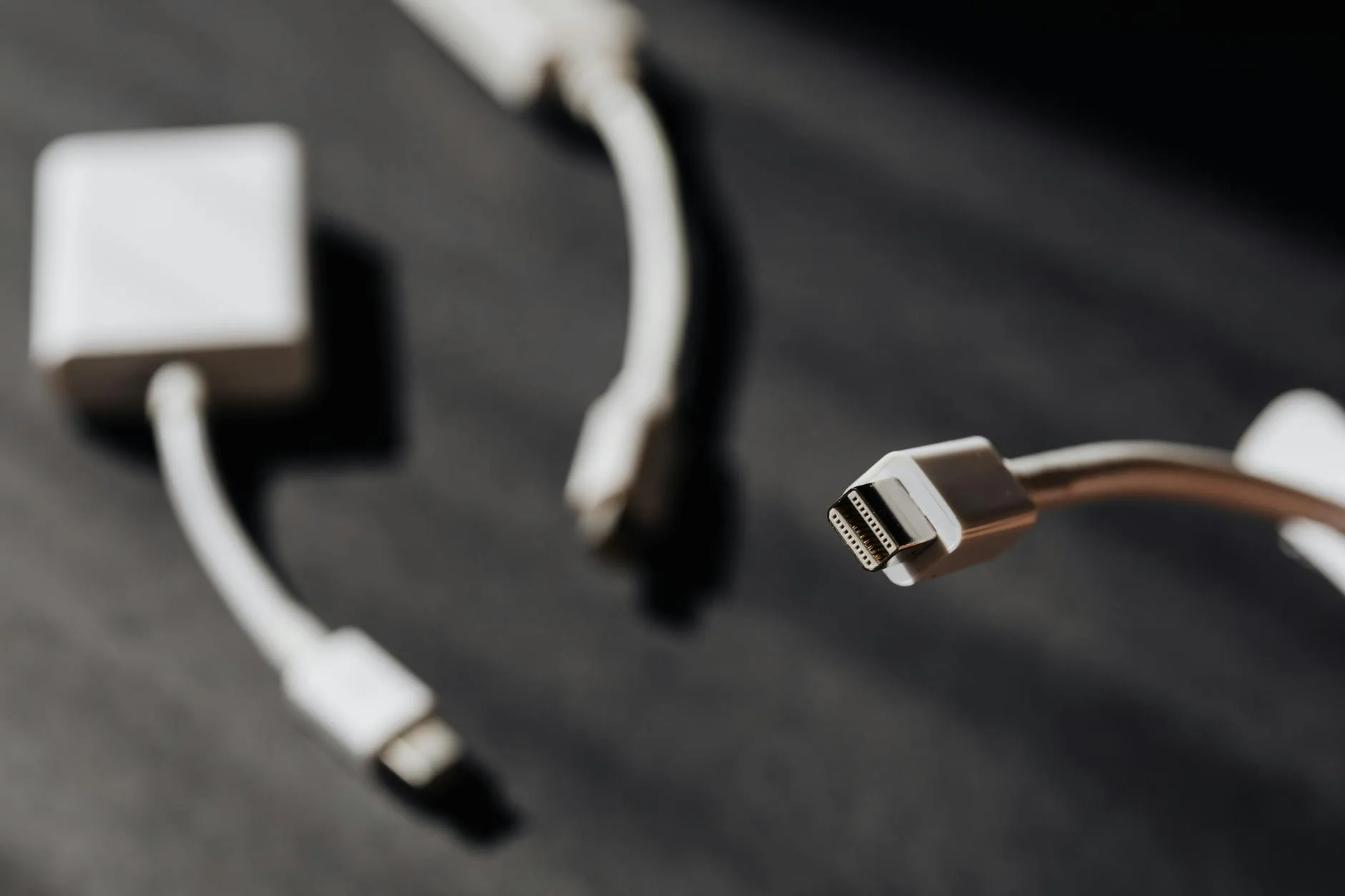
You’d assume any USB-C cable would work with a USB-C monitor. You’d be wrong. USB-C cables vary enormously in capability, and using the wrong one is the single most common reason people think their USB-C monitor isn’t working properly.
Here’s what to look for:
- USB-C to USB-C with video support — the cable must support DisplayPort Alt Mode. Not all USB-C cables do. Charging-only cables won’t carry a video signal
- Cable length — USB-C video signals degrade over distance. Stick to 2 metres or less for reliable 4K 60Hz. If you need longer, look for active cables (around £25-40)
- Thunderbolt cables — if your monitor and laptop both support Thunderbolt, use a Thunderbolt-certified cable for the full bandwidth. These are backwards compatible with DisplayPort Alt Mode
- The cable included with the monitor — always try this first. Monitor manufacturers include a cable they’ve verified works with their display. It’s usually the right spec
A good USB-C cable with video support costs about £10-20 from Amazon UK. The Anker PowerLine III and Cable Matters USB-C cables are reliable choices. Avoid the cheapest cables — they’re often charging-only and won’t carry video. According to Moorfields digital eye strain guidance, this is worth keeping in mind.
Common USB-C Monitor Problems (and Fixes)
Even when everything should work, USB-C monitors can be frustrating to set up. Here are the issues people hit most often:
“My laptop charges but no picture appears” — your cable probably doesn’t support DisplayPort Alt Mode. Try the cable that came with the monitor, or buy a verified video-capable USB-C cable.
“The picture works but my laptop isn’t charging” — the monitor’s Power Delivery wattage might be too low, or your laptop might not support charging over the same USB-C port that handles video. Check your laptop’s documentation for which ports support PD charging.
“4K looks fine but everything is tiny” — you need to adjust display scaling. On Windows, go to Settings → Display → Scale, and set it to 150% or 175%. On macOS, the “Default for display” option usually handles this automatically.
“The monitor flickers or drops signal” — typically a cable issue. Replace the cable with a shorter, certified one. Also check that your laptop’s USB-C port supports the resolution you’re trying to run. According to HSE display screen equipment guidelines, this is worth keeping in mind.
“My USB hub peripherals disconnect randomly” — this can happen when the laptop draws more power than the monitor can supply. Some monitors prioritise video and power delivery over USB data when under load. Connecting power-hungry devices like external hard drives directly to your laptop rather than through the monitor hub usually fixes this.
If you’re setting up a new monitor and experiencing issues, the troubleshooting order is always: try the included cable first, check your laptop’s USB-C port capabilities, then adjust display settings. Nine times out of ten, it’s a cable problem.
KVM Switch Feature: One Monitor, Two Computers
Some USB-C monitors include a KVM (Keyboard, Video, Mouse) switch. This lets you connect two computers to one monitor and switch between them with a button press. Your keyboard and mouse, connected to the monitor’s USB hub, automatically follow to whichever computer is active.
This is particularly useful if you have a work laptop and a personal laptop. Instead of two separate desk setups — or constantly unplugging and reconnecting — you press a button and switch. The Dell U-series monitors and LG’s UltraFine range both offer built-in KVM switching.
If your monitor doesn’t have KVM built in, dedicated USB-C KVM switches are available from about £40-80. They’re worth considering if you regularly switch between machines and want to keep your ergonomic desk setup consistent across both.
Is a USB-C Monitor Worth the Extra Cost?
A USB-C monitor typically costs £50-150 more than an equivalent HDMI-only model. Whether that premium is worth it depends entirely on how you work:
Worth it if:
- You use a laptop as your primary computer
- You value a clean desk with minimal cables
- You want to avoid buying a separate docking station (which costs £100-250 anyway)
- You switch between multiple devices regularly
Not worth it if:
- You use a desktop PC with HDMI/DisplayPort outputs
- You’re on a tight budget and need the best panel quality per pound
- Your laptop doesn’t support video over USB-C (check your specs)
For most laptop-based home workers in the UK, a USB-C monitor with 65W+ Power Delivery pays for itself by eliminating the need for a separate dock. You get a cleaner desk, a faster setup routine, and fewer cables to manage. That’s worth the premium for anyone who sits down at their desk every day.
Frequently Asked Questions
Can I use a USB-C monitor with any laptop? Not necessarily. Your laptop’s USB-C port must support DisplayPort Alt Mode for video output. Most laptops from 2020 onwards do, but check your manufacturer’s specifications. Some budget laptops only support USB-C for charging and data, not video.
Will a USB-C monitor charge my laptop while I work? Only if the monitor supports USB Power Delivery and provides enough wattage for your laptop. Look for monitors offering at least 65W PD. If the monitor’s PD wattage is lower than your laptop’s charger, it may charge slowly or not keep up during heavy use.
Do I need a special USB-C cable for video? Yes. Not all USB-C cables support video signals. You need a cable that supports DisplayPort Alt Mode. The cable included with your monitor is usually the right one. If buying separately, look for cables explicitly rated for video or Thunderbolt-certified cables.
Can I daisy-chain USB-C monitors? Some monitors support daisy-chaining through Thunderbolt or DisplayPort MST (Multi-Stream Transport). This lets you connect one cable from your laptop to the first monitor, then a second cable from the first monitor to the second. Not all monitors support this — check the specifications before buying with this in mind.
Is USB-C the same as Thunderbolt? No, but they use the same physical connector. Thunderbolt 3 and 4 are Intel protocols that run over USB-C, offering faster data transfer and additional features like daisy-chaining. All Thunderbolt ports support USB-C, but not all USB-C ports support Thunderbolt.