If your neck hurts by lunchtime, the monitor is rarely the only problem. It is usually the part of the desk setup that exposes everything else: a chair that is too low, a laptop used as a main screen, documents lying flat, tiny text, glare from a window, or a second screen that keeps pulling your head to one side. The right monitor position can reduce neck pain, but only if the screen works with the rest of the desk rather than pretending height alone fixes it.
In This Article
- First Check Whether the Monitor Is Really the Cause
- Set Monitor Position for Neck Pain, Not for a Perfect Photo
- Fix the Chair and Desk Before Blaming the Screen
- Stop Laptop Work From Dragging Your Head Down
- Arrange Dual Monitors With One Main Screen
- Deal With Glasses, Varifocals and Small Text
- Keep Documents, Calls and Keyboards From Twisting You
- Use Breaks and Micro-Adjustments Properly
- What to Buy If Your Current Setup Cannot Adjust Enough
- Frequently Asked Questions
First Check Whether the Monitor Is Really the Cause
Start with the ache pattern. Monitor-related neck pain usually builds slowly during screen work, sits around the base of the skull, upper traps or one side of the neck, and eases when you stop looking at the screen. If the pain is sharp, follows an injury, travels down your arm, comes with weakness or does not settle, treat that as a health issue first rather than a desk tweak.
The NHS guidance on neck pain is useful here because it separates normal stiffness from symptoms that need medical advice. Desk setup can reduce avoidable strain, but it is not a substitute for getting persistent or worrying symptoms checked.
The two-minute neck test
Sit down as you normally work. Do not pose. Open the documents, browser tabs and apps you use on a normal day, then notice what your head does without forcing it:
- Chin forward: the screen is probably too far away, text is too small, or you are peering through glare.
- Head tipped down: the monitor or laptop screen is too low, or you are reading papers flat on the desk.
- Head tipped back: the screen is too high, often because a riser has been added without checking eye line.
- One-sided ache: the main screen, laptop, notes or video-call window is off to one side for too long.
- Shoulders lifted: the keyboard, mouse or armrest setup is making your upper body brace while you look at the screen.
That last point matters. A monitor can be at the textbook height and still leave you sore if your arms are reaching, your mouse is miles away, or your chair leaves your feet dangling.
Set Monitor Position for Neck Pain, Not for a Perfect Photo
The usual advice is to put the top of the screen roughly at or just below eye level. That is still a sensible starting point, but neck-pain setups need a bit more judgement. The goal is not to copy a diagram. It is to keep your head balanced over your shoulders while you read the part of the screen you use most.
For a normal 24in to 27in monitor, sit back in your chair, look straight ahead, and aim for your eyes to land near the top third of the display. If you use a very large monitor, the top edge may need to sit slightly lower so you are not looking up at menus all day. If you mainly work in spreadsheets or code with content lower on the screen, test the working area rather than the bezel.
For the exact height method, use the older monitor height ergonomics guide. This article is about the wider neck-pain setup, so do not spend an hour adjusting by millimetres while ignoring distance, angle and daily habits.
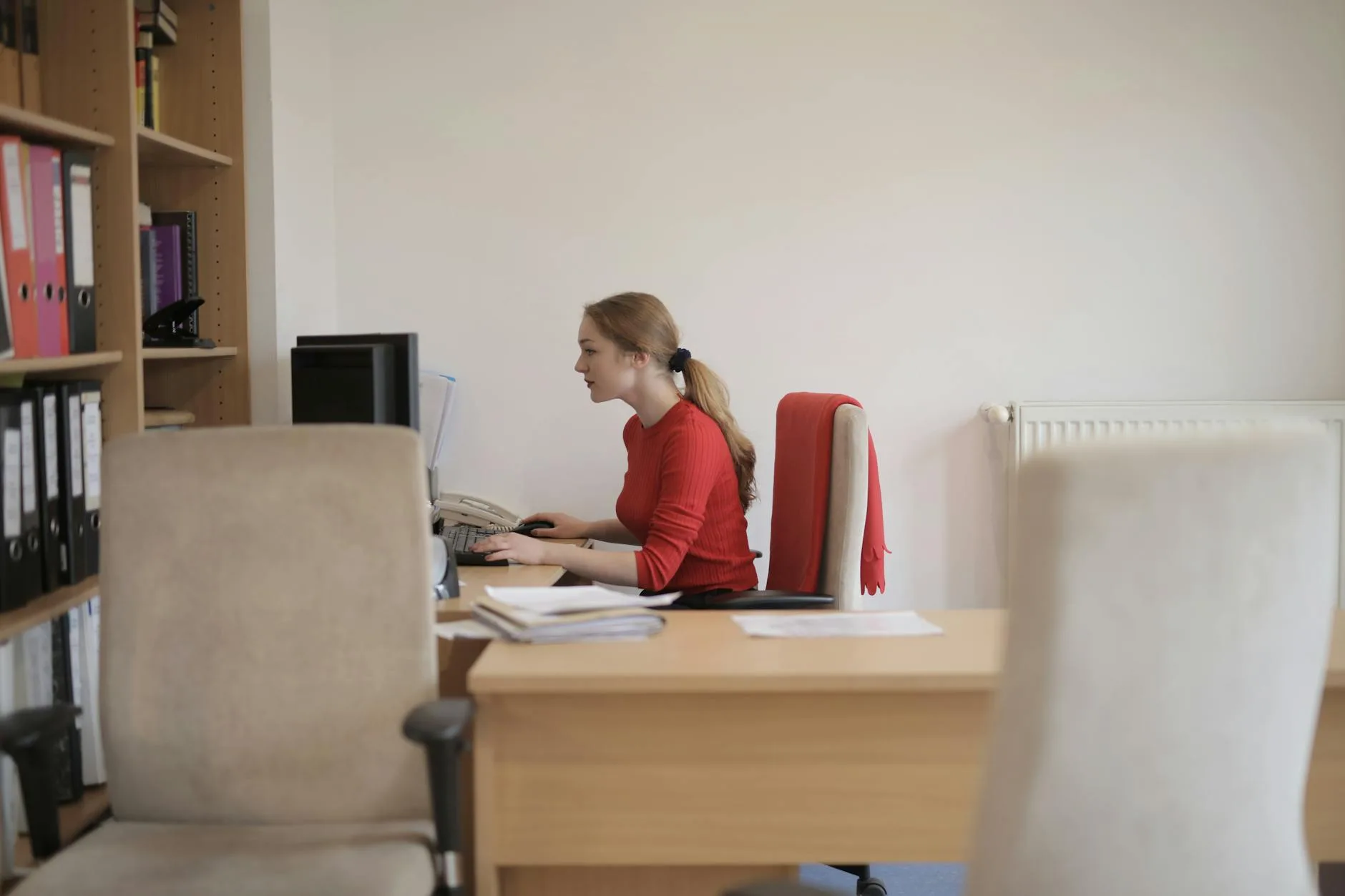
Distance and angle beat tiny height changes
A monitor that is too far away makes you poke your chin forward. A monitor that is too close makes your eyes and neck work harder because the screen fills too much of your visual field. Most people land somewhere around an arm’s length away, then adjust from there based on screen size and text size.
Tilt the screen back slightly only if it helps you see the full display without dropping your chin. Do not angle it so far that ceiling lights reflect straight into your eyes. If you are constantly ducking, squinting or leaning, the angle is wrong even if the height looks tidy.
Fix the Chair and Desk Before Blaming the Screen
Neck position starts lower down. If your chair is too low, your shoulders lift towards the keyboard and your head tends to creep forward. If the chair is too high and your feet are unsupported, you slide forward and lose back support. Both positions make the monitor feel wrong because your body is fighting the desk.
A quick order of operations works better than endless fiddling:
- Set the chair height first. Forearms should sit roughly level with the desk when typing, shoulders relaxed.
- Support your feet. If they do not sit flat, use a footrest, a sturdy box or a low step until you can buy something better.
- Move the keyboard and mouse close. Reaching forward pulls the shoulders and neck with it.
- Then position the monitor. Now you are adjusting the screen around a stable posture, not compensating for a poor one.
The HSE good posture advice for display screen equipment takes this same whole-workstation approach. It is not glamorous, but it is right: screen comfort depends on chair, desk, input devices and lighting as much as the monitor itself.
If your chair is the weak point, the desk chairs under £500 guide is a better next read than buying another monitor stand. If your feet do not reach the floor, start with footrests for better desk posture. Small fixes can do more for neck pain than a premium arm on a poor chair.
Stop Laptop Work From Dragging Your Head Down
Laptops are the most common neck-pain trap in home offices because the screen and keyboard are joined together. If the keyboard is at a comfortable typing height, the screen is too low. If the screen is raised to a good viewing height, the keyboard is too high. You cannot solve that with willpower.
The practical fix is boring and effective: raise the laptop or use an external monitor, then add a separate keyboard and mouse. A basic laptop stand from Amazon UK or Currys is often £20-£35. A separate keyboard and mouse can be another £25-£60. That is not a fancy setup; it is the minimum kit that lets your head and arms work in sensible places at the same time.
When to use a docking station
If you plug in power, monitor, keyboard, mouse, webcam and headphones every morning, a docking station is worth considering. The docking station guide covers the buying detail, but for neck pain the value is simple: your laptop can stay in one raised position instead of being dragged around by cables and convenience.
For a cheap temporary fix, use a stack of books to raise the laptop screen and plug in any spare keyboard. It will not win design awards. Your neck will not care.
Arrange Dual Monitors With One Main Screen
Dual monitors cause neck pain when both screens are treated as equal but your work is not. If you spend 80% of the day in one app, that screen belongs directly in front of you. The second screen should sit to the side at a shallow angle, close enough that you can glance across without turning your whole upper body.
If you genuinely split time evenly between two monitors, place the join between them roughly in front of your nose and angle both screens in slightly. Most people do not work like that, though. They have one main screen and one reference screen, but set both up as a symmetrical showroom pair. It looks neat and feels awful by 3pm.
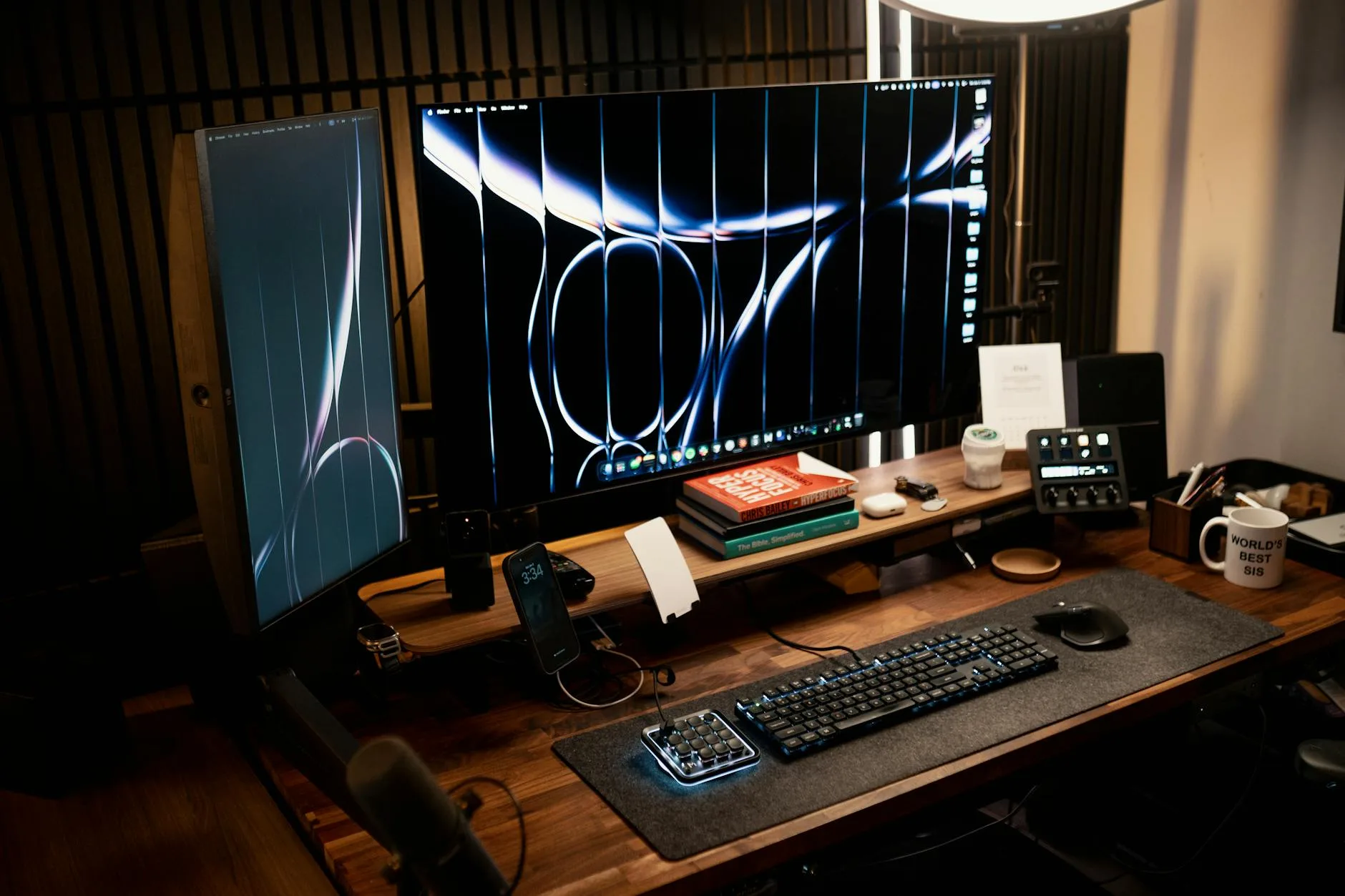
Wide monitors and curved screens
Ultrawide and curved screens can help because they reduce the hard jump between two separate displays, but they can also encourage you to park important windows at the far edges. Keep the main working area central. Use the sides for reference, chat, music or dashboards, not the document you stare at for hours.
If you are choosing between screen shapes, the curved vs flat monitors comparison is worth reading before spending money. For neck comfort, layout discipline matters more than buying the fashionable panel.
Deal With Glasses, Varifocals and Small Text
If you wear varifocals, the standard “top of screen at eye level” advice can backfire. Many varifocal users tip their head back to see through the right part of the lens, especially when the screen is too high. That creates a different neck strain pattern: less chin poke, more head tilt.
Lower the monitor slightly and increase text size before assuming your posture is the problem. In Windows and macOS, a small scaling change often makes more difference than a new chair. Browser zoom at 110% or 125% is not cheating. Neither is increasing font size in Word, Google Docs, Gmail or your code editor.
Do the same if you are leaning forward to read. Moving the monitor closer is not always the answer; sometimes the text is simply too small for long sessions. The screen settings and eye strain guide covers brightness, contrast and scaling in more detail.
Keep Documents, Calls and Keyboards From Twisting You
Monitor position often gets blamed for neck pain caused by everything around the monitor. A notebook flat on the left of the desk, a laptop screen used for Teams on the right, a phone tucked under your ear, or a keyboard pushed back behind a mug can all pull you out of line.
If you copy from paper, use a document holder and place it between keyboard and monitor or beside the main screen at a similar height. The document holder guide covers the options, but even a cheap upright stand can stop hundreds of small head dips each day.
For calls, put the video window on the main monitor when you are actively speaking. Leaving it on a laptop off to the side creates a subtle twist that gets worse over long meetings. If you use a webcam, mount it near the screen you actually look at, not wherever the cable happens to reach.
Keyboard and mouse position matters too. If your mouse is outside shoulder width, your arm reaches and your neck follows. If your keyboard is too far away, you round forward. Keep both close enough that your upper arms can stay relaxed by your sides.
Use Breaks and Micro-Adjustments Properly
A perfect static posture is still static. Neck pain is often about staying in one position for too long, even a decent one. The aim is not to sit like a statue; it is to make your default position less stressful and then move before stiffness builds.
Use small reset points during the day:
- Between calls: stand up, look away from the screen and let your shoulders drop.
- When switching tasks: move the main window back to the central screen instead of chasing it sideways.
- After lunch: recheck chair height and monitor distance, especially if someone else uses the desk.
- When reading long documents: increase zoom and bring the window central rather than leaning in.
If you use a sit-stand desk, save separate sitting and standing monitor positions if your arm allows it. Standing often changes eye line, keyboard height and distance. The standing desk mistakes guide explains why just lifting the desk is not enough.
What to Buy If Your Current Setup Cannot Adjust Enough
Buy the cheapest thing that solves the actual adjustment problem. Do not start with a premium monitor arm because ergonomic gear feels productive. Start with the failure point.
Budget fixes under £40
A simple monitor riser from IKEA, Amazon UK or Argos can work if the screen is too low and you do not need much depth adjustment. A laptop stand plus separate keyboard is usually the best budget fix for laptop neck pain. A basic document holder is the cheapest fix if you spend the day copying notes, invoices or printed briefs.
Mid-range fixes from £40 to £120
A gas-spring monitor arm is the sweet spot for many home offices because it gives height, distance and angle adjustment in one go. Look for VESA compatibility, enough weight capacity for your screen, and a clamp that suits your desk thickness. If you rent or use a fragile desk, check the clamp before ordering.
For most people, a decent single arm from Amazon UK, Currys or a specialist office supplier beats a decorative riser because it lets you bring the screen closer without losing desk space. If your current screen has no VESA mount and a poor stand, that is a strong argument for upgrading the monitor next time.
Premium fixes worth it only for specific setups
Premium arms, ultrawide monitors and full sit-stand desks can be worth it if you work from the same desk all week. They are not magic. A £250 arm used badly is worse than a £25 riser used well. Spend more only when you know the missing adjustment: height range, depth, dual-screen alignment, standing support or cable stability.
My default order would be: separate keyboard and mouse for laptop users, then a stand or arm that gets the main screen central and adjustable, then chair/foot support if your lower body is causing the upper-body strain. That is less exciting than buying a bigger monitor. It is more likely to fix the ache.
Frequently Asked Questions
What is the best monitor position for neck pain? Put the main screen directly in front of you, roughly an arm’s length away, with your eyes landing near the top third of the display. Then adjust for your actual work, glasses and screen size.
Should my monitor be higher or lower if my neck hurts? It depends on the ache pattern. Chin-forward strain often means the screen is too low, too far away or hard to read. Head-tilting strain can mean the screen is too high, especially with varifocals.
Can a monitor arm help with neck pain? Yes, if the current stand cannot set the screen at the right height, distance and angle. A monitor arm will not help much if the real issue is chair height, laptop use or tiny text.
Is a laptop stand enough to stop neck pain? Only if you also use a separate keyboard and mouse. Raising a laptop while still typing on it usually moves the strain from your neck to your arms and shoulders.
Are dual monitors bad for neck pain? Not automatically. They become a problem when the screen you use most is off to one side. Keep the main screen central and use the second monitor for reference work.
When should I see someone about desk-related neck pain? Get medical advice if pain is severe, follows an injury, travels down your arm, causes weakness or numbness, or does not improve. Desk changes can reduce strain, but they do not diagnose medical problems.