You’ve been at your desk for three hours and your neck is killing you. You tilt your head back, hear something click, and think — for the fourth time this week — that maybe your monitor is in the wrong place. It probably is. Most people set their screen wherever it lands when they unbox it, and then spend years craning up or hunching down without realising that a five-minute adjustment could fix the whole problem.
In This Article
- Why Monitor Height Matters More Than You Think
- The Ideal Monitor Position: A Simple Rule
- How to Measure and Set Your Monitor Height
- Monitor Arms vs Stands vs Risers
- Setting Up a Dual Monitor Layout
- Laptop Users: Why You Need a Separate Screen or Stand
- Distance and Tilt: The Other Half of the Equation
- Common Mistakes and How to Spot Them
- Standing Desk Adjustments
- Frequently Asked Questions
Why Monitor Height Matters More Than You Think
Neck pain, shoulder tension, headaches, and eye strain are the four horsemen of bad monitor ergonomics. The Health and Safety Executive’s display screen equipment guidance specifically flags incorrect monitor height as one of the most common causes of musculoskeletal problems for office workers in the UK.
The Cascade Effect
When your screen is too low, you tilt your head forward. That puts roughly 12kg of force through your cervical spine — nearly triple the load of a neutral head position. Over weeks and months, that strain shows up as:
- Chronic neck stiffness — worse in the afternoon, eases over the weekend
- Tension headaches — starting at the base of your skull and creeping forward
- Rounded shoulders — your upper back curves to match the forward head position
- Eye strain — you’re looking down through the wrong part of your glasses (if you wear them)
I spent about eighteen months with my monitor sitting on the stock stand before I bothered to measure it. Once I raised it by 8cm using a simple riser, the afternoon headaches I’d blamed on screen time disappeared within a week. Sometimes the fix really is that simple.
It’s Not Just Comfort — It’s Productivity
Studies consistently show that discomfort reduces focus. If you’re shifting position every few minutes because your neck aches, you’re not doing deep work. Getting your monitor height right is one of those rare adjustments that costs almost nothing but pays off every single day you sit at your desk.
The Ideal Monitor Position: A Simple Rule
The most widely recommended guideline — backed by the HSE and most occupational health professionals — is simple: the top edge of your screen should be at or just below eye level.
What This Looks Like in Practice
Sit in your normal working posture. Look straight ahead at the wall behind your monitor. Your natural eye line — where your eyes point without tilting your head — should land somewhere between the top of the screen and about a third of the way down.
- Too low: you look down more than 15 degrees. Your chin drops, your neck flexes forward
- Too high: you tilt your head back. Your neck extends, your eyes dry out faster
- Just right: slight downward gaze of about 10-15 degrees. Head stays neutral, shoulders relaxed
The Exception: Bifocal and Varifocal Wearers
If you wear bifocals or varifocals, the standard rule changes. You naturally look through the lower portion of your lenses for close work, which means you’ll tilt your head back if the screen is at standard height. Lower the monitor by 5-10cm so you can read through the correct lens zone without craning your neck. Some people find a dedicated pair of computer glasses (single-vision, set for screen distance) solves the problem entirely.
How to Measure and Set Your Monitor Height
You don’t need fancy equipment for this. A tape measure, a friend (or your phone camera on a timer), and five minutes.
Step-by-Step Setup
- Sit in your chair with your feet flat on the floor and your back against the backrest
- Adjust your chair so your thighs are roughly parallel to the floor and your elbows bend at about 90 degrees when typing
- Look straight ahead — don’t tilt your head up or down
- Have someone mark the wall or hold a ruler at your eye level
- Measure from the desk surface to that mark
- Adjust your monitor so the top edge of the screen sits at that height
Quick Reference Heights
For most people between 165cm and 185cm tall, the top of a 27-inch monitor should sit between 45cm and 55cm above the desk surface. That’s the top edge, not the centre.
- 24-inch monitor: top edge around 40-50cm above desk
- 27-inch monitor: top edge around 45-55cm above desk
- 32-inch monitor: top edge around 50-60cm above desk
- Ultrawide (34-inch): same height rules apply — align the top edge, not the middle
If your monitor’s built-in stand doesn’t reach the right height, you need a riser, a stack of books (temporary fix), or a proper monitor arm. We’ve reviewed desk shelf risers in detail if you want the full breakdown. If you are exploring this area, our guide on Monitor Size Guide: What Size Do You Need for Your Desk? covers the essentials.
Monitor Arms vs Stands vs Risers
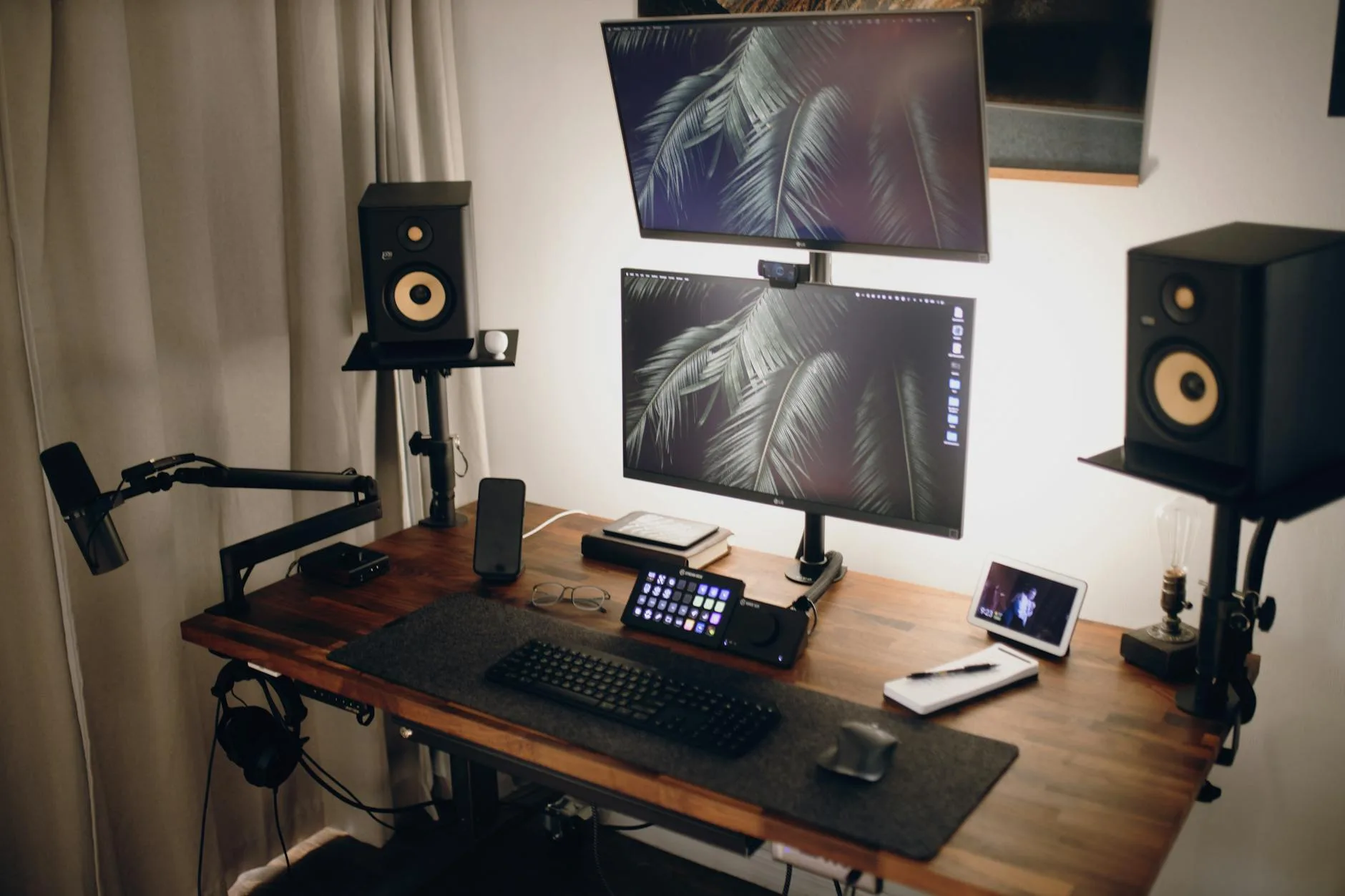
There are three main ways to get your screen where it needs to be: the stand it came with, a separate riser, or a monitor arm.
Stock Stands
Most monitors ship with a stand that offers tilt adjustment and maybe 5-10cm of height adjustment. For a lot of people, this is enough — especially with a 27-inch panel on a standard 72cm desk. The problem comes when you’re taller than average, use a smaller monitor, or have a sit-stand desk where your position changes throughout the day.
Monitor Risers and Shelf Stands
A simple riser — a shelf that sits on your desk and lifts the monitor — costs about £15-40 from Amazon UK or Argos. They’re sturdy, don’t need tools, and often add useful storage underneath for your keyboard or stationery.
- Best for: people who need a fixed 5-15cm height boost
- Downsides: no fine adjustment, takes up desk space, not ideal for standing desks
Monitor Arms (The Best Option for Most People)
A clamp-on monitor arm gives you full control: up, down, forward, back, tilt, swivel, rotation. Good ones cost £30-100 for a single arm, £50-150 for a dual arm. The desk clamp means no drilling.
- Best for: anyone who adjusts position throughout the day, standing desk users, dual monitor setups, people who want desk space back
- Brands to look at: Ergotron (premium, about £100-180), AmazonBasics (solid budget option, about £30), HUANUO (good mid-range, about £40-60)
- Weight check: make sure the arm supports your monitor’s weight. A 27-inch panel typically weighs 4-6kg; most arms handle up to 8kg
After switching to a monitor arm, the first thing I noticed wasn’t the ergonomics — it was how much desk space I got back. The entire area where the stand used to sit became usable. That alone was worth the £40.
Setting Up a Dual Monitor Layout
Dual monitors introduce a second problem: where do you look most of the time?
Primary Monitor Front and Centre
If you use one screen 70%+ of the time (your main work — email, documents, code), put that one directly in front of you at the correct height. The secondary screen goes to one side, angled inward at about 15-20 degrees.
Equal Split
If you genuinely split time 50/50 between both screens, position them symmetrically — each angled inward so the inner bezels meet directly in front of your nose. This avoids permanently turning your head to one side.
Height Matching
Both monitors should have their top edges at the same height. Mismatched heights mean you’re constantly adjusting your neck angle as you glance between screens. If your monitors are different sizes, use arms or risers to align the top edges rather than the centres.
The Mistake Most People Make
Pushing both monitors too far apart. You end up turning your whole head to see the edges of each screen. Keep the gap between screens as small as possible — ideally just the bezel width. If your monitors have thick bezels, consider upgrading to thin-bezel panels.
For more on optimising your full desk layout, our guide to setting up an ergonomic home office on a budget covers the complete picture from chair to lighting.
Laptop Users: Why You Need a Separate Screen or Stand
Using a laptop flat on a desk is an ergonomic disaster. The screen is too low, so your head drops forward. The keyboard is attached to the screen, so you can’t fix one without breaking the other.
Option 1: Laptop Stand + External Keyboard
A laptop stand raises your screen to near-eye level. Pair it with an external keyboard and mouse, and you’ve got a proper ergonomic setup for about £30-50 total.
- Stands worth looking at: Twelve South Curve (aluminium, sturdy, about £50), AmazonBasics ventilated stand (budget, about £15), Rain Design mStand (premium, about £45)
- Keyboard: any external keyboard works. Logitech K380 is a popular compact option at about £35
Option 2: External Monitor
The better long-term solution. A dedicated 24-27 inch monitor at the right height, with your laptop off to the side as a second screen or closed in clamshell mode. You get a bigger display, better ergonomics, and a proper working setup. Decent 27-inch monitors start at about £150 from Currys or Amazon UK — and our USB-C monitors guide covers single-cable setups that keep your desk clean.
Distance and Tilt: The Other Half of the Equation
Height is the big one, but distance and tilt angle matter too.
How Far Away Should Your Monitor Be?
The standard recommendation is an arm’s length — roughly 50-75cm from your eyes to the screen. Sit back in your chair, extend your arm straight forward, and your fingertips should just about touch the screen.
Adjusting for Screen Size
Larger screens need more distance. A 32-inch monitor at 50cm means your eyes are constantly scanning edge to edge, which causes fatigue. Push it back to 70-80cm. Conversely, a 24-inch at 80cm might have you squinting at small text — bring it closer to 55-60cm.
- 24-inch: 50-60cm
- 27-inch: 60-70cm
- 32-inch: 70-85cm
- Ultrawide 34-inch: 70-90cm
Tilt
Tilt the screen back very slightly — about 10-20 degrees — so the display surface is roughly perpendicular to your line of sight. This reduces glare from overhead lights and puts the screen at a natural viewing angle. Too much tilt creates reflections; too little means you’re looking at the screen at a harsh angle.
Common Mistakes and How to Spot Them
After helping a few friends set up their home offices during lockdown, I’ve seen the same mistakes over and over. Here’s the checklist:
Monitor Too Low
Symptoms: neck pain by lunchtime, forward head posture, shoulders rounding Fix: raise the screen. If you’re stacking books under it right now, that’s fine as a temporary fix — but invest in a proper riser or arm within a week
Monitor Too High
Symptoms: sore upper neck, dry eyes (you’re blinking less because your eyes are wide open looking up), slight backward lean Fix: lower the screen. This is less common but happens when people wall-mount a monitor too high or use an oversized riser
Screen Too Close
Symptoms: eye strain, headaches after focused work, instinctively leaning back Fix: push the monitor to arm’s length. If text feels too small at the right distance, increase the display scaling in Windows (Settings → Display → Scale) rather than bringing the screen closer
Screen at an Angle
Symptoms: neck stiffness on one side, turning your head slightly to face the screen Fix: centre the monitor directly in front of you. This one is surprisingly common — people set up their desk against a wall and the monitor drifts to one side over time
Glare From Windows
Symptoms: squinting, adjusting brightness constantly, tilting the screen at weird angles Fix: position the monitor perpendicular to windows (not facing them, not with your back to them). If you can’t move the desk, consider a monitor hood or anti-glare screen filter
Standing Desk Adjustments
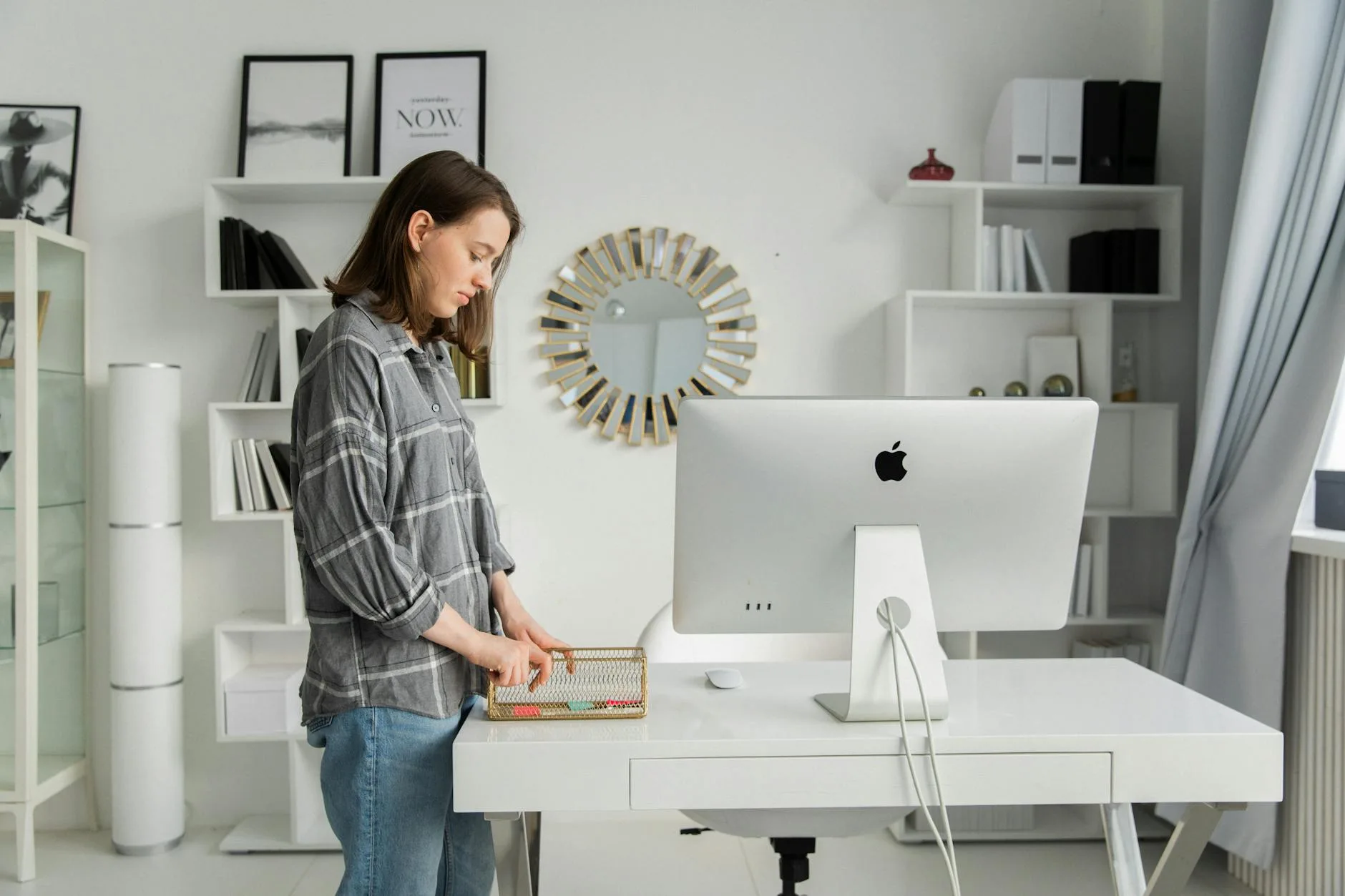
If you use a standing desk, the same monitor height rules apply — but at two different positions.
Sitting Position
Set your monitor height as described above. Mark this desk height (most electric standing desks have memory presets).
Standing Position
When you stand, your eye level rises by roughly 25-35cm depending on your height. The monitor needs to come up by the same amount. This is where a monitor arm really earns its money — you can swing the screen up in seconds rather than trying to adjust a riser.
The Transition Trap
The biggest mistake standing desk users make with monitor height is only setting it for one position. They get the sitting height right, stand up, and then hunch down to the screen. Or they set it for standing and drop their head when sitting. If your desk doesn’t have memory presets, use a piece of tape on the desk leg to mark both positions.
Take It From Experience
I used a standing desk for about six months before I realised I’d been too lazy to adjust the monitor when switching positions. My neck was worse than before I got the standing desk. Once I added a monitor arm with a gas spring (so adjustment takes about two seconds), the problem disappeared. The lesson: a standing desk only works if you actually adjust everything — desk, monitor, and keyboard — every time you switch.
Frequently Asked Questions
What height should a monitor be for someone who is 180cm tall? For someone 180cm tall sitting in a standard office chair, the top edge of a 27-inch monitor should sit roughly 50-55cm above the desk surface. This puts the top of the screen at or just below eye level. Adjust up or down by a couple of centimetres based on your chair height and personal comfort.
Is it bad to have my monitor slightly below eye level? A slight downward gaze (10-15 degrees) is actually ideal — it’s the natural resting position of your eyes and reduces strain. The problem comes when the screen is so low that you tilt your whole head forward, which loads your cervical spine. If you can see the top of the screen without moving your head, you’re in the right range.
Should I use a monitor arm or a riser? If you have a fixed desk height and just need a boost of 5-15cm, a riser is cheaper and simpler. If you use a standing desk, adjust your position throughout the day, or want to free up desk space, a monitor arm is the better investment. Arms typically cost £30-100 for a single screen.
How far should a 27-inch monitor be from my eyes? About 60-70cm — roughly arm’s length. If text feels small at that distance, increase your display scaling rather than moving the screen closer. At 60cm, a 27-inch 1440p monitor is sharp enough for all-day text work without squinting.
Can the wrong monitor height cause headaches? Yes. A monitor that’s too low forces a forward head posture, which creates tension in the muscles at the base of your skull. This tension is one of the most common causes of tension-type headaches in desk workers. Correcting the height often resolves the headaches within a few days.