You have found a monitor deal that looks perfect, then measured your desk and realised the screen might sit closer to your face than your laptop does now. That is the bit most monitor size advice skips. The right answer to what size monitor for desk use is not only about the diagonal number on the box; it is about desk depth, viewing distance, resolution, arm position, and how much of your working day is spent reading text rather than watching video.
In This Article
- Quick Answer: What Size Monitor for Desk Use?
- Why Monitor Size Is About Desk Depth, Not Just Screen Size
- The Monitor Sizes That Make Sense for Most UK Desks
- How Monitor Size Changes Viewing Distance
- Resolution Matters as Much as Size
- Single Large Monitor vs Dual Screens
- Matching Monitor Size to Desk Width
- Ergonomics, Height and Monitor Arms
- My Practical Buying Shortlist
- Common Monitor Size Mistakes
- Bottom Line
- Frequently Asked Questions
Quick Answer: What Size Monitor for Desk Use?
For most home office desks, a 27-inch monitor is the safest single-screen choice. It gives you enough space for two windows side by side, it does not dominate a normal 120cm desk, and it pairs well with 1440p resolution so text stays crisp without fiddly scaling.
If your desk is shallow, around 50-55cm deep, I would be careful with anything larger than 24 or 27 inches unless you use a monitor arm. If your desk is 60-70cm deep, 27 inches is comfortable. If you have a deeper 75-80cm desk or a proper sit-stand frame, a 32-inch screen can work well, but it needs more thought.
Here is the practical split I use when helping someone choose:
- 24-inch monitor: best for small desks, laptop side screens, and tighter flats.
- 27-inch monitor: best all-round size for office work, spreadsheets, writing, browsing, and mixed use.
- 32-inch monitor: best for deeper desks, design work, coding, and people who want one big screen instead of two.
- 34-inch ultrawide: best for timeline work, research, trading dashboards, and replacing dual monitors.
- 40-inch plus: usually too much for normal desk work unless the desk is deep and the resolution is high.
My default recommendation is a 27-inch 1440p IPS monitor. Something like the Dell UltraSharp U2724D, BenQ GW2790QT, or LG 27QN880-B if you want an included arm, is the sensible middle ground in the UK market. Expect to pay about £180-320 depending on panel quality, USB-C, stand adjustability, and warranty.
Why Monitor Size Is About Desk Depth, Not Just Screen Size
The diagonal size tells you less than people think. A 27-inch monitor sounds only a little bigger than a 24-inch model, but the panel is wider and taller, and you usually sit closer to it on a home desk than you would in an office with deeper benching.
Desk depth controls comfort
The most important measurement is the distance from your eyes to the screen. A 27-inch monitor that feels perfect on a 70cm deep desk can feel too close on a 50cm desk pushed against a wall. You end up moving your head instead of moving your eyes, which gets tiring during long writing or spreadsheet sessions.
I measure from the front edge of the desk to the wall or monitor stand position, then subtract keyboard depth and a bit of wrist space. On a compact IKEA-style desk, that often leaves less usable distance than expected.
The stand can steal useful space
Monitor stands vary a lot. Some budget stands place the panel well forward, taking 15-20cm of desk depth. Others let the panel sit closer to the wall. A monitor arm can make a 27-inch screen feel much smaller because it moves the panel back and frees up the footprint.
This is why a cheap 32-inch monitor can be a worse buy than a better 27-inch one. The panel may be fine, but if the stand is fixed, low, and deep, you spend every day working around it.
Your work changes the answer
Reading text all day is different from watching video. Coding is different from photo editing. Gaming is different again. If your day is mainly email, Google Docs, WordPress, Notion, Sheets, and browser tabs, clarity and viewing comfort matter more than sheer panel size.
For a normal UK spare-room office, I would rather have a good 27-inch screen at the right distance than a bargain 32-inch screen sitting too close.
The Monitor Sizes That Make Sense for Most UK Desks
Most desk setups fall into a few sensible size bands. The trick is choosing the size that makes the desk easier to use, not one that looks impressive in a product photo.
24 inches: compact and underrated
A 24-inch monitor still makes sense if your desk is narrow, shallow, or shared with paperwork. It is also a good choice if you use a laptop on a stand and want a second display beside it rather than one main centre screen.
The downside is workspace. Two full browser windows side by side can feel cramped unless you use a 24-inch 1440p model, and those are less common than 1080p office monitors.
I like 24 inches for:
- Small bedroom desks: especially 100cm wide desks in rented flats.
- Laptop-first setups: where the laptop screen remains part of the layout.
- Video calls and admin: where you are not doing deep spreadsheet or design work.
- Budget upgrades: decent 24-inch 1080p monitors can be found around £90-150 from Currys, Amazon UK, Argos, and John Lewis.
27 inches: the sweet spot
For most people asking what size monitor for desk use, 27 inches is the answer I would start with. It is big enough to feel like a proper upgrade from a laptop, but it is not so large that it takes over the desk.
The key is resolution. A 27-inch 1080p monitor looks a bit soft for text. A 27-inch 1440p monitor is the better match. It gives useful desktop space and sharp enough text for normal office work without the price jump of 4K.
I use 27 inches as the baseline for home office recommendations because it works across so many desks: 120cm wide, 60cm deep, keyboard and mouse in front, webcam on top, speakers or laptop to the side. It just fits. If you are exploring this area, our guide on Monitor Brightness and Contrast: What Settings to Use covers the essentials. If you are exploring this area, our guide on Monitor Brightness and Contrast: What Settings to Use covers the essentials.
32 inches: excellent, but not automatic
A 32-inch monitor can be brilliant if you have the room. For design, large spreadsheets, dashboards, and having reference material next to a document, it feels calm and spacious. The problem is that 32 inches punishes weak desk planning.
At 32 inches, I would want either:
- A desk at least 70cm deep: preferably deeper if the stand pushes forward.
- A monitor arm: so the panel can sit further back.
- 1440p at minimum: 4K is better if you care about text sharpness.
- Enough desk width: 140cm is more comfortable than 120cm once speakers, laptop docks, and notebooks appear.
If you are buying from Currys or John Lewis, check the stand depth in the specs. It is not the exciting bit of the listing, but it affects your day more than a tiny contrast ratio difference.
Ultrawide monitors: wide, not just big
A 34-inch ultrawide is not the same experience as a 32-inch 16:9 monitor. It is wider and shorter, which makes it good for multiple windows but less imposing vertically. For research, editing timelines, coding, and keeping Slack or email visible at the side, ultrawide can be lovely.
The trade-off is desk width. A 34-inch ultrawide needs breathing room. On a 120cm desk it can fit, but it leaves little space for speakers or a laptop. On a 140-160cm desk it starts to make more sense.

How Monitor Size Changes Viewing Distance
Monitor size changes how far back you need to sit because your eyes need to take in the whole screen without constant head movement. The HSE display screen equipment guidance is a useful reference here because it focuses on adjustment, posture, breaks, and avoiding awkward working positions rather than chasing a particular screen size.
Practical viewing distances
You do not need to get a tape measure out every morning, but rough distances help:
- 24-inch monitor: about 50-65cm from your eyes.
- 27-inch monitor: about 60-75cm from your eyes.
- 32-inch monitor: about 70-90cm from your eyes.
- 34-inch ultrawide: about 70-90cm from your eyes, depending on curvature.
These are not rigid rules. They are a comfort range. If you are leaning forward to read text, the resolution, scaling, brightness, or glasses prescription may be the issue. If you are leaning back because the screen feels intense, the monitor is probably too close or too large for the desk.
Shallow desks need restraint
On a 50cm deep desk, a 32-inch monitor often sits too close once the keyboard and mouse are in place. You can make it work with an arm, but I would not buy one assuming the included stand will be fine.
This is one of those details that catches people out: the screen that feels exciting on day one can feel tiring by day ten if your eyes are constantly scanning across a panel that is too close.
Curved screens help only at larger sizes
Curvature makes sense on wider monitors because the edges sit a little closer to your eyes. On a 34-inch ultrawide, a gentle curve can feel natural. On a 24 or 27-inch office monitor, I would not pay extra for curve unless you specifically like the look.
For normal office work, panel quality, resolution, stand adjustment, and warranty matter more.
Resolution Matters as Much as Size
Screen size and resolution work together. Buying a larger monitor with the wrong resolution can make the upgrade feel worse, not better.
1080p, 1440p and 4K in plain English
1080p is fine at 24 inches. At 27 inches, it starts to look grainy for text if you are used to a modern laptop. At 32 inches, 1080p is too coarse for desk work unless you sit far back and mainly watch video.
1440p is the office sweet spot for 27 inches and still workable at 32 inches. 4K is sharpest, especially at 27 or 32 inches, but it costs more and may need scaling in Windows or macOS.
My practical matches are:
- 24-inch: 1080p is acceptable; 1440p is nicer if priced well.
- 27-inch: 1440p is the best value; 4K is premium.
- 32-inch: 4K is ideal; 1440p is acceptable if budget matters.
- 34-inch ultrawide: 3440 x 1440 is the target; avoid low-resolution ultrawides for text work.
Text clarity beats headline size
For desk work, text clarity matters every hour. A big screen with fuzzy text makes you squint, zoom, and sit awkwardly. That is why I would pick a 27-inch 1440p monitor over a cheap 32-inch 1080p monitor every time for writing, browsing, spreadsheets, and admin.
If you already have an article-heavy workflow, our guide to USB-C monitors is worth reading before you buy, because one cable charging and display can tidy a laptop setup fast.
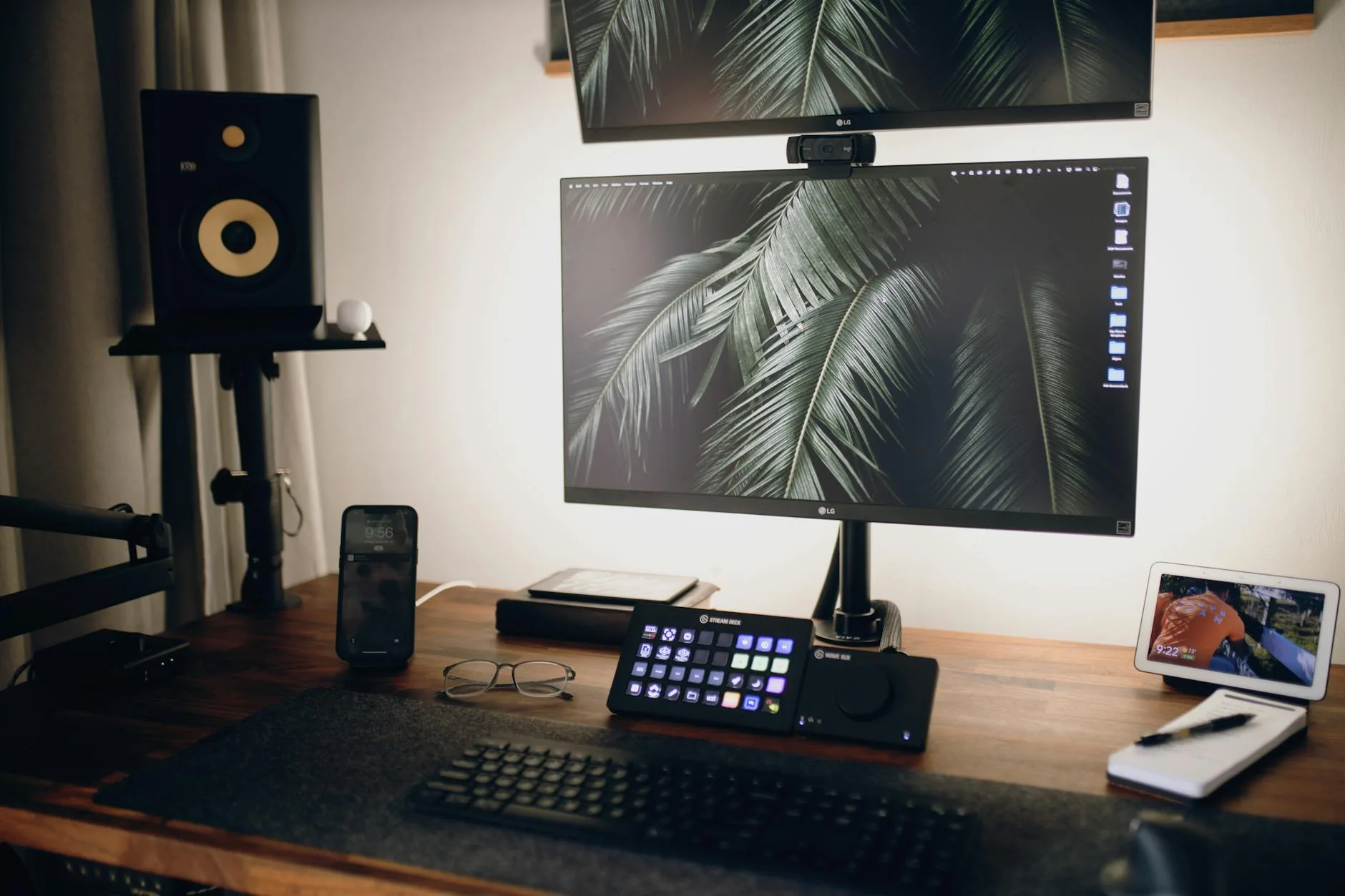
Single Large Monitor vs Dual Screens
The choice between one large monitor and two smaller ones depends on how you work. There is no universal winner, but there are clear patterns.
One large monitor feels cleaner
A single 27 or 32-inch screen keeps your main work centred. It is simpler for calls, easier to align ergonomically, and there is no bezel in the middle. If you mostly write, research, use a CMS, work in spreadsheets, or edit images, one good screen can feel calmer than a pair of cheaper ones.
I prefer one main monitor for writing because it keeps my body facing forward. With dual screens, I catch myself twisting slightly towards the “main” screen and leaving the other as a dumping ground for chat, email, or tabs I should have closed.
Dual monitors are still useful
Dual 24-inch monitors are brilliant for certain jobs. If you compare documents, run support tools, monitor dashboards, or keep a reference screen open all day, two screens can be faster than constantly resizing windows. You might also find our How to Choose a Monitor for Photo Editing guide useful here. You might also find our How to Choose a Monitor for Photo Editing guide useful here.
The downside is width and neck rotation. Put the join between the screens directly in front of you and you will hate it. Pick one primary screen in front of your chair, then angle the second screen beside it.
Good dual-screen layouts:
- 24 + 24 inches: efficient, affordable, and easy to run from most docks.
- 27 + laptop: good for hybrid workers who still use the laptop webcam.
- 27 + portrait 24: useful for code, long documents, or reference pages.
- 34-inch ultrawide instead of dual 24s: cleaner if you dislike bezels.
If you are choosing screens for a productivity setup, our guide to best monitors for home office work covers current UK buying options in more detail.
Matching Monitor Size to Desk Width
Desk width decides how much room is left around the monitor. A screen can be the right depth fit but still feel crowded if it eats the whole surface.
100cm desks
On a 100cm desk, I would usually choose 24 inches, or 27 inches only if the stand is compact or you use an arm. A big screen plus laptop, lamp, notebook, and speakers will make this size feel cluttered quickly.
120cm desks
This is the common home office size, and it is where 27 inches shines. A 27-inch screen leaves enough room for a laptop stand, small speakers, or a desk lamp. A 32-inch screen can work, but it becomes the main feature of the desk.
140cm desks
At 140cm, you have real options: 27 inches with generous side space, 32 inches without much compromise, dual 24s, or a 34-inch ultrawide. This is where monitor arms start to pay for themselves because cable routing and screen placement become easier.
160cm desks and larger
Large desks can take bigger displays, but do not use that as an excuse to buy the biggest panel you can afford. The best setup still puts your main work straight ahead, with enough clear surface for keyboard, mouse, notebook, and a drink that is not one elbow away from disaster.
If you are also choosing the desk itself, the guide to standing desk setup ideas explains how screen position changes once you alternate between sitting and standing.
Ergonomics, Height and Monitor Arms
For formal workstation checks, the HSE guidance on display screen equipment assessments is a useful baseline. For practical screen height and chair positioning, cross-check this guide with our ergonomic desk setup checklist before buying a bigger panel.
Size gets the attention, but height adjustment often decides whether the setup feels good. Many cheaper monitors have tilt-only stands. That is fine for occasional use, but poor for all-day desk work.
Top third of the screen
As a rough guide, your eye line should land around the top third of the screen when you sit normally. Not hunched, not craning, not peering over a laptop. If the screen is too low, you drop your chin. If it is too high, your neck extends.
I am not precious about perfect posture, because nobody sits like a diagram for eight hours. The point is to remove obvious strain: screen too low, keyboard too far away, shoulders raised, glare from the window, and cables forcing everything into the wrong place.
Monitor arms can change the size you can use
A monitor arm is not just for tidy desk photos. It can move the panel back, lift it to the right height, and clear the stand footprint. On small desks, that can be the difference between 24 inches feeling cramped and 27 inches feeling comfortable.
Look for:
- VESA compatibility: most monitor arms need 75 x 75mm or 100 x 100mm mounting holes.
- Weight support: check the arm supports the monitor without slowly drooping.
- Clamp clearance: some thick desktops or cable trays block clamp mounts.
- Height range: especially if you are tall or use a sit-stand desk.
The Amazon Basics monitor arm, Duronic arms, and Ergotron LX are common UK options. I would buy the Ergotron if the screen is expensive or heavy, but a decent £35-60 arm is fine for many 24 and 27-inch office monitors.
My Practical Buying Shortlist
This is how I would narrow the choice before buying from Currys, John Lewis, Amazon UK, Dell, or a specialist office supplier.
Best for most people: 27-inch 1440p IPS
This is the boring answer, and boring is good here. A 27-inch 1440p IPS monitor gives sharp text, sensible window space, and a size that fits normal desks. If it has USB-C with power delivery, even better for a laptop setup.
Expect to pay:
- Budget: about £160-220 for a basic 27-inch 1440p monitor.
- Mid-range: about £250-400 for better stand adjustment, USB-C, speakers, or warranty.
- Premium: about £450-700 for high-end colour, docking features, or 4K.
Best for small desks: 24-inch 1080p or 1440p
For a 100cm desk or a compact bedroom office, 24 inches keeps things sane. I would spend a bit more for an adjustable stand rather than chasing the cheapest panel. Height adjustment saves more annoyance than a tiny spec upgrade.
Best for large spreadsheets: 32-inch 4K
If you use Excel, Google Sheets, design tools, dashboards, or code editors all day, a 32-inch 4K monitor is a serious upgrade. It needs space, but the working area is excellent. Just do not buy a 32-inch 1080p screen for close desk work. It will look coarse.
Best dual-screen alternative: 34-inch ultrawide
If you want two-window working without bezels, a 34-inch ultrawide is the cleanest route. It is not cheap once you choose a good panel, but it can make a desk feel less cluttered than two separate monitors and arms.
Common Monitor Size Mistakes
Most bad monitor purchases are not disasters. They are small mismatches that become annoying because you live with them every working day.
Buying 32 inches because it is on sale
Large monitors are often discounted, but price is not permission. If your desk is shallow, a cheap 32-inch display can feel like sitting in the front row at the cinema. Check depth first.
Ignoring stand adjustment
A monitor with no height adjustment usually needs a riser, arm, or stack of books. That adds cost and clutter. I would rather buy a slightly smaller monitor with a proper stand than a bigger one that forces a poor position.
Choosing 1080p at 27 inches for text work
Some people are fine with 27-inch 1080p, especially if eyesight or scaling preferences differ. For most laptop users moving to a desk monitor, though, it looks soft. If you write or read a lot, go 1440p.
Forgetting the laptop
If your laptop stays open, it needs somewhere to live. A 27-inch monitor plus 14-inch laptop works well on a 120cm desk. A 32-inch monitor plus open laptop often starts to feel awkward unless the desk is wider.
Putting two equal screens around the centre line
With dual monitors, make one screen primary. Put that one straight ahead and the second to the side. Splitting your body between two equal screens is a quick route to neck irritation.
Bottom Line
For most people, the best answer to what size monitor for desk use is 27 inches with 1440p resolution. It suits the average UK home office desk, gives enough space for proper work, and avoids the comfort problems that come with oversized screens on shallow desks.
Choose 24 inches if your desk is compact. Choose 32 inches if your desk is deep and you want one large canvas. Choose 34-inch ultrawide if you are replacing dual monitors and have enough width. Above all, measure the desk depth and check the stand before you buy.
The monitor you forget about while working is usually the right one.
Frequently Asked Questions
Is a 27-inch monitor too big for a desk?
No, not for most desks. A 27-inch monitor is a good fit for a 120cm wide, 60cm deep desk, especially at 1440p resolution. It may feel large on a shallow 50cm desk unless you use a monitor arm.
What size monitor is best for a small desk?
A 24-inch monitor is usually best for a small desk. If the desk is at least 60cm deep and you can push the screen back, a 27-inch monitor can still work.
Is 32 inches too big for office work?
It can be too big on shallow desks, but it works well on deeper desks with 4K resolution. For close desk work, avoid 32-inch 1080p monitors because text looks coarse.
Should I get one big monitor or two smaller monitors?
Get one big monitor if you want a cleaner setup and mainly work in one focused area. Get two monitors if you often compare documents, keep dashboards open, or need a dedicated reference screen.
What resolution should a 27-inch monitor be?
1440p is the best value for a 27-inch office monitor. 1080p can look soft, while 4K is sharper but more expensive and may need display scaling.