You’ve spent £800 on a standing desk and a decent chair, but you’re still getting neck pain by 3pm. The equipment is right — the setup is wrong. Most people buy good furniture and then position it by feel, which means their monitor is too low, their chair is too high, their keyboard is at the wrong angle, and they’re slowly developing the posture of someone who’s been deflated. An ergonomic setup isn’t about expensive kit — it’s about getting the geometry right between your body and your workspace. This checklist walks through every adjustment, in order, so you can fix your setup in twenty minutes and stop paying for it with your back.
In This Article
- Before You Start
- Step 1: Chair Height and Position
- Step 2: Desk Height
- Step 3: Monitor Position
- Step 4: Keyboard and Mouse Placement
- Step 5: Lighting
- Step 6: Accessories That Actually Help
- The Standing Desk Checklist
- Common Mistakes to Avoid
- The Complete Checklist
- Frequently Asked Questions
Before You Start
What You Need
You don’t need to buy anything to run through this checklist. All you need is:
- Your existing chair, desk, monitor, keyboard, and mouse
- A tape measure (optional but useful for desk and monitor height)
- 15-20 minutes of uninterrupted time
The Goal
Every adjustment serves one purpose: keeping your body in a neutral position. Neutral means joints at natural angles, muscles not straining to hold you in position, and weight distributed evenly. Deviations from neutral create the low-grade strain that compounds into pain over weeks and months.
Your Starting Position
Sit in your chair with your back against the backrest and your feet flat on the floor. This is your reference point for every measurement that follows. If your feet don’t reach the floor, lower the chair first — we’ll address the desk height separately.
Step 1: Chair Height and Position
The chair is the foundation. Everything else adjusts relative to it.
Seat Height
- Sit with your back against the backrest.
- Adjust seat height until your thighs are parallel to the floor (or angled very slightly downward — no more than 5 degrees).
- Your feet should be flat on the floor. If they’re dangling or on tiptoe, the chair is too high. If your knees are above your hips, it’s too low.
- There should be a 2-3 finger gap between the front edge of the seat and the back of your knees. If the seat pan presses into your knees, adjust the seat depth slider (if your chair has one) or consider a different chair.
Lumbar Support
Position the lumbar support at the natural inward curve of your lower back — typically at belt height or slightly above. Most people set it too low. If your chair has adjustable lumbar depth, start at a moderate setting and increase if you find yourself slouching forward. The lumbar support should feel like a gentle reminder to sit upright, not a push.
Armrest Height
Set armrests so your elbows rest at approximately 90 degrees with your shoulders relaxed — not hunched up or drooping. If the armrests are too high, your shoulders shrug upward and create neck tension. Too low and your arms sag, pulling your shoulders down. We’ve covered ergonomic home office setup on a budget if you need chair recommendations that won’t break the bank.
Step 2: Desk Height
Seated Desk Height
With your chair properly adjusted, your desk surface should be at elbow height — roughly 68-76cm depending on your height. When your hands rest on the keyboard, your forearms should be parallel to the floor or angled very slightly downward. Wrists should be straight, not bent up or down.
The Problem with Fixed Desks
Standard UK desks are 72-75cm high, which works for people around 5’6″ to 5’10”. If you’re shorter, the desk will be too high — you’ll compensate by raising your chair, which means your feet leave the floor (solved with a footrest). If you’re taller, the desk will be too low — you’ll hunch over it. A height-adjustable desk solves both problems, and the best standing desks double as perfectly adjustable seated desks.
Footrest
If your chair is set correctly for your desk height but your feet don’t reach the floor, add a footrest. Don’t compromise chair height to get your feet down — that creates a cascade of other problems. A basic angled footrest costs about £15-25 from Amazon UK or IKEA and solves the problem immediately.
Step 3: Monitor Position
This is where most setups go wrong. A badly positioned monitor is the single biggest cause of neck and shoulder pain in office workers.
Height
The top of the screen should be at or slightly below eye level when you’re sitting upright. This means your eyes naturally rest on a point about one-third down from the top of the screen — the area where you do most of your reading. If the monitor is too low (the most common error), you tilt your head forward, loading the neck muscles that aren’t designed for sustained static load.
Distance
Arm’s length from your eyes to the screen — roughly 50-70cm. At this distance, you can read text without squinting or leaning forward. If you find yourself leaning toward the screen, either increase font size or move the monitor closer.
Tilt
Tilt the screen back 10-20 degrees so it faces you squarely. This reduces glare and ensures the viewing angle is perpendicular to your line of sight. Having used a monitor arm for the past two years, the ability to dial in exact height, distance, and tilt independently is worth every penny of the £30-40 investment.
Dual Monitors
If you use two monitors, position the primary one directly in front of you and the secondary off to one side. If you use both equally, angle them in a shallow V shape so the join is centred on your nose. Turning your head to one side for hours creates asymmetric neck strain. Our monitor height guide covers the detailed measurements.

Step 4: Keyboard and Mouse Placement
Keyboard Position
- Distance: close enough that your elbows stay at your sides, roughly at the desk edge or 5-10cm in from it
- Height: forearms parallel to the floor, wrists straight. If your desk is too high, a keyboard tray drops the keyboard below desk level.
- Tilt: flat or with a slight negative tilt (front edge higher than back). Those flip-out feet on the back of keyboards? They increase wrist extension and make things worse, not better. Leave them folded in.
Mouse Position
Keep the mouse immediately next to the keyboard at the same height. Reaching sideways for a mouse that’s too far away rotates your shoulder and strains the trapezius muscle. If you use a full-size keyboard with a number pad, the mouse ends up further right than ideal — a tenkeyless (TKL) keyboard solves this by eliminating the number pad and bringing the mouse closer to centre.
Wrist Position
Wrists should float above the keyboard, not rest on the desk surface. Wrist rests are for resting during pauses, not for typing on. Typing with your wrists pressed onto a rest compresses the carpal tunnel and increases strain on tendons. After years of ignoring this, switching to floating wrists eliminated the tingling I used to get in my right hand by Friday afternoon.
Step 5: Lighting
Overhead Lighting
Position your desk so overhead lights aren’t directly above or behind the monitor — both create glare. Off to the side is ideal. If you can’t move the desk, tilt the monitor to reduce reflections.
Natural Light
A window to the side of your monitor (not behind or directly in front) provides comfortable ambient light without glare. A window behind the monitor creates a bright background that strains your eyes. A window in front of you means the screen competes with daylight.
Task Lighting
A desk lamp with adjustable colour temperature (about £20-40 from Amazon UK or IKEA) lets you add light where you need it without washing out the screen. Warm light (2700-3000K) is easier on the eyes for long sessions. The HSE guidance on display screen equipment recommends adequate lighting that avoids reflections on the screen surface.
Step 6: Accessories That Actually Help
Monitor Arm
A VESA-compatible monitor arm (about £25-50 from Amazon UK) replaces the stock stand and gives you full control over height, depth, tilt, and rotation. It also frees up desk space underneath. This is the single best ergonomic upgrade per pound spent for most setups.
Keyboard Tray
If your desk is too high and not adjustable, an under-desk keyboard tray (about £30-60) drops the keyboard and mouse to the correct height without replacing the desk. Check that your desk has enough overhang depth to mount one.
Document Holder
If you reference paper documents while typing, a document holder that sits between your keyboard and monitor (or clips to the side of the monitor) prevents the constant head-down motion that strains the neck. About £10-15.
Cable Management
Not strictly ergonomic, but tangled cables restrict how you position your keyboard and mouse. A cable tray under the desk (about £10-15) tidies everything and lets you position input devices freely.
The Standing Desk Checklist
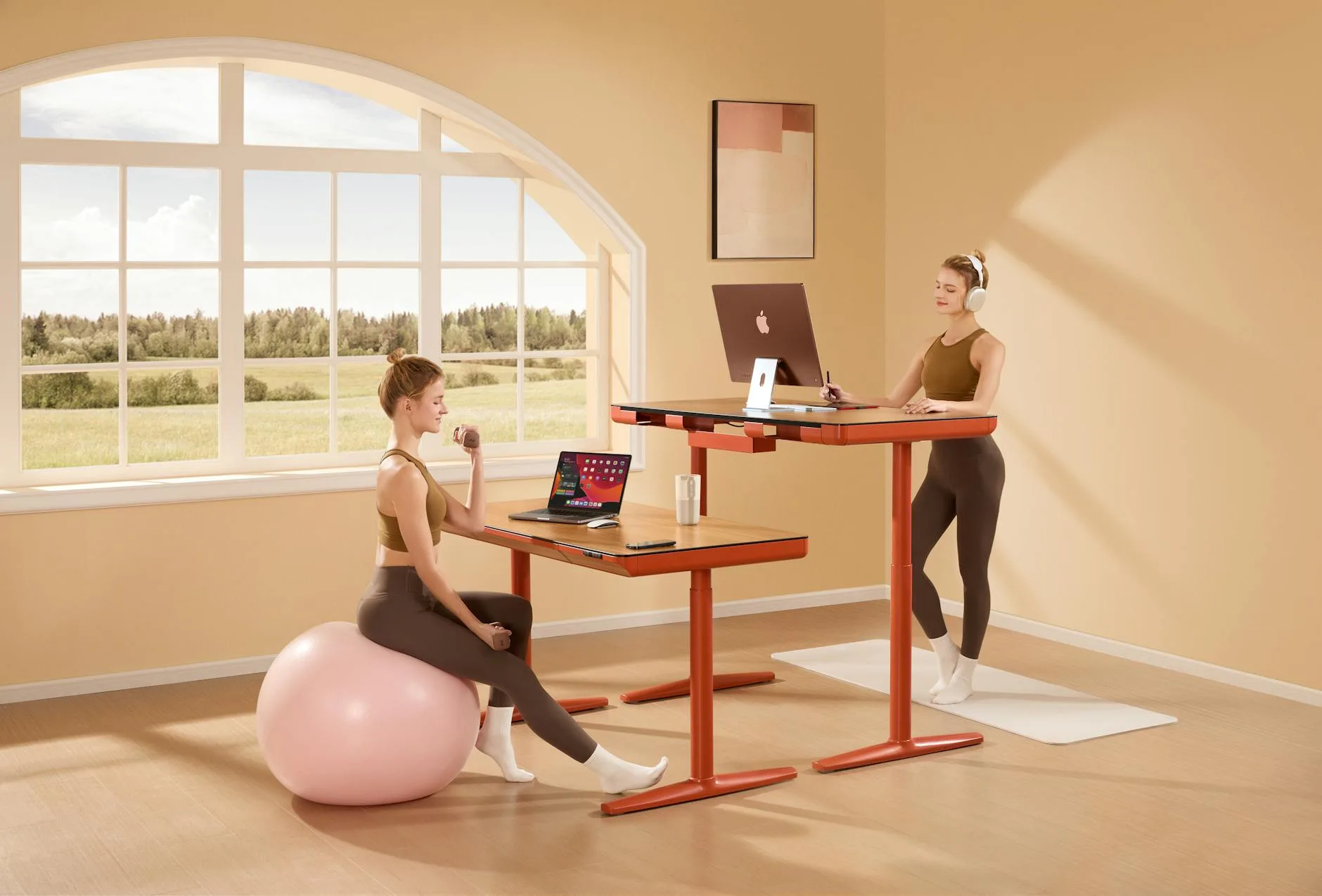
If you use a sit-stand desk, the standing position needs its own setup. The common standing desk mistakes article covers these in detail, but here’s the quick checklist:
Standing Height
- Stand with your arms at your sides and bend your elbows to 90 degrees.
- Raise the desk until the keyboard surface meets your hands. This is your standing keyboard height.
- The monitor should still be at eye level — if you use a fixed monitor on the desk, it will rise with the desk surface, which usually works. If you use a monitor arm, readjust it.
Standing Accessories
- Anti-fatigue mat — standing on hard floor for extended periods causes foot and lower back pain. A good mat (about £25-40 from Amazon UK) makes a noticeable difference. Look for one at least 2cm thick.
- Footrest bar or balance board — shifting weight from foot to foot reduces static standing fatigue. Even a small box to rest one foot on periodically helps.
The 30-30 Rule
Alternate between sitting and standing roughly every 30 minutes. No position is good if you hold it for hours — the benefit of a sit-stand desk is movement, not standing all day.
Common Mistakes to Avoid
Setting Up by Feel
“That looks about right” is how most people set up their desk. The problem is that a position can feel comfortable initially but cause strain after hours. Use the measurements in this checklist rather than gut feel.
Copying Someone Else’s Setup
Your colleague’s desk height is based on their body dimensions, not yours. Every measurement in this checklist is relative to your body — arm length, seated eye height, torso length. Copy the method, not the numbers.
Ignoring the Chair
People spend hours researching monitors and desks, then sit on whatever chair was already there. The best desk chairs under £500 make more difference to daily comfort than any other single upgrade. If your budget is limited, spend it on the chair first.
Not Reassessing
Your body changes, your equipment changes, your habits change. Run through this checklist every few months, or whenever you change any piece of equipment. A new chair means readjusting desk height. A new monitor means readjusting height and distance. Each change ripples through the system.
The Complete Checklist
Print this or bookmark it. Run through every point when setting up or reassessing your workspace:
Chair
- ☐ Thighs parallel to floor, feet flat
- ☐ 2-3 finger gap between seat edge and knees
- ☐ Lumbar support at natural lower back curve
- ☐ Armrests at 90-degree elbow angle, shoulders relaxed
Desk
- ☐ Surface at elbow height when seated
- ☐ Forearms parallel to floor when typing
- ☐ Footrest added if feet don’t reach floor
Monitor
- ☐ Top of screen at or slightly below eye level
- ☐ Arm’s length distance (50-70cm)
- ☐ Tilted back 10-20 degrees
- ☐ No glare from windows or overhead lights
Keyboard and Mouse
- ☐ Keyboard flat or negative tilt (feet folded in)
- ☐ Mouse next to keyboard at same height
- ☐ Wrists floating, not resting while typing
- ☐ Elbows at sides, not reaching forward or sideways
Standing (if applicable)
- ☐ Desk at elbow height when standing
- ☐ Monitor at eye level
- ☐ Anti-fatigue mat in place
- ☐ Alternating sit/stand every 30 minutes
Keyboard position is one of the easiest ergonomic details to miss. Our guide to QWERTY, split and ortholinear keyboard layouts explains when a different layout may reduce strain.
Frequently Asked Questions
How high should my desk be? When seated with your chair properly adjusted, your desk surface should be at elbow height — typically 68-76cm depending on your height. When your hands rest on the keyboard, your forearms should be parallel to the floor with wrists straight. A height-adjustable desk lets you dial this in precisely.
Should my monitor be at eye level? The top of the screen should be at or slightly below eye level. This means your natural gaze falls about one-third down the screen, which is where you do most reading. A monitor that’s too low forces you to tilt your head forward, creating neck strain over time.
Do I need a standing desk for good ergonomics? No — a properly set up seated desk with a good chair is perfectly ergonomic. Standing desks add the benefit of position changes throughout the day, which reduces the health risks of prolonged sitting. If budget is limited, invest in a good chair and correct positioning first.
How often should I take breaks from my desk? The HSE recommends regular short breaks from display screen equipment. A good rule is the 20-20-20 rule: every 20 minutes, look at something 20 feet away for 20 seconds. Take a longer break (stand, stretch, walk) every 45-60 minutes.
Are keyboard wrist rests good or bad? Wrist rests are fine for resting during pauses but shouldn’t be used while actively typing. Typing with wrists pressed onto a rest increases pressure on the carpal tunnel. Your wrists should float above the keyboard during typing, using arm muscles rather than resting on compressed wrists.