The Dell S2725QC is the best monitor for home-office work for most UK buyers. Its 27-inch 4K IPS panel gives documents and spreadsheets excellent clarity, while USB-C combines display, data and up to 65W laptop charging. The LG 27U631A is the better-value QHD choice, and the Samsung S24D400 makes more sense on a compact desk.
The right monitor is a working tool, not a specification contest. Start with the space on your desk, the number of windows you keep open and the ports on your laptop. Then decide whether sharpness, docking convenience or stand adjustment matters most.
In This Guide
- Our direct answer
- Monitors at a glance
- Six monitor recommendations
- How to choose
- Size, resolution and scaling
- Connectivity and comfort
- The Bottom Line
- Frequently Asked Questions

Best Home Office Monitor: Our Direct Answer
Choose the Dell S2725QC if you want one monitor that handles ordinary office work, dense documents and occasional image or video tasks without turning the desk into a cable nest. The 4K resolution is sharper than QHD, and 65W USB-C charging is enough for many mainstream work laptops.
The LG 27U631A is the smarter value choice when QHD gives you enough detail and you do not need the monitor to charge a power-hungry laptop. On a narrow desk, the Samsung’s adjustable 24-inch design beats buying a larger screen and pushing it too close to your face.
If you are unsure about physical fit, use our monitor size guide before comparing panel features. The distance between your chair and screen matters as much as the diagonal measurement.
Best Home Office Monitors at a Glance
The comparison is CTA-free so you can choose the right format before opening a retailer. Confirm laptop charging requirements and supplied cables before buying.
| Monitor | Best for | Size | Resolution / panel | Key connection |
|---|---|---|---|---|
| Dell S2725QC | Best overall | 27-inch | 4K IPS | USB-C with 65W charging |
| LG 27U631A | Best value | 27-inch | QHD IPS | USB-C with 15W charging |
| Samsung S24D400 | Best compact option | 24-inch | Full HD IPS | Height, swivel and pivot stand |
| BenQ GW2786TC | Best for laptop docking | 27-inch | Full HD IPS | USB-C charging, hub and daisy-chain |
| LG UltraWide 34U640B | Best ultrawide | 34-inch | 3440×1440 VA | USB-C and adjustable stand |
| AOC U27B3A | Best budget 4K | 27-inch | 4K IPS | HDMI, DisplayPort and speakers |
Our Six Home Office Monitor Recommendations
1. Dell S2725QC — Best Overall

The Dell S2725QC is the strongest all-round home-office monitor here because it combines a sharp 27-inch 4K panel with useful laptop connectivity. One USB-C cable can carry video, data and up to 65W of charging, while the built-in USB ports reduce the need for a separate hub.
Its 4K resolution makes text and interface elements look crisp once operating-system scaling is set correctly. Dell also specifies an IPS panel, 99% sRGB coverage, two HDMI ports and built-in speakers. The speakers are convenient for calls and background audio, although dedicated speakers or headphones will sound better.
- Buy it if: you want one polished screen for documents, spreadsheets, calls and occasional creative work.
- Skip it if: your laptop needs more than 65W charging or your applications behave badly with display scaling.
- Main compromise: 4K at 27 inches normally needs scaling rather than running at native-size interface elements.
2. LG 27U631A — Best Value
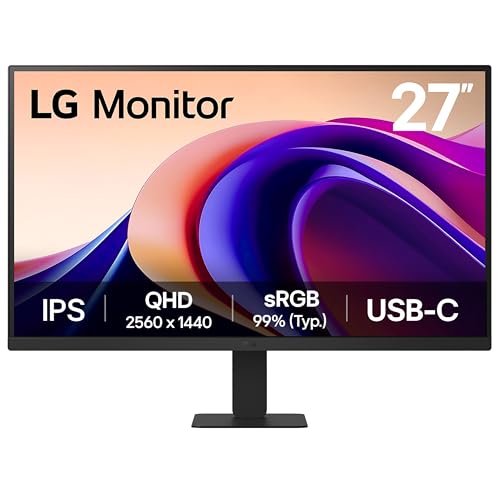
The LG 27U631A is the practical value choice. A 27-inch QHD panel gives noticeably more workspace than Full HD without making Windows scaling essential for most people. The 100Hz refresh rate also makes scrolling and window movement look smoother than a standard 60Hz office display.
USB-C is included, but the stated 15W power delivery is the important limitation: it is useful for display connectivity and modest device power, not as a full single-cable charger for many work laptops. The stand offers tilt rather than a complete height, swivel and pivot range, so budget for an arm if positioning matters.
- Buy it if: you want the QHD sweet spot and can charge your laptop separately.
- Skip it if: one-cable laptop charging or a height-adjustable stand is essential.
- Main compromise: the USB-C port is less capable than a proper docking monitor.
3. Samsung S24D400 — Best Compact Option

The Samsung S24D400 suits a smaller desk where a 27-inch screen would dominate the workspace. Full HD is a sensible match at 24 inches, and the IPS panel keeps text and colours more consistent when viewed slightly off-centre.
The stand is the reason to choose it over a basic low-cost screen. Height adjustment, swivel and 90-degree pivot make it easier to place the top of the display at a comfortable level or use portrait orientation for long documents and code. HDMI, DisplayPort and a USB hub cover ordinary office connections.
- Buy it if: desk depth is limited and stand adjustment matters.
- Skip it if: you regularly place two large documents side by side.
- Main compromise: Full HD offers less working space than QHD or 4K.
4. BenQ GW2786TC — Best for Laptop Docking

The BenQ GW2786TC is the most office-focused docking option. Its USB-C connection supplies up to 65W, the integrated hub connects peripherals, and DisplayPort output supports daisy-chaining a compatible second monitor. The stand adjusts for height, tilt, swivel and pivot.
The trade-off is resolution. Full HD on a 27-inch screen produces larger pixels than QHD, so text is not as crisp at the same viewing distance. Buy it for connectivity, ergonomics and a clean laptop setup rather than maximum detail.
- Buy it if: you want one cable for a work laptop and may add a second compatible screen.
- Skip it if: text sharpness matters more than docking convenience.
- Main compromise: 1080p is modest for a 27-inch panel.
5. LG UltraWide 34U640B — Best Ultrawide

The LG 34U640B replaces a two-screen arrangement with one wide 3440×1440 desktop. It is particularly useful for a large spreadsheet beside email, a document beside research, or a timeline beside preview panels. The curved 34-inch panel, USB-C connection and adjustable stand make it more office-friendly than a basic gaming ultrawide.
An ultrawide needs a broad desk and deliberate window management. Screen sharing can also be awkward because colleagues may see a very wide desktop or tiny text. Check the laptop’s supported output resolution and refresh rate before assuming one USB-C cable will drive every feature.
- Buy it if: you constantly work across two or three windows and want no central bezel.
- Skip it if: the desk is shallow, video calls involve frequent screen sharing, or portrait orientation matters.
- Main compromise: it takes more desk width and is less flexible than two independently positioned screens.
6. AOC U27B3A — Best Budget 4K

The AOC U27B3A is for buyers who want 4K sharpness without paying for USB-C docking. Its 27-inch IPS panel, HDMI and DisplayPort inputs cover a conventional desktop PC or a laptop connected through a separate dock. Built-in speakers keep the desk simple.
The stand is basic and connectivity is traditional, so the saving comes from stripping back convenience rather than screen resolution. It makes sense when you already own a capable dock or desktop setup and want the most pixels for the money.
- Buy it if: you want crisp text and already have the adapters or dock you need.
- Skip it if: you expect USB-C laptop charging or full ergonomic adjustment.
- Main compromise: excellent resolution paired with a simpler stand and port selection.
How to Choose a Home Office Monitor
Start with Your Main Task
Documents, email and video calls do not require a specialist colour display. Prioritise readable text, a stable stand and useful ports. Large spreadsheets benefit from QHD, 4K or an ultrawide layout, while photo work needs closer attention to colour coverage and calibration. Our photo-editing monitor guide covers that narrower requirement.
Measure Desk Depth and Width
A large monitor on a shallow desk can force uncomfortable viewing. Measure the available depth after allowing for the stand, keyboard and laptop. A monitor arm can recover space, but only if the display has a compatible VESA mount and the desk can support the clamp.
Decide Between One Screen and Two
Two monitors are excellent when one screen holds reference material and the other holds the active task. An ultrawide is tidier and removes the central bezel. Read our guide to setting up dual monitors before assuming that two screens will automatically improve the desk.
Size, Resolution and Scaling
24-inch Full HD
At 24 inches, Full HD remains a sensible office resolution. Text is readable without scaling, the monitor fits smaller desks and a pair can provide a large working area. The Samsung S24D400 is especially useful because its stand can pivot for portrait documents.
27-inch QHD or 4K
QHD is the comfortable middle ground at 27 inches: more space and sharper text than Full HD, usually without aggressive scaling. 4K looks sharper again, but many users enlarge the interface to 125% or 150%. Our guide to monitor scaling explains why some older apps can look soft.
Refresh rate is secondary for office work, although 100Hz or 120Hz makes scrolling look smoother. See our refresh-rate guide if the same screen will also handle gaming.
Connectivity and Comfort
USB-C Is Not Always a Dock
A USB-C port may carry video but provide too little power to charge your laptop properly. Compare the monitor’s power delivery with the laptop charger’s wattage, and check whether the port also connects a USB hub. Our USB-C monitor guide explains the common differences.
Stand Adjustment Beats Software Features
Height, tilt and swivel adjustment affect every hour you use the screen. The HSE display-screen guidance says the screen should be positioned to avoid awkward head and eye movement, with glare and reflections controlled. Our guide to monitor height turns that into practical desk adjustments.
Low-blue-light modes and flicker controls can change viewing comfort, but they do not fix poor positioning, an overly bright screen or reflections from a window. Use our guides to brightness and contrast and reducing monitor glare for the basics.
The Bottom Line
The Dell S2725QC is the best monitor for home-office work here: sharp, well connected and flexible enough for most desk tasks. Choose the LG 27U631A for better value, the Samsung S24D400 for a compact adjustable setup, or the LG 34U640B when replacing two screens with one continuous workspace.
The biggest mistake is buying resolution without checking ports, power delivery and stand adjustment. A slightly less glamorous monitor that fits the desk and charges the laptop cleanly will be better every working day.
Frequently Asked Questions
What is the best monitor size for home-office work? A 27-inch monitor is the safest all-round choice for most desks. Choose 24 inches for limited depth or 34-inch ultrawide when you need several windows visible at once.
Is 4K worth it for office work? 4K is useful for crisp text, dense spreadsheets and creative work, but a 27-inch 4K screen normally needs operating-system scaling. QHD is often the easier balance of space and readability.
Do I need USB-C on a home-office monitor? USB-C is valuable for laptops because one cable can carry video, data and power. Check the charging wattage carefully: some USB-C monitors provide only modest power.
Is QHD better than Full HD for a 27-inch monitor? For text-heavy work, QHD usually looks sharper and provides more usable desktop space at 27 inches. Full HD remains reasonable at 24 inches or when larger interface elements are preferred.
Is an ultrawide better than two monitors? An ultrawide removes the central bezel and keeps windows on one continuous desktop. Two monitors are easier to position independently and often work better when screen sharing or mixing portrait and landscape layouts.
How high should a monitor be? A common starting point is to place the top of the visible screen around eye level, then adjust for your posture, glasses and viewing distance. The screen should not force repeated neck bending.