You don’t need to spend thousands to set up a home office that’s comfortable, productive, and won’t wreck your back The internet is full of glossy setups featuring £2,000 chairs and triple-monitor arrays, but the reality is that most of us are working from spare bedrooms, kitchen tables, or a corner of the living room — and we need solutions that work within those constraints This guide is about making smart, evidence-based ergonomic choices without breaking the bank We’re talking about genuine improvements you can make for under £500 total, with many tips that cost nothing at all
Why Ergonomics Actually Matters (Beyond the Buzzword)
Ergonomics has become a marketing term slapped on everything from keyboards to footrests, but the underlying science — as outlined in the HSE’s display screen equipment guidance — is well-established When you sit or stand in poorly aligned positions for hours each day, specific muscles and joints take on more load than they’re designed to handle Over weeks and months, this leads to the classic home worker complaints: lower back pain, neck stiffness, wrist discomfort, and shoulder tension
The good news is that the fundamentals of a well-set-up workspace are simple and haven’t changed much despite what equipment manufacturers would like you to believe You need your screen at the right height, your arms at the right angle, your feet supported, and the ability to move and change position regularly That’s about 80% of good ergonomics right there, and most of it can be achieved with adjustments to what you already have
Start With What You’ve Got: Free Adjustments
Before spending a single penny, these adjustments can make a significant difference:
Screen height: The top of your monitor should be at or slightly below eye level If you’re using a laptop on a desk, the screen is almost definitely too low, forcing you to look down and creating neck strain Stack some books, a sturdy box, or a ream of printer paper under the laptop to raise it This single change eliminates the “laptop hunch” that causes so much neck and upper back pain
Chair height: Your feet should be flat on the floor with your thighs roughly parallel to the ground If your chair is too high and your feet dangle, use a footrest — or a stack of books, a step stool, or even a firm cushion on the floor If your chair is too low and your knees are higher than your hips, you need a different chair or a seat cushion to raise you up
Desk setup: Your elbows should be at approximately 90 degrees when typing, with your forearms roughly parallel to the desk surface If your desk is too high (common with kitchen tables and dining tables), raising your chair and adding a footrest is often easier than lowering the desk
Screen distance: Your monitor should be about an arm’s length away Too close and your eyes strain; too far and you’ll unconsciously lean forward, undoing all your good posture work If you are exploring this area, our guide on Best Monitors for Home Office Work in 2026 covers the essentials.
Lighting: Position your desk so that natural light comes from the side rather than directly behind or in front of your screen Backlighting causes glare; front lighting creates screen reflections Side lighting is the sweet spot that reduces eye strain without creating visual distractions If you are exploring this area, our guide on Best Monitors for Home Office Work in 2026 covers the essentials.
The Single Most Important Purchase: Your Chair
If you can only buy one thing, make it a decent chair You sit in it for 8+ hours a day, and a bad chair will cause more problems than any other piece of equipment But “decent” doesn’t mean expensive — there are genuinely good options well under £300
Here’s what to look for in an ergonomic chair on a budget:
- Adjustable seat height — completely non-negotiable You need to set the seat at the right height for your body and desk
- Lumbar support — either built into the backrest curve or as an adjustable pad This is what keeps your lower back from rounding and aching
- Adjustable armrests — ideally height-adjustable at minimum Armrests that can’t adjust often end up being the wrong height and force your shoulders up or down awkwardly
- Seat depth — the seat pan should allow about 2-3 fingers of space between the front edge and the back of your knees Too deep and it pushes into your legs; too shallow and it doesn’t support your thighs
- Breathable material — mesh backs are really worthwhile in the UK Our houses aren’t always well-ventilated, and a padded chair can get uncomfortably warm during summer months
Budget chair recommendations that we’ve found truly good:
- Ikea MARKUS (around £200) — the classic budget ergonomic chair High mesh back, decent lumbar support, 10-year guarantee It’s not adjustable enough for everyone, but for most average-height users it’s very good for the price
- Ikea JÄRVFJÄLLET (around £250) — a step up from the MARKUS with adjustable armrests and better lumbar support Our pick for the best budget ergonomic chair in the UK
- FlexiSpot BS11 Pro (around £280) — a mesh-back chair with good adjustability for the price The headrest is a nice bonus for taller users
- Second-hand Herman Miller or Steelcase — this is the genuine hack for premium ergonomics on a budget Used Aeron chairs go for £300-400 on eBay and Facebook Marketplace, which is a fraction of the £1,200+ retail price Office clearance companies in most UK cities are another great source
A word of caution on gaming chairs: despite the marketing, most gaming chairs under £300 are actually terrible for long work sessions They typically have flat seat pans, minimal lumbar adjustment, and are designed to look dramatic rather than support your spine There are exceptions (the Secretlab Titan is decent), but generally, a proper office chair will serve you much better for work
Laptop Users: The Crucial Separation
If you work primarily on a laptop, the single most important ergonomic principle is this: separate your screen from your keyboard A laptop’s built-in keyboard and screen are physically too close together to allow good posture — if the screen is at the right height, the keyboard is too high, and vice versa
The solution is simple and doesn’t have to be expensive:
- Laptop stand + external keyboard — raise the laptop to eye level using a stand (£15-30) or even a stack of books, then use a separate keyboard (£20-50) at desk level Total cost: as little as £35
- External monitor — connect a monitor at the right height and use the laptop keyboard at desk level This is the better long-term solution as you get a larger, more comfortable screen A decent 27-inch monitor starts from about £150
- External mouse — while you’re separating things, ditch the trackpad for a proper mouse A basic ergonomic mouse like the Logitech M575 trackball (around £35) or the Logitech Lift vertical mouse (around £60) can notably reduce wrist strain
If you only take one thing from this article, let it be this: never work on a laptop screen sitting flat on a desk for extended periods The postural compromise is guaranteed to cause problems eventually
Monitor Position: Getting It Right
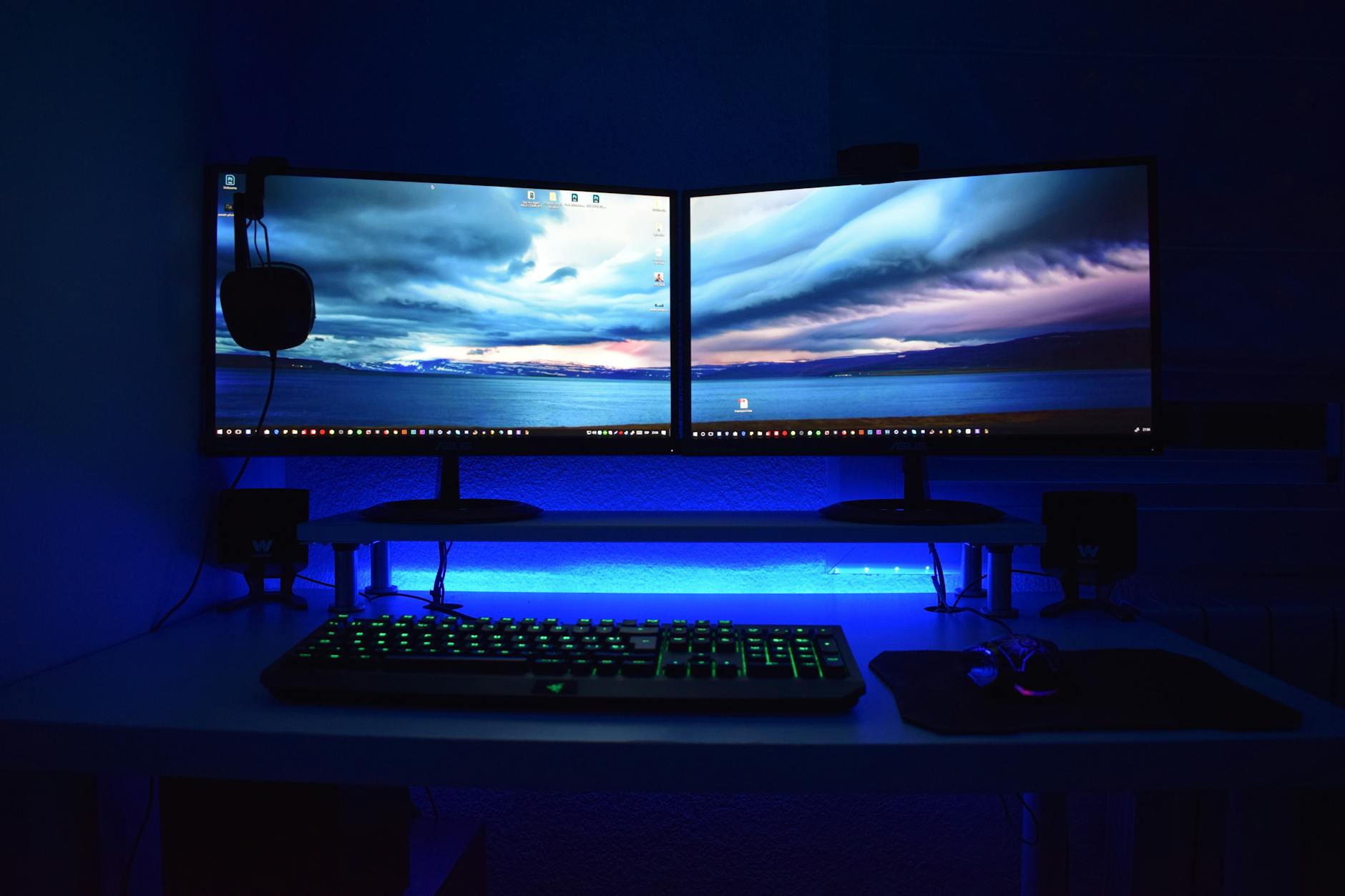
Whether you’re using an external monitor or a raised laptop, position matters The evidence-based guidelines are clear: You might also find our Home Office Ideas for Renters guide useful here.
- Height — the top of the screen should be at or slightly below eye level This keeps your neck in a neutral position rather than tilting up or down
- Distance — about an arm’s length (50-70cm for most people) If you’re squinting, either increase font size or move closer — don’t hunch forward
- Tilt — a slight backward tilt (10-20 degrees) reduces neck strain by letting you view the screen without tilting your head
- Position relative to you — directly in front of you, not off to one side If you use two monitors, angle them in a slight V shape with the join directly in front of you, or if you use one more than the other, put the primary screen directly ahead and the secondary to one side
A monitor arm is one of the most cost-effective ergonomic upgrades you can make It lets you adjust height, distance, and angle independently, and frees up desk space underneath The Amazon Basics monitor arm (around £100-120) is a rebranded Ergotron and represents excellent value For a budget option, a desk shelf riser (£15-35) gets the height right even if it doesn’t offer the flexibility of a full arm You might also find our Home Office Ideas for Renters guide useful here.
Keyboard and Mouse: Overlooked Essentials
Your keyboard and mouse are what you physically interact with most during the day, yet they’re often the last things people think about ergonomically You don’t need expensive specialist equipment, but a few principles make a big difference:
Your keyboard should be at a height where your elbows are at roughly 90 degrees and your wrists are straight — not bent upward Counter-intuitively, this means those flip-out keyboard feet that raise the back of the keyboard actually make things worse for most people Keep the keyboard flat or even slightly negatively tilted (front higher than back)
Your mouse should be at the same height as your keyboard and close enough that you don’t have to reach for it A common mistake is placing the mouse too far to the side, which forces your arm to extend and your shoulder to carry extra load
Budget-friendly upgrades that make a real difference:
- Logitech K380 keyboard (around £35) — compact, Bluetooth, and the low profile keeps your wrists in a natural position
- Logitech MX Keys Mini (around £80) — slightly pricier but excellent key feel and backlighting, compact layout
- Wrist rest for keyboard (£10-15) — a basic gel or memory foam wrist rest keeps your wrists from resting on a hard desk edge But use it as a rest between typing, not while typing — your wrists should float while you actually type
- Vertical mouse — the Logitech Lift (around £60) or Anker vertical mouse (around £15) puts your wrist in a handshake position rather than flat, which reduces the rotation strain that can lead to RSI over time
Lighting: The Forgotten Factor
Poor lighting causes eye strain, headaches, and fatigue — and it’s often the easiest thing to fix In UK home offices, the challenge is typically managing variable natural light (especially in winter when it gets dark by 4pm) while avoiding screen glare
Key lighting principles for a home office:
- Natural light from the side — position your desk perpendicular to the window, not facing it or with your back to it
- Task lighting — a desk lamp with adjustable brightness fills in when natural light fades The BenQ ScreenBar (around £90) mounts on top of your monitor and lights your desk without creating screen glare — it’s one of the most useful desk accessories we’ve tested across dozens of home office setups
- Avoid overhead-only lighting — a single ceiling light creates shadows on your desk and glare on your screen Supplement with desk-level lighting
- Screen brightness and temperature — match your screen brightness to your room Use night mode or blue light reduction (built into Windows and macOS) in the evening to reduce eye strain and improve sleep quality
Movement: The Best Ergonomic Tool Is Free
Here’s the thing that no amount of equipment can replace: regular movement The human body isn’t designed to hold any single position for hours, no matter how “ergonomically perfect” that position is The research is clear that regular movement breaks are more important than having the perfect chair or the ideal desk height We cover this in more detail in our How to Create a Home Office in a Small Flat piece.
Practical movement strategies that actually stick:
- The 20-20-20 rule for eyes — every 20 minutes, look at something 20 feet away for 20 seconds This reduces eye strain considerably
- Stand or walk during calls — if you’re on audio calls, stand up or walk around You don’t need to be at your desk for conversations
- Micro-breaks every 30-45 minutes — even just standing up, stretching your arms overhead, and sitting back down takes 15 seconds and resets your posture
- A proper break every 90 minutes — walk to the kitchen, make a cup of tea, step outside for fresh air Your brain needs this as much as your body
- Use a timer if you forget — the Pomodoro technique (25 minutes of work, 5-minute break) works well, or just set a simple phone timer Apps like Stretchly (free, open-source) remind you to take breaks
The Budget Breakdown: Building a Complete Ergonomic Setup
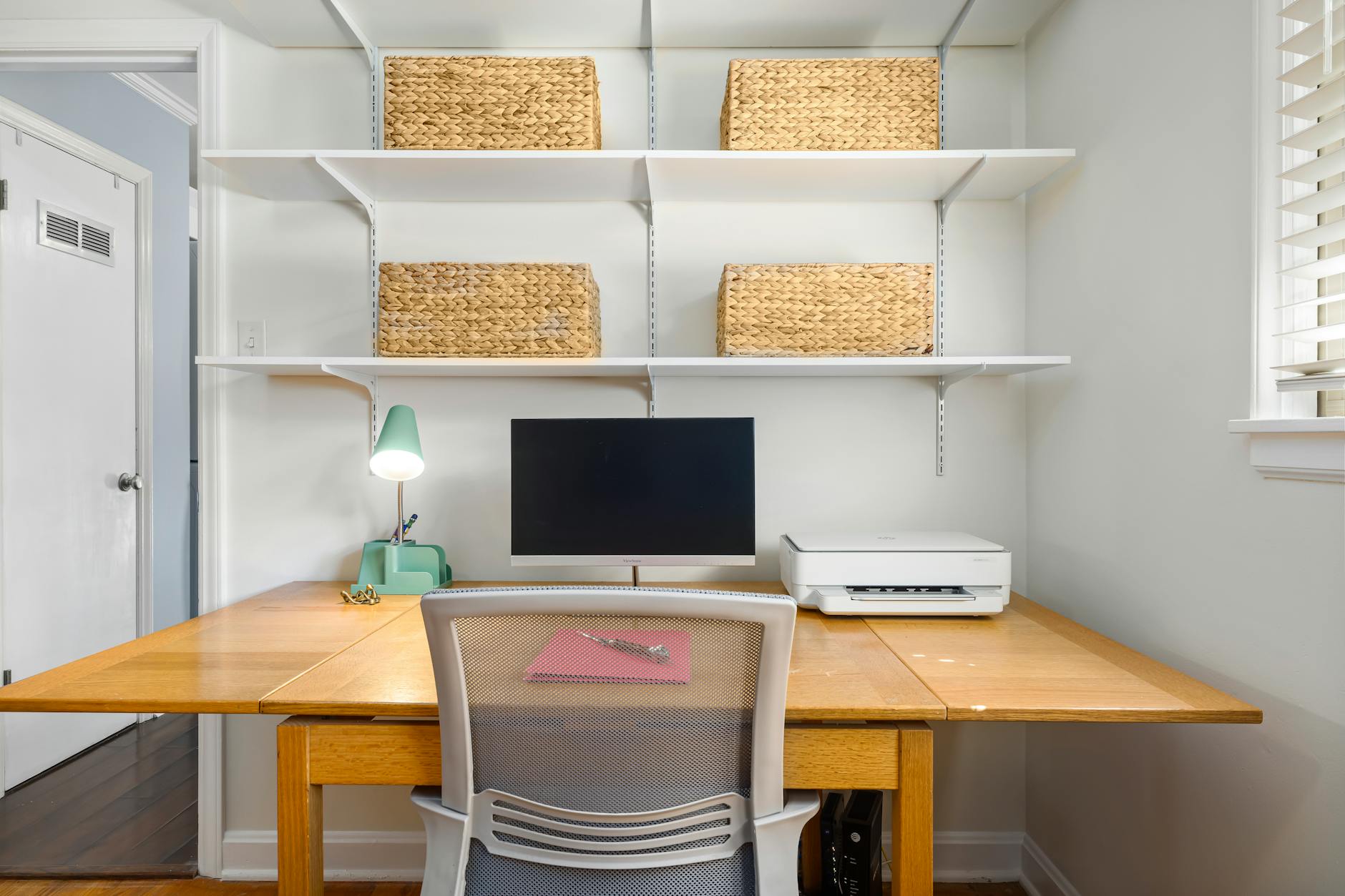
Here’s what a really good ergonomic home office costs at different budget levels: We cover this in more detail in our How to Create a Home Office in a Small Flat piece.
Under £100 — The Essentials:
- Laptop stand or monitor riser — £15-25
- External keyboard — £20-35
- External mouse — £10-25
- Footrest (or DIY alternative) — £0-15
- Cushion for existing chair — £15-25
This gets you roughly 70% of the way to a good ergonomic setup using your existing desk and chair It’s the highest-impact-per-pound tier
Under £350 — The Sweet Spot:
- Ergonomic chair (Ikea MARKUS or JÄRVFJÄLLET) — £200-250
- Laptop stand or monitor arm — £15-100
- External keyboard and mouse — £40-60
- Desk lamp — £25-50
This tier gives you a properly supportive chair and well-positioned peripherals For most people, this level of investment delivers excellent ergonomics
Under £500 — The Full Setup:
- Good chair — £200-300
- Monitor arm — £100-120
- Quality keyboard and mouse — £80-120
- Desk lamp (BenQ ScreenBar or similar) — £50-90
- Wrist rest and desk pad — £20-30
At this level, you’ve got a truly professional ergonomic setup that rivals offices costing much more The main upgrade from here would be a standing desk or a premium chair, but neither is essential if everything else is dialled in
Common Mistakes to Avoid
In our experience testing and advising on home office setups, these are the most common mistakes people make:
- Spending all the budget on one item — a £1,000 chair with a terrible screen position will still give you neck pain Balance your spending across chair, screen position, and peripherals
- Ignoring the laptop problem — the majority of home workers use laptops, and most never separate the screen from the keyboard This single change prevents more discomfort than any chair upgrade
- Setting it up once and forgetting it — your body changes, your habits shift, and seasons affect lighting Revisit your setup every few months and adjust
- Buying based on aesthetics — that minimalist all-white setup looks great on Instagram but might not be ergonomically sound Function first, aesthetics second
- Neglecting breaks — no equipment can compensate for sitting still for four hours straight Movement is the most important ergonomic intervention, and it’s completely free
The Bottom Line
Setting up an ergonomic home office on a budget isn’t about buying the right products — it’s about understanding a few simple principles and applying them consistently Screen at eye level Elbows at 90 degrees Feet flat Move regularly Everything else is refinement
Start with the free adjustments — raising your laptop, fixing your chair height, improving your lighting Then invest in the highest-impact items for your situation, which for most people means a decent chair and an external keyboard You can build a actually excellent ergonomic setup for under £350, and even £100 spent wisely will make a noticeable daily difference
The perfect is the enemy of the good here Don’t wait until you can afford a £1,500 Herman Miller Aeron and a Fully Jarvis desk Make the improvements you can afford now, and upgrade gradually over time Your body doesn’t care about brand names — it cares about position, movement, and support
Frequently Asked Questions
Do desk accessories actually improve productivity? The right ones do. A monitor arm frees space and improves posture. A cable tidy removes visual clutter. Buy what solves a real problem rather than filling your desk with gadgets.
What is the most useful desk accessory? A good monitor arm. It frees desk space, lets you adjust height and angle precisely, and eliminates neck strain from a fixed-height stand.
Is it worth investing in a full ergonomic setup? If you work from home regularly, absolutely. Proper ergonomics prevent long-term issues like back pain and RSI. Even small improvements — a monitor at the right height, a supportive chair — compound over time.
What should I check first with How to Set Up an Ergonomic Home Office on a Budget? Start with the real use case, then check size, compatibility, running costs and maintenance. A product that looks good on paper can still be the wrong fit if it does not suit the room, routine or budget.
How do I avoid wasting money on How to Set Up an Ergonomic Home Office on a Budget? Avoid buying on one headline feature alone. Compare the practical details, read the warranty or returns terms, and choose the option that solves your main problem rather than the one with the longest specification list.