Best webcam stand for video calls: choose by where the camera needs to sit. A clamp-mounted arm can move a camera beside or above a screen without using much desk surface; a weighted base is simpler when you cannot clamp the desk; and a mini tripod is useful for a low, portable setup. Our practical shortlist is the NEEWER UA057, Etour heavy-base stand and SmallRig BUT2664. None is automatically compatible with every webcam: check for a removable clip and a 1/4-inch mounting socket before buying.
This is a research-led comparison of published specifications and exact UK listings. We have not mounted these stands, measured vibration on calls or tested clamp grip on individual desks. The three options solve different placement problems, rather than forming a single best-to-worst ranking.
In This Article
- Stands at a glance
- Three stand options
- Check mount compatibility
- Position and stability
- The bottom line
- Frequently asked questions
Webcam stands at a glance
Start with the desk constraint. A clamp needs a suitable exposed edge and room under it; a base needs free desk area; a mini tripod needs enough height from its support surface. The three options compared here are stands or mounts, not webcams. Logitech Reach includes a camera, so it falls outside this standalone-stand comparison.
| Stand | Best for | Mount style | Main compromise |
|---|---|---|---|
| NEEWER UA057 | A repositionable camera beside or above a monitor | Articulated arm with desk clamp | Needs a suitable desk edge and careful tightening |
| Etour heavy-base stand | A conventional eye-level camera without a clamp | Height-adjustable pole and weighted base | Takes up desk surface |
| SmallRig BUT2664 | A compact, movable tabletop position | Mini tripod with ball head | Usually needs a raised surface for eye level |
The comparison assumes a webcam with a suitable threaded mount. If yours only clips to a monitor, check whether its clip detaches and exposes a standard socket; do not buy a stand on the strength of a generic “compatible with Logitech” claim alone.
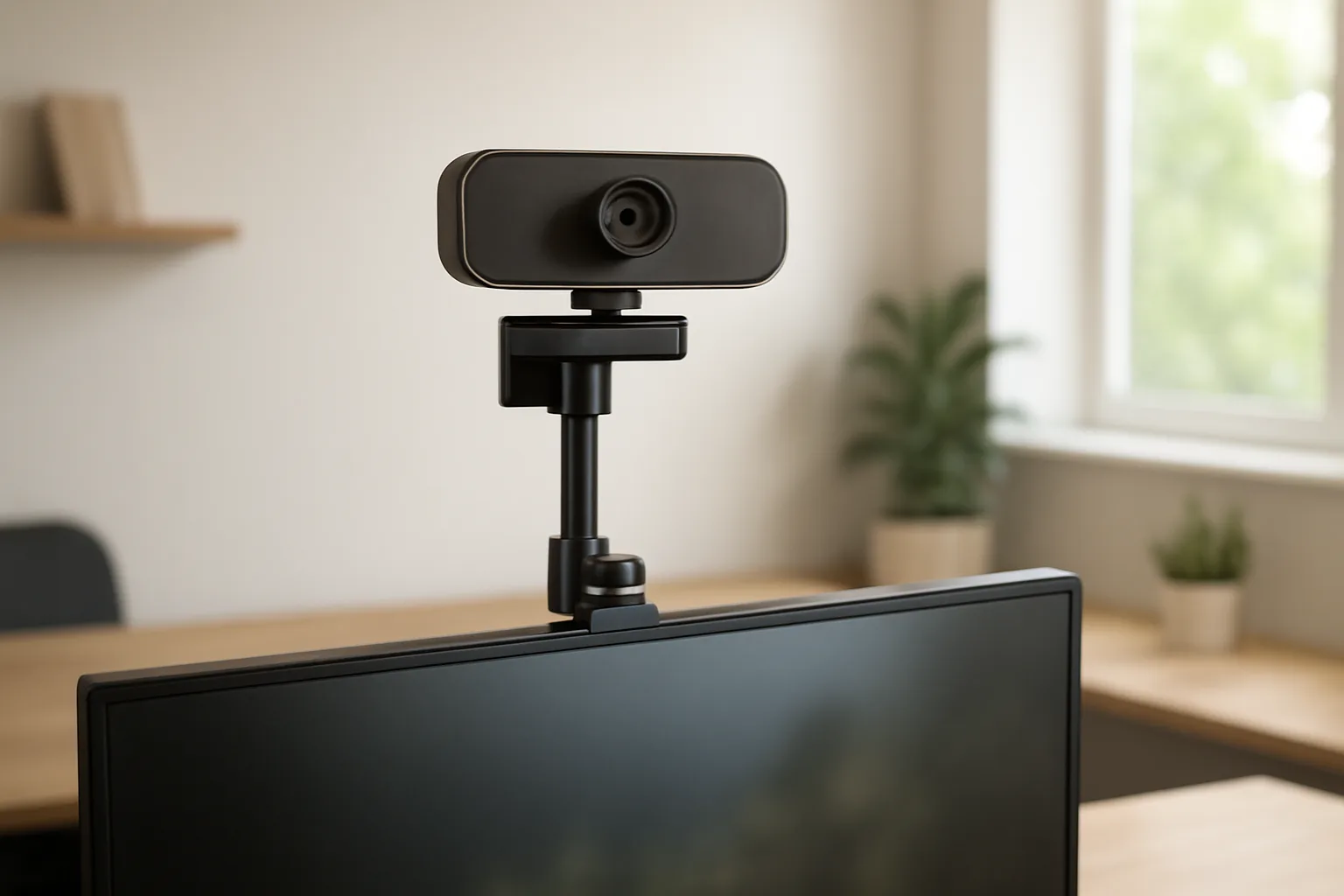
Three webcam stand options worth considering
1. NEEWER UA057 — adjustable desk-clamp arm
The UA057 uses an articulated arm and C-clamp to place a camera away from the edge of the desk. NEEWER specifies a 1/4-inch top screw and describes webcam mounting among its uses. It suits a desk with a clear clamping edge when a fixed tabletop pole would block work space or put the lens in the wrong place.
Check the thickness and shape of your desk edge, the space below it and the route of the webcam cable before ordering. Tighten each joint only after framing the shot; an extended arm is more susceptible to desk bumps than a camera resting directly on a monitor. Maker load figures do not establish shake-free video on your desk.
- Choose: you need the lens beside, above or just beyond the monitor.
- Skip: your desk edge is inaccessible, fragile or unsuitable for a clamp.
- Check: the webcam socket, clamp clearance and cable slack.

2. Etour heavy-base stand — eye-level setup without a clamp
The Etour listing shows a height-adjustable desktop pole, a ball head and a weighted base, with a 1/4-inch attachment for a compatible webcam. It is a simple option for someone using a desk that cannot accept a clamp, or who wants to move the whole camera position without undoing hardware.
A base is only as stable as the surface beneath it. Allow space around the keyboard and avoid placing the stand where a cable can pull it over. Check the listed height range against your actual seat and monitor position rather than assuming any freestanding stand will reach eye level.
- Choose: you want a movable desktop stand and cannot use a clamp.
- Skip: your desk surface is crowded or a base would obstruct writing.
- Check: base footprint, pole height and the camera’s threaded mount.

3. SmallRig BUT2664 — compact tabletop tripod
The SmallRig BUT2664 is a mini tripod with a ball head and 1/4-inch attachment. Its folding form is useful if you move between desks or sometimes need a camera on a shelf or other level surface. It can also support other compatible small devices; the exact camera and adapter still matter.
A short tripod is not a magic eye-level solution on a low desk. Check its working height, spread of the legs and the surface available behind the screen. Keep all three feet fully supported and route the USB cable so it cannot tug the camera or the tripod.
- Choose: you value portability and have a suitable raised surface.
- Skip: you need a tall eye-level position from desk height alone.
- Check: leg footprint, ball-head clearance and any adapter your webcam requires.

Check the webcam mount before buying
Look under the camera or removable monitor clip for a 1/4-inch threaded socket. Some webcams have one; others need a model-specific adapter or are designed only for a clip. Match the stand’s screw and the camera’s socket, then check that the camera body can tilt without hitting the mount. A product title listing your camera family does not prove that your exact revision attaches directly.
For an overhead document view, measure the arm reach to the work area as well as height. Also check whether your webcam software can rotate or reframe that view; a stand alone does not change the camera’s image orientation. An integrated document camera such as Logitech Reach is a different purchase decision, not a stand upgrade.
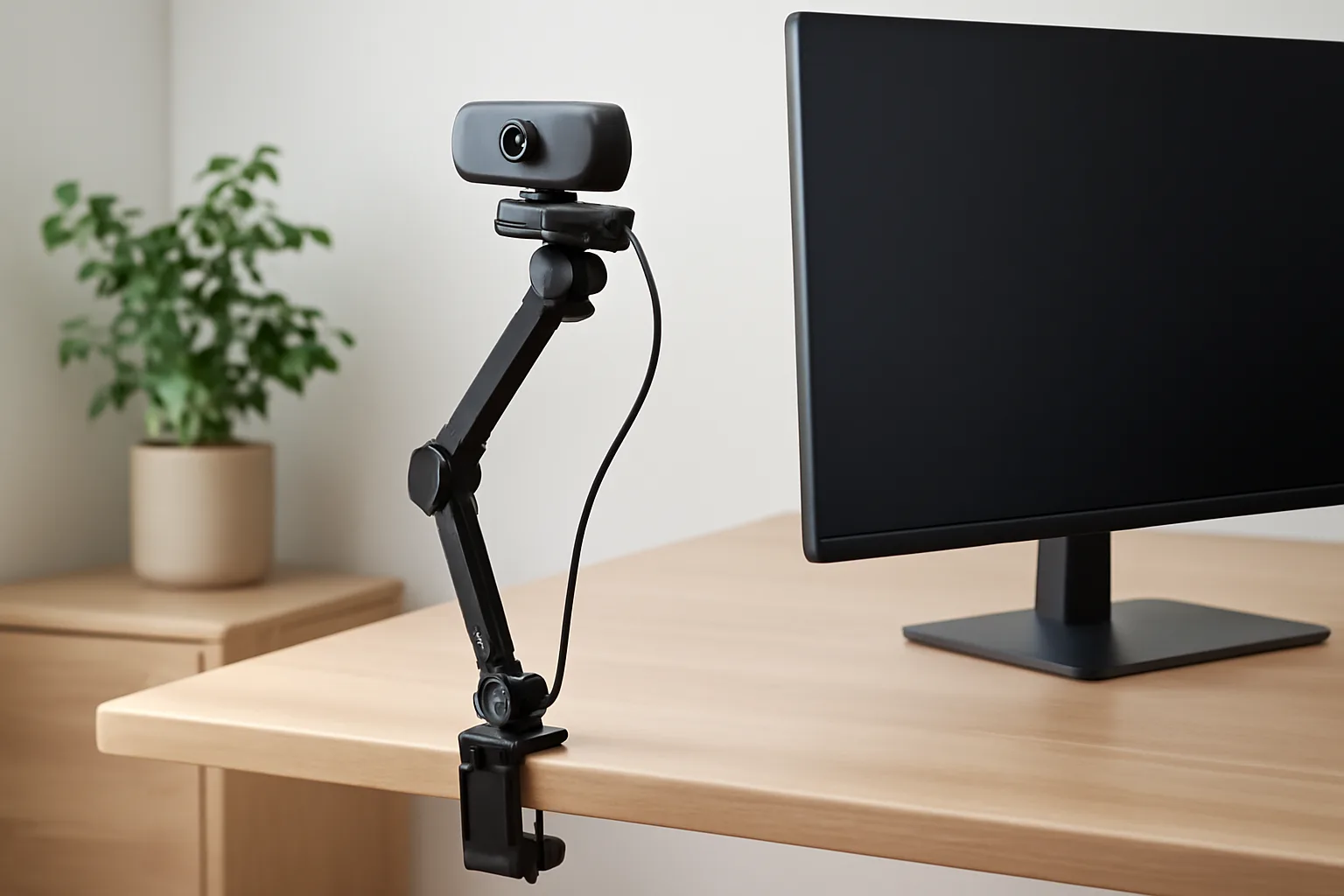
Set camera height, stability and cables
Position the lens near eye height for a natural video-call angle, then make a test call at your usual sitting position. Keep the camera near the screen you look at most often, so your gaze is not far from colleagues. The monitor-height guide and desk setup checklist can help you arrange the screen and workspace together.
For stability, tighten joints, keep a base fully on the desk and avoid a long unsupported reach. Type, move the mouse and open a drawer during a test recording to see what actually shakes. Route the USB cable with enough slack for repositioning and away from moving joints; a taut cable can shift even a well-mounted camera. Lighting from in front of you and a tidy background often matter more than buying a more elaborate arm.
The bottom line
For a desk with a suitable edge, the NEEWER UA057 gives the most placement flexibility. Choose the Etour base if clamping is not practical and you have surface space. The SmallRig BUT2664 is the compact option for a raised tabletop position. Before any of them, confirm your webcam’s mount and the space in your own setup.
Frequently asked questions
Will any webcam fit a 1/4-inch stand?
A 1/4-inch screw is common on camera stands, but webcam mounts differ. Check whether your exact model or detachable clip has a matching threaded socket. If it does not, you may need a model-specific adapter or a different mounting method.
Is a clamp stand better than a weighted base?
A clamp saves desk surface and can position a lens beyond the desk edge, provided the edge is suitable. A weighted base is easier to move and works when clamping is impossible, but occupies the desk and needs a level surface. Choose around your desk, not a universal ranking.
How high should a webcam be for calls?
Aim for a lens position close to your eye line while seated normally, then check the framing in a test call. A short tabletop tripod may need a shelf or riser; a pole or arm may offer more height. Keep the screen at a comfortable position too.
Can I use a webcam stand for overhead demonstrations?
An arm with sufficient reach may hold a compatible camera above a document area. Measure the work area, desk-edge clearance and cable length, and confirm the camera can produce the orientation you need. A simple desktop base or mini tripod may not reach over the work.
How do I stop the webcam image shaking?
Test the setup while typing and moving the desk. Keep arm reach modest, tighten joints, seat a clamp on a suitable edge, or place all tripod feet or the base firmly on a level surface. Leave cable slack so the wire does not pull the camera.