Most second-screen laptop setup problems come from buying the wrong adapter, leaving the display in mirror mode, or putting the laptop so low that your neck takes the punishment. Get those three things right and a laptop plus monitor setup feels like a proper workstation, not a tangle of cables on the kitchen table.
In This Article
- Check What Your Laptop Can Actually Output
- Choose the Right Cable, Adapter or Dock
- Connect the Screen and Set It to Extend
- Arrange the Displays So the Mouse Moves Naturally
- Set the Screen Height, Distance and Laptop Position
- Tidy Power, Charging and Desk Space
- Fix Common Second-Screen Laptop Setup Problems
- Frequently Asked Questions
Check What Your Laptop Can Actually Output
Before you buy anything, turn the laptop round and check the ports. It sounds basic, but this is where most second-screen laptop setup faff starts. A cheap HDMI cable is useless if your laptop only has USB-C. A shiny USB-C hub is annoying if that port only does charging and data, not video.
The ports that matter
Most UK laptops use one of these routes:
- HDMI: the easiest option. A decent 2m HDMI cable is usually £6-£12 from Amazon UK, Currys or Argos.
- USB-C with DisplayPort Alt Mode: common on modern Windows laptops and many Chromebooks. You can use a USB-C to HDMI or USB-C to DisplayPort adapter for about £10-£25.
- Thunderbolt 3, Thunderbolt 4 or USB4: usually marked with a lightning symbol. This gives the most flexible dock and monitor options.
- Mini DisplayPort: older, but still around on some business laptops. Adapters are normally £8-£18.
Do not assume every USB-C port can run a screen. Some budget laptops have USB-C for charging and file transfer only. Look for a small DisplayPort logo, a Thunderbolt logo, or check the laptop specification page. Apple lists display support by MacBook model, and some MacBooks support fewer external displays than people expect, so it is worth checking before buying a dock.
Check the screen limit, not just the socket
A laptop may have the right port and still have a display limit. Some entry-level machines can run the built-in display plus one external monitor; others can run two or three external screens through a dock. If you only need one second screen, almost any recent laptop with HDMI or video-capable USB-C will cope. If you want the laptop screen plus a 4K external monitor at 60Hz, check the spec rather than guessing.
For most home offices, I would choose a 24in or 27in monitor before chasing 4K. A good 24in 1080p office monitor such as an AOC 24B3H or Dell P2425H is often £90-£170 in the UK. A 27in 1440p screen is the nicer work upgrade at about £180-£280. If you are deciding between sizes, our monitor size guide goes deeper than this setup article needs to.
The useful check is simple: can your laptop output the resolution and refresh rate your monitor expects? A 60Hz office display is easy. A high-refresh gaming monitor or a 4K screen can expose weak cables, old docks and limited ports very quickly.
Choose the Right Cable, Adapter or Dock
The cheapest working connection is usually the best connection. If your laptop has HDMI and your monitor has HDMI, buy a proper HDMI cable and move on. You do not need a dock just because desk setup videos make docks look tidy.
When a simple cable is enough
Use a direct cable when you leave the monitor on one desk and only need the screen:
- HDMI to HDMI: best for most Windows laptops and budget monitors. Expect £6-£12.
- USB-C to DisplayPort: my favourite for higher-resolution monitors where the laptop supports video over USB-C. Expect £12-£25.
- USB-C to HDMI: useful if the monitor lacks DisplayPort. A Ugreen or Anker adapter is usually £12-£25.
Avoid no-name adapters that cost £4 and promise everything. They often work for a week, then start flickering when the laptop moves. The boring mid-priced Anker, Ugreen, Belkin and Cable Matters options are less exciting and usually less painful.
When a dock earns its place
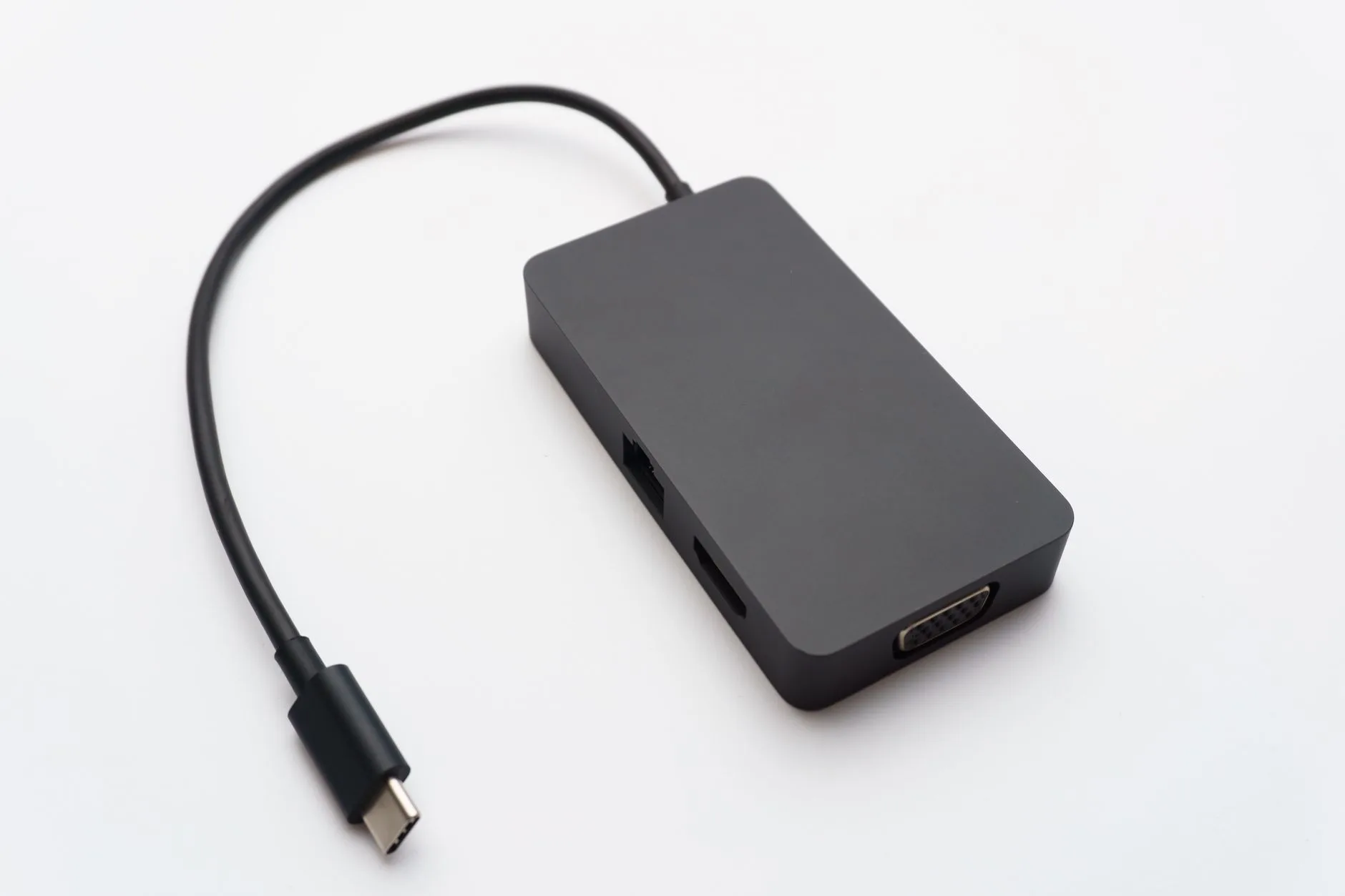
A dock makes sense if you want one cable into the laptop for screen, keyboard, mouse, Ethernet, storage and charging. For a laptop that moves between sofa, kitchen and desk, this is the upgrade that makes the desk feel permanent.
Budget USB-C hubs start at about £25-£45, but many do not charge the laptop at full speed. A better USB-C dock with power delivery is usually £60-£130. Thunderbolt docks from CalDigit, Anker, Dell or Kensington can be £150-£300, which is only worth it if your laptop and monitor setup need the bandwidth.
If you are unsure, read the dock spec for three things:
- Video output: HDMI, DisplayPort or USB-C display output that matches your monitor.
- Power delivery: 65W is enough for many office laptops; 90W-100W is safer for larger machines.
- Refresh and resolution: look for 4K at 60Hz if you use a 4K monitor, not only “4K” in the title.
We have a separate docking station guide because docks become a buying decision of their own. For this article, the rule is simpler: buy the least complicated connection that does the job.
Connect the Screen and Set It to Extend
Put the monitor on the desk first, plug it into power, then connect the cable to the laptop. If the monitor has several inputs, use its buttons or joystick to select the right source: HDMI 1, HDMI 2, DisplayPort or USB-C. More than once I have “fixed” a second screen by pressing the input button twice. Not glamorous, but it works.
Windows setup
On Windows 10 or Windows 11, connect the screen and then:
- Right-click the desktop and choose Display settings.
- Scroll to the display diagram and click Detect if the second screen is not shown.
- Under multiple displays, choose Extend these displays, not duplicate.
- Click Identify so each screen shows its number.
- Select the monitor you want as your main workspace and tick Make this my main display.
Microsoft’s own Windows support notes that using Extend rather than duplicate is one of the first checks when an external monitor is not behaving properly: troubleshoot external monitor connections in Windows.
macOS setup
On a MacBook, connect the screen, then open System Settings and go to Displays. You can arrange the displays by dragging them into the same left-right order as your desk. If the external monitor mirrors the MacBook screen, change the setting so it extends the desktop instead.
For MacBooks, model limits matter more than the port shape. Apple explains external display support by MacBook model, and that matters if you are trying to run more than one external display from a MacBook Air or MacBook Pro: Apple’s MacBook Pro external display support.
Do the first test before tidying cables
Open a browser window and drag it from the laptop screen to the monitor. If it moves smoothly and appears on the correct side, the basic setup is working. Only then should you start cable-tidying. If you bundle everything first and then find the monitor is using the wrong input, you will undo your neat work while muttering things the neighbours do not need to hear.
Arrange the Displays So the Mouse Moves Naturally
The display diagram in Windows or macOS should match the real desk. If the monitor sits to the left of your laptop, drag the monitor rectangle to the left of the laptop rectangle. If the monitor is raised higher, align the rectangles roughly by screen height. This stops the cursor jumping at strange points between displays.
Pick the main screen on purpose
Most people should make the external monitor the main display. It is larger, higher and easier to work from for long sessions. Keep the laptop screen for email, chat, notes, music or reference material.
There are exceptions. If you are on video calls all day and the laptop camera is your only webcam, putting the laptop directly below or beside the external monitor may make the laptop screen the better call-control area. If you use a separate webcam, mount it on the external monitor and make that the main screen.
Match scaling so text does not feel odd
Scaling is the setting that makes text and icons larger or smaller. A 14in laptop at 125% scaling next to a 27in monitor at 100% can feel fine. A 4K monitor at the wrong scaling can look either tiny or blurry.
Use this as a starting point:
- 24in 1080p: 100% scaling usually feels right.
- 27in 1440p: 100% or 125%, depending on eyesight and desk depth.
- 27in 4K: 150% is often more comfortable for office work.
If the second monitor is for spreadsheets, writing and browser tabs, resolution matters less than comfortable text. Our resolution comparison is useful if you are deciding whether a sharper monitor is worth the money.
Set the Screen Height, Distance and Laptop Position
A second screen is only an upgrade if you can use it without hunching. The Health and Safety Executive’s DSE guidance says employers need to manage risks from regular display screen equipment use, including workstation setup and breaks. Even at home, the practical lesson is the same: do not build a setup that forces your neck and shoulders into a poor position for hours. The HSE overview is here: working safely with display screen equipment.
Put the external monitor in the best position
If the external monitor is your main screen, place it directly in front of you. The top of the visible screen should sit roughly at or just below eye level, with the screen about an arm’s length away. You do not need surgical precision. You just need to stop looking down all day.
A basic monitor stand is £15-£35 from IKEA, Amazon UK or John Lewis. A gas monitor arm is usually £30-£100. I prefer an arm if the desk is shallow, because it frees up space under the screen and lets you pull the monitor closer without losing the whole desk surface.
For a fuller posture setup, use our monitor height guide. Here, the key point is that the laptop should not dictate the height of the main screen.
Decide what to do with the laptop
There are three sensible laptop positions:
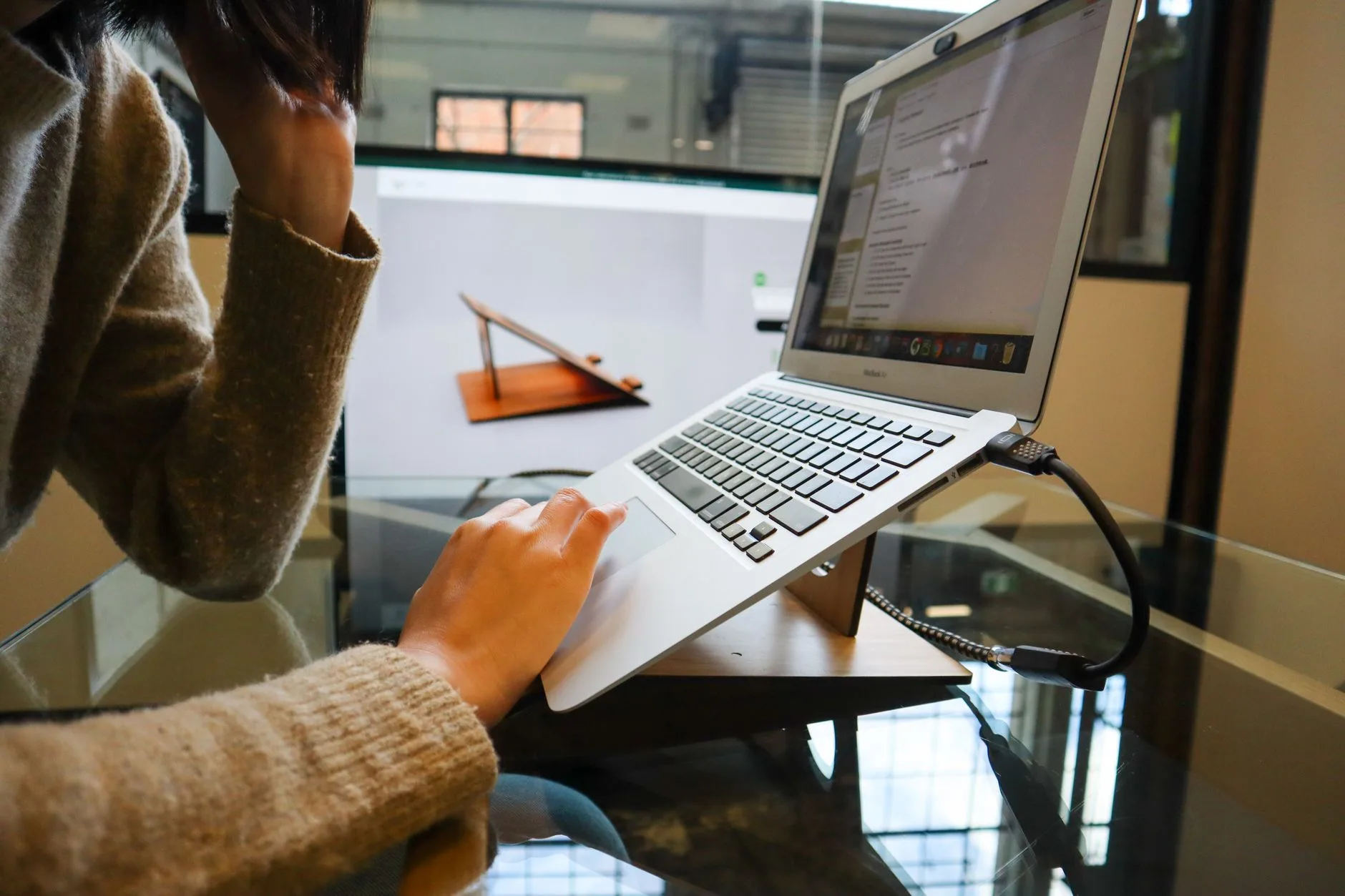
- Open beside the monitor: best if you use the laptop screen as a second display. Put it on a laptop stand so the screen is not down by your wrists.
- Open below the monitor: useful for calls, chat and notes, but it needs a stand and enough desk depth.
- Closed in clamshell mode: tidiest if you use an external keyboard, mouse and webcam. Check your laptop supports this and keep it powered.
A folding laptop stand costs about £18-£35. A solid aluminium riser is more like £25-£60. The cheap folding ones are fine if you do not type on the laptop keyboard while it is raised. If you do type on it, the wobble gets old fast.
Tidy Power, Charging and Desk Space
Once the second screen works, tidy the parts you touch every day: keyboard, mouse, power cable, monitor cable and charger. A second screen often fails as a desk upgrade because the screen is good but the desk becomes awkward.
Use external input devices
If the laptop is raised, use an external keyboard and mouse. A Logitech K380 keyboard is often £30-£45, a basic Logitech M185 mouse is about £10-£15, and a better ergonomic mouse can be £25-£70. You do not need premium gear, but you do need your hands at desk height rather than reaching up to a tilted laptop.
If you handle printed notes, invoices or a notebook beside the laptop, a document holder can stop you twisting between paper and screen. It is a boring accessory. It is also one of the cheapest fixes for a desk that feels cramped.
Keep cables boring and reliable
Use short routes, not tight bends. Velcro ties are better than plastic zip ties because you will change the setup at some point. A pack is about £5-£10. Adhesive cable clips are useful under a desk, but cheap ones often fall off textured surfaces, so clean the area first.
If you use USB-C charging through a hub, check that the laptop still receives enough power. A hub may advertise 100W pass-through but keep 10W-15W for itself, leaving 85W for the laptop. That is fine for many machines, but a power-hungry laptop can drain slowly under load.
This is also where glare shows up. A second screen angled toward a window can look fine in the morning and awful by 3pm. If reflections are the problem, fix the screen position before buying accessories. Our monitor glare tips cover the usual UK home-office problem of windows, lamps and glossy screens fighting each other.
Fix Common Second-Screen Laptop Setup Problems
Most second-screen faults have a dull cause: wrong input, weak cable, unsupported adapter, display mode set to duplicate, or scaling that does not suit the screen. Work through the boring checks first. They solve more than driver archaeology.
No signal
Start with the monitor input. If that is right, unplug the cable at both ends and reconnect it firmly. Try a different HDMI or USB-C cable if you have one. If you are using a hub, test a direct cable from laptop to monitor. That tells you whether the dock is the weak link.
For USB-C, check that the port supports video. If the laptop has two USB-C ports, try the other one. Some laptops have one full-featured port and one charging/data port, which is not helpful when both look identical.
The displays are mirrored
Mirroring is useful for presentations, not daily work. On Windows, press Windows key + P and choose Extend. On macOS, go to Displays and turn off mirroring. Then arrange the display rectangles so the cursor moves in the same direction as your hand expects.
Text is blurry or too small
Check that the monitor is running at its native resolution. A 1920 x 1080 monitor should run at 1920 x 1080, not 1366 x 768. A 2560 x 1440 monitor should run at 2560 x 1440. Then adjust scaling for comfort.
If a 4K monitor only offers 30Hz through your dock, the mouse may feel laggy. That usually points to an older HDMI adapter, a limited hub or a laptop port that cannot drive the screen at 4K 60Hz. This is why the spec check at the start matters.
The laptop gets hot when closed
Closed-lid mode is tidy, but laptops still need airflow. Do not slide a running laptop into a padded sleeve or stack books on top of it. A vertical stand can work well and costs about £15-£35, but leave space around vents. If the fan ramps up constantly, use the laptop open on a stand or improve airflow.
The final test is whether you can sit down and start work without thinking about the setup. If the answer is yes, the second screen has done its job.
Frequently Asked Questions
Can I use any monitor as a second screen for my laptop? Usually, yes, as long as the laptop can output video to one of the monitor’s inputs. HDMI is the easiest match. USB-C and DisplayPort can be better for higher resolutions, but the laptop port must support video output.
Do I need a docking station for a second-screen laptop setup? No. A direct HDMI or USB-C cable is enough for many setups. A dock is worth buying if you want one cable for monitor, charging, keyboard, mouse and other desk accessories.
Should the laptop screen or external monitor be the main display? For longer work sessions, make the external monitor the main display because it is larger and easier to position at eye level. Keep the laptop screen for reference, calls or messaging.
Why is my second screen only duplicating my laptop? The display mode is set to mirror or duplicate. On Windows, press Windows key + P and choose Extend. On macOS, open Displays and turn off mirroring.
What is the cheapest reliable way to connect a laptop to a monitor? If both devices have HDMI, a £6-£12 HDMI cable is the cheapest reliable option. If the laptop only has USB-C, use a branded USB-C to HDMI or USB-C to DisplayPort adapter at about £12-£25.
Is a 24in or 27in monitor better for a laptop setup? A 24in 1080p monitor is cheaper and fits small desks well. A 27in 1440p monitor gives more working space and is the better long-term upgrade if your desk has enough depth.