You’ve got a cable for your phone, a cable for your earbuds, a cable for your watch, and they’re all tangled behind the monitor like a nest of angry snakes. Every time you pick up your phone, the cable drags the pen pot with it. A wireless charging pad solves this in the most satisfying way possible — drop your phone on the pad, it charges, pick it up, done. No plugging, no fumbling, no cable spaghetti.
Setting one up on your desk takes about five minutes, but doing it well — so it’s in the right position, charges reliably, and doesn’t look awful — takes a bit more thought. I’ve been using wireless charging pads on my desk for years, and the difference between a well-placed pad and a badly-placed one is the difference between a feature you use ten times a day and a gadget that ends up in a drawer.
In This Article
- What You Need Before You Start
- Step 1: Check Your Phone Supports Wireless Charging
- Step 2: Choose the Right Charging Pad
- Step 3: Find the Best Position on Your Desk
- Step 4: Manage the Cable
- Step 5: Test and Adjust
- Common Wireless Charging Problems and Fixes
- Wireless Charging Speeds Explained
- Multi-Device Charging Pads
- Built-In vs Standalone Charging Pads
- Keeping Your Desk Tidy with Wireless Charging
- Frequently Asked Questions
What You Need Before You Start
Before you buy anything, make sure you have:
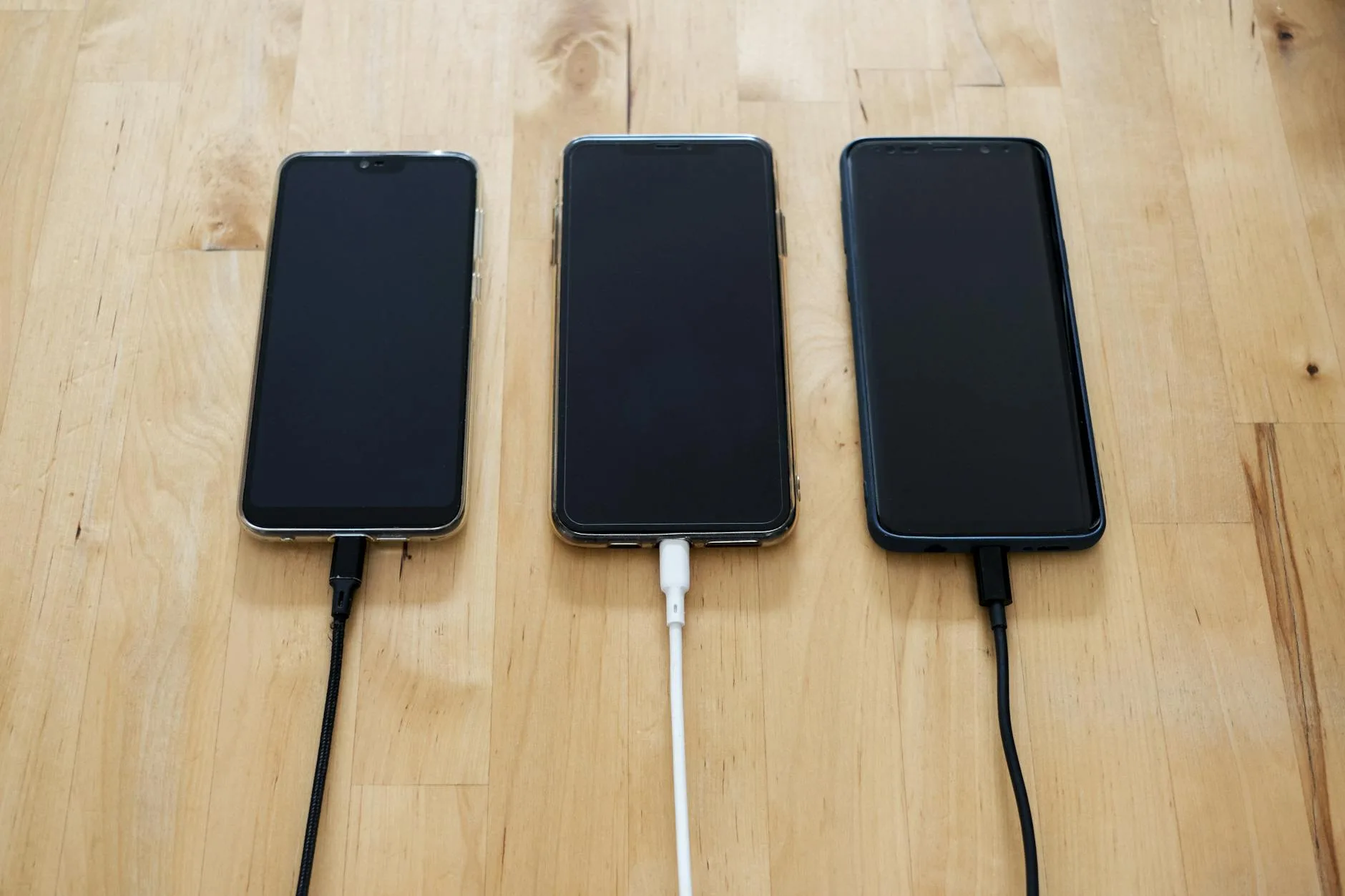
- A Qi-compatible phone — all iPhones since iPhone 8, all Samsung Galaxy since S6, Google Pixel 3 onwards, and most flagship Android phones
- A power source — the charging pad needs a USB cable to a plug, USB port, or USB hub. The pad itself doesn’t have a battery
- A clear desk area — about 10-15 cm square, ideally within easy reach of your dominant hand
- A USB power adapter — some pads include one, many don’t. For fast wireless charging, you need a specific wattage adapter (more on this below)
Step 1: Check Your Phone Supports Wireless Charging
The Quick Test
If your phone is from 2020 or later and cost more than £300, it almost always supports Qi wireless charging. The easiest way to check: put your phone face-down on a friend’s wireless charger and see if the charging indicator appears. Alternatively, search your phone model + “wireless charging” and the answer will be immediate.
What About Cases?
Most phone cases up to about 3mm thick work fine with wireless charging. The coil in the pad transmits through plastic, silicone, and thin leather without issues. Cases that block wireless charging include:
- Metal cases or metal plates — metal blocks the electromagnetic field entirely
- Very thick rugged cases (over 4-5mm) — the distance becomes too great
- Wallet cases with credit cards — the cards can interfere with the charging signal, and the charging pad can damage magnetic stripe cards
- Ring holders or PopSockets with metal components — the metal plate disrupts alignment
If your case has MagSafe compatibility (iPhone 12 onwards), you can use MagSafe chargers instead, which align magnetically and charge through MagSafe-optimised cases reliably.
Step 2: Choose the Right Charging Pad
Pad vs Stand
Flat pads sit on the desk surface. You lay your phone on top. They’re low-profile and almost invisible on a desk — the best ones are essentially a thin disc. The downside: you can’t see your phone screen while it charges, and picking it up to check a notification breaks the charge.
Stands hold your phone at an angle while charging. You can see notifications, accept video calls, and use Face ID without touching the phone. They take up slightly more visual space but are more functional for a desk setup where the phone is part of your workflow. If you are exploring this area, our guide on Standing Desk Mistakes Everyone Makes (And How to Fix Them) covers the essentials. If you are exploring this area, our guide on Standing Desk Mistakes Everyone Makes (And How to Fix Them) covers the essentials.
Charging Speed
- 5W — the original Qi standard. Painfully slow by modern standards. Avoid unless it’s very cheap
- 10W — standard fast charging for most Android phones. The baseline for 2026
- 15W — the maximum Qi standard. Fastest for most Android flagships
- MagSafe 15W — Apple’s proprietary fast wireless charging for iPhone 12+. Only works with official MagSafe chargers or MFi-certified alternatives
Build Quality and Materials
- Metal base — heavier, more stable, looks premium. Won’t slide around when you drop your phone on it
- Plastic base — lighter, cheaper, works fine but can drift on smooth desks
- Fabric or leather top — prevents phone scratching, adds grip, looks better than bare plastic
- Rubber grip ring — essential on the underside to stop the pad sliding across your desk
Our Picks
- Budget (under £15): Anker 313 Wireless Pad — reliable 10W charging, simple design, just works
- Mid-range (£20-30): Belkin Boost Charge Pad — 15W, quality build, includes power adapter
- Premium (£35-50): Mophie Snap+ Wireless Charging Pad — MagSafe-compatible, beautiful design
- Apple users: Apple MagSafe Charger — the only way to get true 15W on iPhones, magnetic alignment
Step 3: Find the Best Position on Your Desk
The Sweet Spot
Place the charging pad where your phone naturally lives when you’re not holding it. For most right-handed people, that’s to the right of the keyboard, between the mouse and the monitor base. For left-handed people, it’s usually the opposite side. The key principle: it should require zero effort to put your phone down on the pad and zero effort to pick it up.
What to Avoid
- Behind the monitor — out of sight means you’ll forget to place your phone on it
- Under papers or notebooks — things pile up on desks; if the pad gets buried, you stop using it
- Too close to the keyboard — you’ll bump it while typing and knock your phone off
- On a raised surface — some people put it on a shelf riser, but this adds an unnecessary reach movement
Consider Your Monitor Arms and Cables
If you use a monitor at the right height, you probably have a monitor arm. The arm’s cable routing channel is often a good route for the charging pad’s USB cable too — run them together to keep things tidy.
Step 4: Manage the Cable
Wireless charging isn’t truly wireless — the pad itself still needs a cable. The trick is making that cable invisible.
Routing Options
- Through a desk grommet — if your desk has cable management holes, run the USB cable down through one. The pad sits on top, the cable drops out of sight
- Along the back edge — use adhesive cable clips (about £3 for a pack of 20 from Amazon UK) to route the cable along the desk’s rear edge and down a leg
- Under a desk mat — if you use a large desk mat, you can run a flat USB cable underneath it from the back of the desk to the charging pad position
- Cable management tray — a mesh or plastic tray screwed under the desk catches all loose cables including the charger’s
The Power Adapter Question
Some charging pads include a USB power adapter; many only include a cable. For standard 10W charging, any USB adapter works. For fast charging (15W Qi or MagSafe), you need a USB-C PD adapter that delivers at least 20W. Using a slow adapter with a fast pad means you get slow charging — the pad can only deliver what the adapter provides.
A good 20W USB-C adapter costs about £12-15 from Anker or UGREEN. The Wireless Power Consortium maintains the Qi standard and publishes compatibility guidelines if you want to check specific adapter requirements.
Step 5: Test and Adjust
First Charge Test
Place your phone on the pad and confirm the charging indicator appears (a sound or on-screen animation on most phones). If nothing happens:
- Remove your phone case and try again — rules out case interference
- Adjust the phone position — the charging coils need to align. Centre the phone on the pad
- Check the USB cable is fully seated at both ends
- Try a different USB port or adapter — some USB ports on computers don’t deliver enough power
Alignment Check
Wireless charging works through electromagnetic induction between coils in the pad and coils in your phone. If the coils don’t overlap sufficiently, charging is slow or doesn’t start. Most pads have a wider coil that’s forgiving of slight misalignment, but some budget pads have small coils that need precise placement. If you find yourself fiddling with phone position every time, the pad’s coil may be too small — upgrade to one with a larger coil or switch to MagSafe for magnetic alignment.
Heat Management
Wireless charging generates more heat than wired charging. If your phone gets noticeably warm during wireless charging, that’s normal — but excessive heat can slow charging (the phone throttles to protect the battery) and reduce long-term battery health. Tips to manage heat:
- Remove the case for extended charging sessions — cases trap heat
- Avoid charging in direct sunlight — desk near a south-facing window plus wireless charging equals a very warm phone
- Don’t charge and use simultaneously — video calls while wireless charging produces the most heat
Common Wireless Charging Problems and Fixes
Phone Doesn’t Start Charging
- Check the cable and adapter — the most common issue is a loose USB connection
- Remove the case — metal components or excessive thickness block the signal
- Reposition the phone — slide it around until you find the coil sweet spot
- Restart the phone — occasionally wireless charging gets stuck and a reboot fixes it
Charging Stops Randomly
- Vibrations from notifications — phone vibrates, slides off the coil, stops charging. Either disable vibration or use a pad with grip/magnetic alignment
- Overheating — the phone throttles or stops charging to cool down. Remove the case and move away from heat sources
- Foreign objects — coins, keys, or metal clips between phone and pad can trigger safety shutoffs
Slow Charging
- Wrong adapter — a 5W adapter on a 15W pad gives you 5W charging
- Thick case — thicker cases reduce charging efficiency
- Old charging pad — early Qi pads max out at 5W. Check the pad’s spec sheet
Wireless Charging Speeds Explained
Real-World Numbers
Marketing claims are theoretical maximums. In practice, expect about 70-80% of the advertised speed due to efficiency losses, heat management, and alignment variations:
- 5W pad — iPhone: about 0 to 50% in 2 hours. Too slow for desk use
- 10W pad — Samsung: about 0 to 50% in 1 hour. Acceptable for desk use
- 15W pad — Android flagships: about 0 to 50% in 45 minutes. Good for desk use
- MagSafe 15W — iPhone 12+: about 0 to 50% in 45 minutes. The iPhone sweet spot
Wired vs Wireless
Wireless charging is always slower than wired. A 20W wired charger gets an iPhone to 50% in about 30 minutes; MagSafe takes about 45 minutes for the same charge. The convenience trade-off is worth it for desk use — you’re not trying to fast-charge from zero, you’re topping up all day by dropping your phone on the pad whenever you’re not holding it.
Multi-Device Charging Pads
Two-in-One Pads
If you charge a phone and earbuds (AirPods, Galaxy Buds), a dual wireless charging pad makes sense. Brands like Belkin, Anker, and Mophie make pads with two charging zones. Expect to pay £30-50 for a good one. The pad needs a higher-wattage adapter (30W+) to charge both devices at speed simultaneously.
Three-in-One Stands
Apple users often want to charge an iPhone, AirPods, and Apple Watch together. Three-in-one stands handle this with dedicated spots for each device. The Belkin Boost Charge Pro 3-in-1 (about £120-140 from John Lewis or Apple) is the gold standard, but cheaper alternatives from UGREEN and Anker work well too.
Watch Out For
- Shared power — cheaper multi-pads split the power between devices, so each charges slower
- Fixed positions — the charging spots are set, so larger phones might overhang on smaller pads
- Cable clutter — a 3-in-1 stand still needs one cable, which is still better than three
Built-In vs Standalone Charging Pads
Built-In Desk Charging
Some desks and desk accessories now include Qi charging pads built into the surface. IKEA sells a few options, and some standing desk manufacturers offer them as add-ons. The appeal is obvious — completely invisible charging with no pad to move or lose.
The Reality
Built-in charging pads have a couple of drawbacks. If the technology changes (Qi is already evolving to Qi2), the pad is stuck in the desk. If the pad breaks, replacement is harder than swapping a £15 standalone pad. And the charging speed of built-in pads tends to be 5-10W — slower than the latest standalone options.
For most people, a standalone pad gives more flexibility for less money. If you’re buying a new desk and built-in charging is included at no extra cost, take it. But don’t pay a premium for it.
Keeping Your Desk Tidy with Wireless Charging
The One-Cable Dream
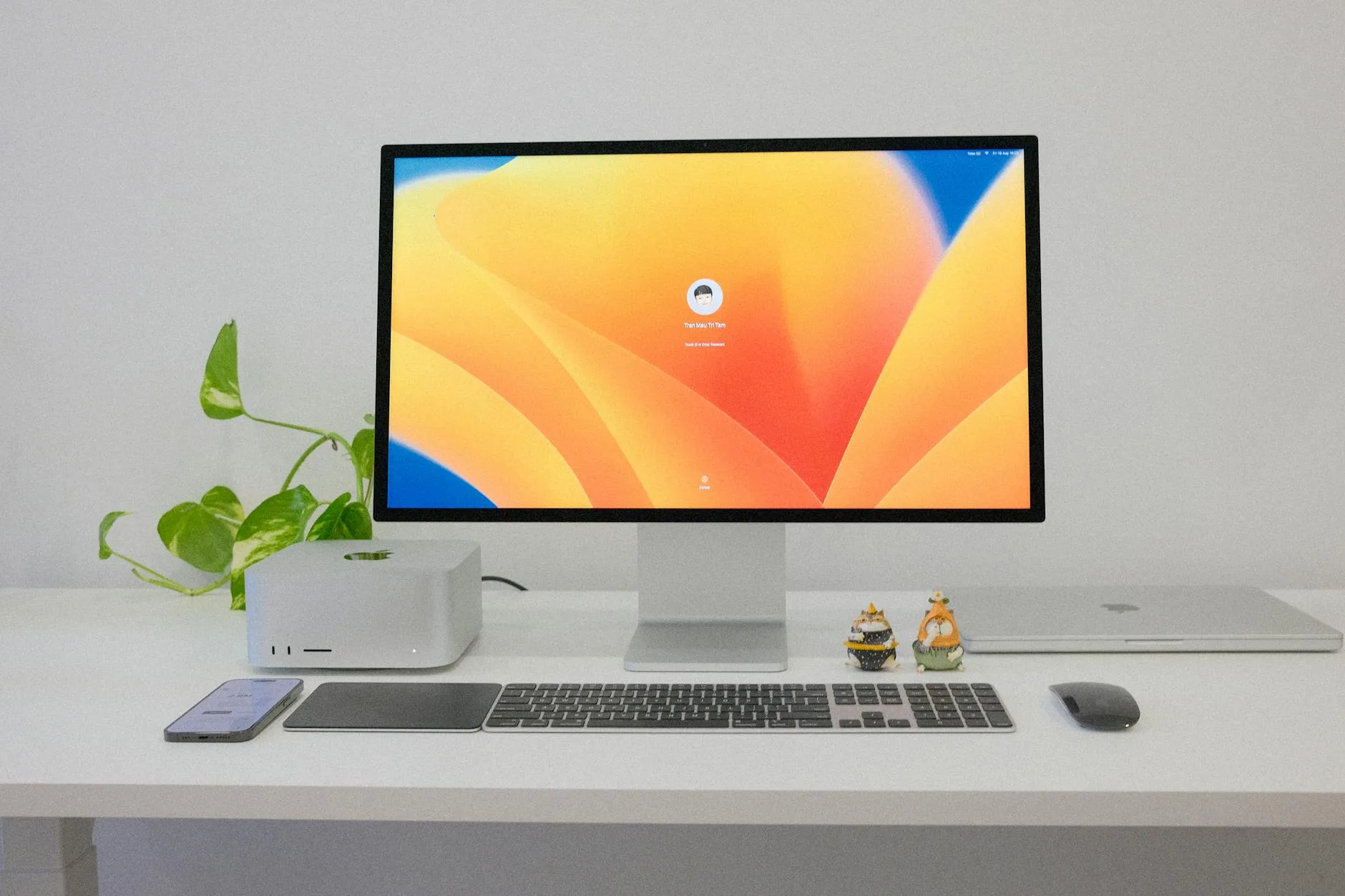
The ultimate tidy desk has one cable running from a USB-C hub or power strip to a monitor, with the charging pad powered from the same hub. If your monitor has a USB-A output, you can power the charging pad directly from the monitor — one cable from the wall to the monitor, one short cable from the monitor to the charging pad, and everything else is wireless.
Pairing with Cable Management
Wireless charging only solves one cable — your phone’s. For the full tidy desk experience, combine it with:
- Bluetooth keyboard and mouse — eliminates two more cables
- Cable management tray underneath — catches the power strip and excess cable
- Velcro ties — bundle remaining cables together so they look intentional rather than chaotic
The goal isn’t zero cables — that’s impossible. The goal is zero visible cables between your eye line and the desk surface. Everything routes behind or underneath.
Frequently Asked Questions
Does wireless charging damage phone batteries? No more than wired charging. Modern phones manage charging intelligently — they slow down as the battery fills and stop at 100%. The extra heat from wireless charging can marginally affect long-term battery health, but the difference is negligible with normal use. If you’re concerned, avoid leaving your phone on the charger overnight and keep it between 20-80% for optimal battery longevity.
Can I use any USB adapter with a wireless charging pad? Any USB adapter will work for basic charging, but for fast wireless charging you need an adapter that matches the pad’s requirements. Most 15W pads need a USB-C PD adapter delivering at least 20W. Using a slower adapter simply means slower charging — it won’t damage anything.
Will wireless charging work through a screen protector? Yes. Screen protectors are thin and don’t interfere with wireless charging. The phone sits face-down on the pad, so the screen protector is on the opposite side from the charging coil anyway. Tempered glass protectors, film protectors, and privacy screens all work fine.
How do I know if my wireless charging pad is working? Most pads have a small LED indicator — usually a solid light for charging and a blinking light for standby. Your phone will also show a charging indicator on screen (a lightning bolt on iPhone, a circle animation on Samsung). If neither the pad LED nor the phone indicator activates, check the cable connection and phone case.
Is MagSafe worth it for iPhone users? If you have an iPhone 12 or later, yes. MagSafe gives you magnetic alignment (so you never misplace the phone on the pad), faster 15W charging (standard Qi on iPhone maxes out at 7.5W), and compatibility with a range of MagSafe accessories. The official Apple MagSafe charger costs about £39, which is reasonable for the improvement it offers.