The Dell S2725QC is the best monitor under £300 for most home offices. Its 27-inch 4K IPS panel keeps text crisp, the fully adjustable stand is suited to long working days, and USB-C can carry the picture, connect peripherals and charge many laptops through one cable. The LG 27U631A is the stronger value choice if QHD is sharp enough, while the Samsung S24D400 suits smaller desks.
Quick answer
A 27-inch QHD monitor is the sensible baseline for spreadsheets, documents and browser windows: it provides noticeably more working room than Full HD without demanding a large desk. Choose 4K if sharp text and detailed images matter most, USB-C if you want a cleaner laptop setup, or a 34-inch ultrawide if you regularly work in two windows side by side.
Every model below was available for less than £300 when checked, but no fixed prices are printed because monitor deals move quickly. Check the exact model number before ordering: closely related variants can have different stands, ports and charging limits.
Contents
- Monitors compared
- Six monitors reviewed
- How to choose
- Home-office setup advice
- The bottom line
- Frequently asked questions
Best monitors under £300 compared
| Monitor | Best for | Key strengths | Main compromise |
|---|---|---|---|
| Dell S2725QC | Best overall | 27-inch 4K IPS; 120Hz; USB-C with 65W charging; adjustable stand | Costs most of the six and 65W may not cover a powerful laptop |
| LG 27U631A | Best value QHD | 27-inch QHD IPS; 100Hz; 99% sRGB claim; USB-C | USB-C charging is limited to 15W and the stand only tilts |
| Samsung S24D400 | Best compact office monitor | 24-inch Full HD IPS; height, pivot and tilt adjustment; USB hub | No USB-C video or laptop charging |
| AOC U27B3A | Best affordable 4K | 27-inch 4K IPS; 60Hz; built-in speakers; HDMI and DisplayPort | Basic stand and no USB-C |
| Dell S2725DC | Best QHD USB-C hub | 27-inch QHD IPS; 144Hz; 65W USB-C; USB hub; adjustable stand | Less sharp than 4K at a price close to some 4K screens |
| LG 34U640B | Best ultrawide | 34-inch 3440×1440 curved screen; USB-C; height adjustment; 144Hz | Needs a wide desk and is less pixel-dense than 27-inch 4K |
The table has no buying buttons so it stays easy to scan. Specifications refer to the exact models linked below; USB-C wattage, stand adjustment and resolution are especially worth checking because they often change between variants.
The six best monitors under £300 for home offices
1. Dell S2725QC — best overall

The S2725QC gets the fundamentals right for a laptop-led home office. A 27-inch 4K IPS panel gives fine text and plenty of room for documents, dashboards and image-heavy work. Dell specifies 99% sRGB coverage and a 120Hz refresh rate, so everyday scrolling should look smoother than it does on a conventional 60Hz office display.
Its useful feature is the USB-C connection: one cable can carry video and data, feed the built-in USB ports and supply up to 65W to a compatible laptop. The stand adjusts for height, tilt, swivel and pivot, which is more important over an eight-hour day than an attention-grabbing HDR badge. The dual 5W speakers are convenient for calls and background audio, although a headset remains the better choice when microphone quality and privacy matter.
- Buy it if: you want sharp 4K text, a proper stand and a clean one-cable laptop desk.
- Skip it if: your laptop needs more than 65W under load or QHD already meets your needs.
- Main compromise: it uses most of the budget, and its HDR support does not make it a specialist HDR display.
2. LG 27U631A — best value QHD monitor
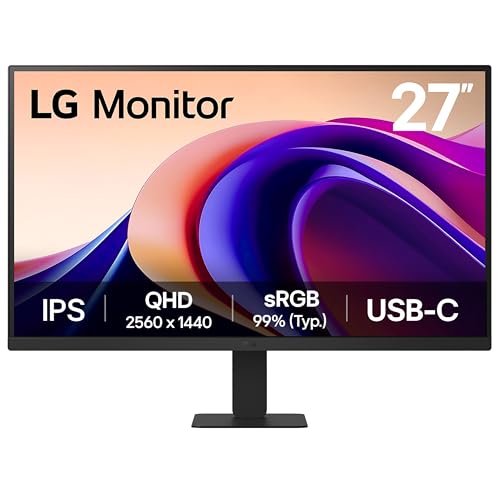
The LG 27U631A is the practical value pick. Its 27-inch QHD panel gives more usable desktop space than Full HD, while the IPS panel and LG’s claimed 99% sRGB coverage make it suitable for ordinary office work, presentations and light creative tasks. A 100Hz refresh rate also makes cursor movement and scrolling feel less choppy.
There is USB-C, but this is where the exact specification matters: charging is limited to 15W. That is not enough to replace the charger for most work laptops. Think of the port as a convenient display connection rather than a complete docking solution. The tilt-only stand is the other economy; a VESA-compatible arm may be worthwhile if the screen sits too low.
- Buy it if: you want a spacious, sharp 27-inch screen without paying for 4K.
- Skip it if: you expect USB-C to charge a laptop or need built-in height adjustment.
- Main compromise: strong screen specifications paired with basic power delivery and ergonomics.
3. Samsung S24D400 — best for a compact desk

A good 24-inch monitor can be easier to live with than a larger bargain screen. The S24D400 uses a Full HD IPS panel and has a height-adjustable stand that can tilt and pivot into portrait orientation. At this size, Full HD remains comfortable for email, documents and web work at normal viewing distance, and the smaller footprint leaves space for notebooks or a laptop beside it.
Samsung includes DisplayPort, two HDMI inputs and a USB hub, so it can handle more than a bare-bones screen. It does not provide USB-C video or laptop charging, however. If a single-cable desk is the priority, choose one of the USB-C models instead; if posture and sensible sizing matter more, this is the cleaner budget choice.
- Buy it if: desk space is tight and you want real height and pivot adjustment.
- Skip it if: you need QHD detail, USB-C video or one-cable laptop charging.
- Main compromise: excellent physical adjustability, but only Full HD resolution.
4. AOC U27B3A — best affordable 4K monitor

The U27B3A is for buyers who care more about 4K sharpness than docking or stand sophistication. Its 27-inch IPS panel runs at 3840×2160, giving crisp text and enough resolution for dense spreadsheets or two documents side by side. AOC also includes HDMI, DisplayPort and basic speakers, so it can work without extra audio hardware for occasional system sounds or calls.
The trade-off is the surrounding hardware. There is no USB-C hub and the stand does not offer the adjustment of the Dell or Samsung models. Windows and macOS scaling may also be necessary to keep text comfortable at 27 inches. That still leaves more visible detail than QHD, but it is worth understanding that 4K does not automatically mean more tiny, usable interface elements.
- Buy it if: sharp 4K text is your priority and you already have a dock or desktop computer.
- Skip it if: you want laptop charging or a stand with height adjustment.
- Main compromise: an excellent-resolution panel in a simpler office package.
5. Dell S2725DC — best QHD USB-C hub
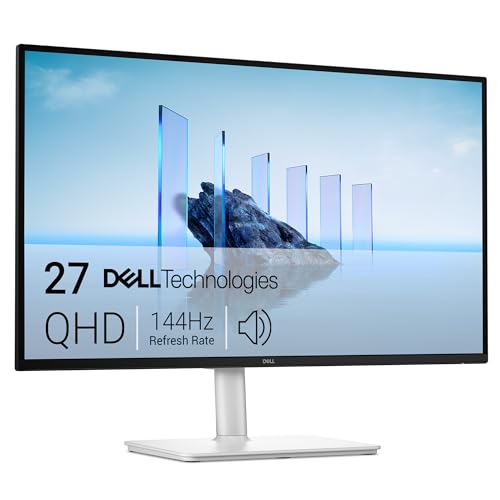
The S2725DC trades the S2725QC’s 4K resolution for QHD, then keeps most of the office-friendly hardware. It has a 27-inch IPS panel, a 144Hz refresh rate, 65W USB-C charging, downstream USB connections and a stand that adjusts for height, tilt, swivel and pivot. That makes it a strong docking monitor for a work laptop and peripherals.
QHD is easier to run than 4K and often works well at 100% scaling, which some people prefer for remote desktops and older software. The difficulty is value: if a 4K USB-C model is available for only a little more, the sharper panel can be the better long-term purchase. Choose this Dell because QHD suits your workflow, not simply because its refresh number is higher.
- Buy it if: you want a well-equipped QHD docking screen with smooth motion and good adjustment.
- Skip it if: fine text or detailed image work makes 4K worth the step up.
- Main compromise: polished connectivity and ergonomics with lower pixel density than the 4K alternatives.
6. LG 34U640B — best ultrawide

The LG 34U640B replaces a two-screen arrangement with one 3440×1440 canvas. Its 21:9 shape is useful for keeping a document and browser open together, stretching a project timeline across the screen or comparing large spreadsheets. LG specifies USB-C connectivity, 99% sRGB coverage, a 144Hz refresh rate and a height-adjustable stand.
Measure the desk before buying. The screen is almost 81cm wide, and an ultrawide is less useful if it forces the keyboard, laptop or speakers into awkward positions. It also has fewer vertical pixels than a 27-inch 4K monitor. The gain is horizontal workspace and fewer bezels, not maximum sharpness.
- Buy it if: you routinely work in two or three side-by-side windows and have a wide desk.
- Skip it if: you need maximum text sharpness, portrait rotation or a compact footprint.
- Main compromise: excellent horizontal workspace, but more desk width and lower pixel density than 4K.
How to choose a home-office monitor under £300
Match size and resolution
For most desks, 24-inch Full HD is the compact option, 27-inch QHD is the balanced option, and 27-inch 4K is the sharpest practical choice. A 34-inch ultrawide earns its space when you regularly need adjacent windows. Our monitor size guide explains how desk depth changes the best choice.
Check what USB-C actually does
A USB-C socket may carry video without providing enough power to charge the laptop. Check that your computer supports DisplayPort Alt Mode and compare the monitor’s charging wattage with the laptop charger. A 65W screen is suitable for many mainstream work laptops, but powerful mobile workstations can still discharge under heavy use. Our second-screen setup guide covers the connection basics.
Treat the stand as part of the monitor
Height adjustment lets you place the display without stacking it on books; pivot is useful for long documents or code. A tilt-only model can still work well on a VESA arm, but that adds cost and installation. Aim to position the screen so you can work without bending your neck; see our guide to monitor height for a practical setup.
Keep refresh rate and HDR in perspective
A 100Hz or 120Hz screen makes ordinary movement look smoother, but it does not improve spreadsheet capacity or colour accuracy. Likewise, an HDR label on a budget monitor does not guarantee the brightness or local dimming required for serious HDR work. Resolution, ports and stand adjustment normally have more value in a home office.
Set up the monitor properly
Use the operating system’s recommended scaling rather than leaning towards tiny 4K text. Keep the primary screen directly in front of you, reduce glare from windows and set brightness for the room instead of leaving it at maximum. The monitor brightness and contrast guide gives a sensible starting point.
No monitor can guarantee freedom from eye strain. The UK Health and Safety Executive advises arranging display-screen workstations suitably and taking breaks or changes of activity. Its display-screen equipment guidance is more useful than treating blue-light modes as a medical solution. Our guide to reducing eye strain at your desk covers the practical adjustments.
The bottom line
The Dell S2725QC is the best all-round monitor under £300 for a home office. Its 4K panel, adjustable stand and 65W USB-C connection improve both the picture and the desk around it. Choose the LG 27U631A for QHD value, the Samsung S24D400 for a compact adjustable setup, the AOC U27B3A for low-cost 4K, the Dell S2725DC for QHD docking, or the LG 34U640B when ultrawide workspace matters most.
The right choice is the one that fits the desk, laptop and daily workload. Check the exact variant and charging requirement before ordering; those details will affect everyday use more than a long list of picture modes.
Frequently Asked Questions
Is 27-inch too large for a home office?
Not usually. A 27-inch monitor works well when the desk is deep enough to keep the screen roughly an arm’s length away. On a shallow desk, a 24-inch model may feel more comfortable.
Is QHD or 4K better for office work?
QHD is a strong balance at 27 inches and usually needs little scaling. 4K produces sharper text and images, but interface scaling is often needed to keep text readable.
Can a USB-C monitor charge any laptop?
No. The laptop must support video over USB-C, and the monitor’s power delivery must meet the laptop’s needs. Check both specifications before relying on one cable.
Do I need a high refresh rate for office work?
No, but 100Hz or above makes scrolling and pointer movement look smoother. Resolution, ports and stand adjustment are usually more important buying factors.
Is an ultrawide better than two monitors?
It removes the central bezel and gives one continuous workspace, but it needs a wide desk. Two monitors can offer more flexible positioning and portrait orientation.