Reducing blue light from your monitor is mostly about lowering brightness at the right time, warming the colour temperature, and stopping the screen from being the brightest thing in the room. You do not need to buy a tinted filter on day one. Start with the free settings, check how your eyes and sleep respond for a week, then spend money only if your setup still feels harsh.
In This Article
- The quick fix: brightness first, colour second
- Adjust your monitor settings properly
- Use Windows, macOS and app filters without ruining colour
- Sort the light around your desk
- Build an evening screen routine that you will actually keep
- What is worth buying, and what is not
- Common mistakes that make blue light settings worse
- Frequently Asked Questions
The quick fix: brightness first, colour second
The fastest way to reduce blue light monitor exposure is to turn the monitor brightness down before you touch anything else. Blue light gets talked about as if it is a separate magic beam, but the real-world problem is usually a bright, cool-white screen in a dim room. Lower the brightness and you reduce the overall light hitting your eyes, including the blue part.
For normal daytime desk work, a lot of monitors feel comfortable somewhere around 25-45% brightness in a UK home office. At night, especially in a room lit by one small lamp, 10-25% can be plenty. The exact number depends on the panel, room light and your eyesight, so treat those as starting points rather than a rule.
The second change is colour temperature. Most monitors ship in a cool mode, often around 6500K or higher, because it looks crisp in a shop. For evening work, try 4000K-5000K. It will look slightly warmer for the first ten minutes, then normal. Go too warm and white documents turn orange, which is annoying if you are editing images, comparing colours, or working in a spreadsheet for hours.
A simple two-minute setup
Use this before spending money:
- Set brightness to match the room. If the screen feels like a lamp, it is too bright.
- Switch from cool to warm colour temperature. Look for Warm, Low Blue Light, Reading, ComfortView, Eye Saver or Custom RGB.
- Turn on an evening schedule. Use Windows Night Light, macOS Night Shift, f.lux, or the monitor’s own schedule if it has one.
- Add soft room light. A £15-£30 warm desk lamp often helps more than a £60 screen filter.
That order matters. If you only add a blue-light filter while leaving the monitor at retina-singeing brightness, you have solved the fashionable bit and ignored the useful bit.
Adjust your monitor settings properly
Most monitor menus are clumsy, but they are worth five minutes. Hardware settings affect the whole screen before Windows, macOS or any app gets involved. That means they work for your browser, games, streaming apps, remote desktops and anything else you put on the panel.
Start with the picture preset. Avoid Dynamic, Vivid, FPS and Game modes for office work. They often push brightness, contrast and sharpening too hard. Standard, sRGB, Reading, Low Blue Light or Custom is usually a better base. If you have already used our monitor brightness and contrast settings guide, keep those settings and add a warmer colour temperature rather than starting again.
Settings to change first
Use the monitor’s physical buttons or joystick and check these:
- Brightness: reduce this first. It has the biggest immediate effect.
- Colour temperature: choose Warm, Low Blue Light, 5000K, or Custom RGB with slightly reduced blue.
- Contrast: keep it moderate. Cranking contrast can make text edges harsher.
- Sharpness: leave it near default. Excess sharpening makes text shimmer on some panels.
- Eco sensor: try it if your monitor has one, but do not trust it blindly. Some sensors overreact to cloudy UK afternoons.
If your monitor gives you Low Blue Light levels from 1-5, start at level 2. Level 4 or 5 can be useful late at night, but it often makes white backgrounds too yellow for normal work. On Dell monitors, ComfortView is usually the setting to try. On BenQ, look for Low Blue Light Plus or Eye-Care modes. On Samsung, Eye Saver Mode does the same basic job.
Do not crush the image
There is a limit. If the screen is so dim that you lean forward or squint, you have gone too far. HSE guidance on display screen equipment says long spells of DSE work can cause tired eyes, discomfort and headaches, even though it does not cause permanent eye damage. The practical answer is not just “make everything darker”; it is a readable screen, sensible lighting and regular breaks. The HSE also says employers must arrange an eye test for DSE users who ask for one, which matters if you use a monitor for work rather than occasional browsing.
For text-heavy work, I like a slightly warm but still clean white. For evening admin, I go warmer. For colour-sensitive photo or design work, I turn filters off while checking colour and back on afterwards. That small habit avoids the classic mistake of editing a product photo under a heavy orange filter and wondering why it looks odd the next morning.
Use Windows, macOS and app filters without ruining colour
Operating system filters are the easiest way to automate blue-light reduction because they follow the clock. You set them once, then stop thinking about it. They are especially useful if you work late, because the change happens gradually instead of relying on you to remember at 9pm.
On Windows 11, go to Settings, System, Display, Night light. Turn it on, set Strength around 20-35 to begin with, and schedule it from sunset or a fixed evening time. If you work in a dark room, you might prefer 40-50. Above that, colours become visibly warm and some people find black text on white backgrounds less crisp.
On macOS, use System Settings, Displays, Night Shift. The Warmth slider is similar: start near the middle, then adjust after a few evenings. If you use an external monitor with a MacBook, check both the Mac display and the external monitor because the perceived warmth can differ.
Browser and app choices
Dark mode is not the same as reducing blue light, but it can reduce glare from white pages at night. Use it where it helps, but avoid forcing every website into dark mode if it makes text look fuzzy or reverses charts badly.
Useful settings include:
- Windows Night Light: free, built in, good enough for most people.
- macOS Night Shift: free and reliable if you use Apple devices.
- f.lux: free for personal use and more configurable than the built-in tools.
- Reader modes: useful for long articles because they reduce bright clutter around the text.
If you use multiple monitors, match them by eye rather than chasing identical numbers. A cheap IPS side monitor and a premium 4K main monitor can look different at the same brightness percentage. Our monitor size guide covers the physical setup side, but for blue light the aim is simpler: no screen should feel much colder or brighter than the one next to it.
Gaming is the exception. Heavy filters can make dark scenes muddy and colour cues harder to read. For evening gaming, use a mild warm setting, keep room light on, and save the strongest filter for browsing or admin afterwards.
Sort the light around your desk
A monitor feels harsher when the rest of the room is dark. That is why a screen can feel fine at 2pm and brutal at 10pm, even at the same brightness setting. The fix is not a brighter ceiling light. It is balanced, warm, indirect light around the desk.
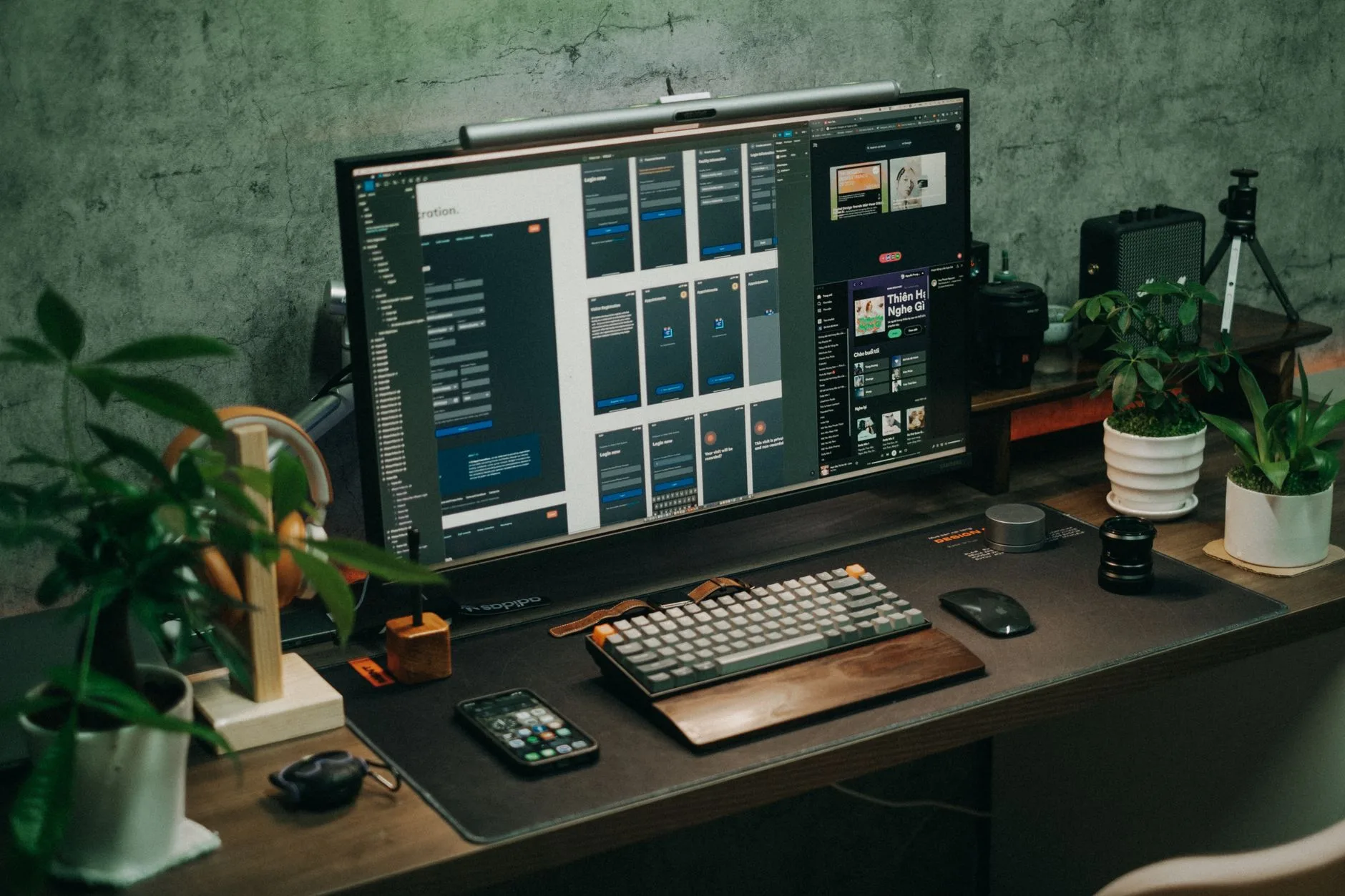
Put a warm lamp behind or beside the monitor so the wall behind the screen is not black. A basic LED desk lamp from Argos, IKEA, John Lewis or Amazon UK is usually £15-£35. Choose one with adjustable brightness and a warm setting around 2700K-4000K. If it only has a cold white mode, it may make the room feel more clinical than comfortable.
Monitor light bars can work well on small desks because they light the desk without taking up space. A generic USB monitor light bar is usually £25-£45 on Amazon UK. The BenQ ScreenBar range costs more; the ScreenBar Halo is often around £119 on Amazon UK, while newer or premium versions can sit nearer £149-£179 depending on the model and offer. The reason to buy one is desk space and controlled light, not because it magically cancels blue light.
Where to put the light
Use three rules:
- Do not shine light into your eyes. Aim it at the desk or wall, not your face.
- Avoid reflections on the panel. If you can see the bulb on the screen, move it.
- Keep the monitor slightly brighter than the room, not massively brighter. That is the sweet spot for evening comfort.
This overlaps with glare, so keep it simple here. If reflections are the main problem, use the more detailed monitor glare reduction guide. For blue light, the point is contrast: make the room less dark so the monitor no longer dominates.
I would buy a lamp before buying blue-light glasses. It helps the whole desk, it makes video calls look better, and it still works when you change monitor.
Build an evening screen routine that you will actually keep
Blue light settings are useful, but they are not a permission slip to sit in front of a bright monitor until midnight and expect perfect sleep. The screen content matters too. Email, Slack, YouTube rabbit holes and doom-scrolling do not become restful just because the whites are warmer.
Harvard Health advises avoiding bright screens for two to three hours before bed where possible, and suggests filters or blue-blocking glasses for people who work nights or use devices heavily at night. That is sensible, but most people need a realistic version. If your evening job, business admin or family logistics happens on a monitor, a complete screen ban is not happening.
A realistic evening routine
Try this for a week:
- Two hours before bed: Night Light or Night Shift turns on automatically.
- One hour before bed: monitor brightness drops another notch and the room light goes warmer.
- Thirty minutes before bed: stop high-friction tasks such as accounts, work messages and competitive games.
- Last screen use: use passive, low-brightness content or get off the monitor entirely.
The habit is more important than the exact timing. A consistent 9.30pm filter and 10.30pm shutdown beats an elaborate routine you follow twice and abandon.
If you use a monitor for late work, create a separate display profile called Evening. Keep daytime work accurate and bright enough, then switch to Evening for admin, reading or planning. Some Dell, BenQ and LG monitors let you save presets. If yours does not, the operating system filter is fine.
Parents should be stricter with children’s desks. A £20 lamp, automatic Night Light and a clear laptop-off time are better than arguing about blue-light glasses after bedtime has already gone wrong.
What is worth buying, and what is not
Spend money only after the free settings have failed. Most blue-light monitor problems are solved by brightness, colour temperature, room light and better habits. Paid accessories can help, but they are often oversold.
Best value: a warm adjustable desk lamp
This is the first purchase I would make. Look at:
- Budget: IKEA, Argos or Amazon UK LED desk lamps at about £15-£25.
- Mid-range: John Lewis or Anglepoise-style LED desk lamps at about £35-£80.
- Premium: BenQ or Dyson task lights at roughly £119-£399, depending on model.
For most home offices, the £25-£50 range is the sensible place to land. You want dimming, warm colour, stable positioning and no visible flicker. You do not need a designer lamp unless it is in a client-facing room and you like nice things. No judgement.
Useful on cramped desks: a monitor light bar
A light bar is worth it if your desk is small, your monitor takes up most of the depth, or you want light on the keyboard without lighting the whole room. Cheap versions can work, but watch for poor clamps on thick or curved monitors. BenQ says the ScreenBar Halo is designed for flat monitors from 0.7cm to 6cm thick and curved monitors from 1.6cm to 3.8cm thick, which is the kind of compatibility detail to check before buying any bar.
Expect £25-£45 for generic bars and around £119+ for the better BenQ models. If your monitor has a chunky webcam, soundbar or deep rear casing, measure before ordering.
Maybe: blue-light glasses and screen filters
Blue-light glasses are the most debatable buy. Basic pairs from Amazon UK, Boots or Specsavers are usually £15-£45. Prescription lenses with blue-light coatings can cost far more depending on the lens package. Some people like them for evening screen work; others notice no difference.
Screen filters for laptops and monitors can be useful in specific cases, especially shared workspaces or fixed screens where you cannot install software. Ocushield-style laptop and monitor filters often sit roughly in the £35-£75 range depending on screen size. The downside is colour shift, reflections and the faff of matching the exact panel size.
My take: buy lighting first, use free filters second, consider glasses or screen filters only if you still get discomfort in the evening and you know you will use them.
Common mistakes that make blue light settings worse
The most common mistake is turning everything orange and calling it fixed. A heavy filter can make text less clear, which makes you lean in, blink less and feel worse. Warm is good. Muddy is not.
Another mistake is treating blue light as the only issue. If your monitor is too high, too close, too bright or full of reflections, a filter will not rescue the setup. For physical comfort, use the monitor positioning guide and the broader eye strain desk settings guide. Keep this article for blue-light and evening brightness decisions.
Quick checks before you blame the monitor
Run these before buying anything:
- White page test: open a blank document. If it lights up the room, lower brightness.
- Wall test: look at the wall behind the screen. If it is dark, add soft back or side light.
- Colour test: view a familiar photo. If skin tones look orange, the filter is too strong.
- Distance test: sit back. If text is hard to read, adjust scaling or monitor position rather than brightness alone.
- Break test: take a proper five-minute break. If symptoms ease, the issue may be duration as much as blue light.
Do not ignore refresh and flicker either. Some people are more bothered by flicker, low refresh rates or harsh backlight dimming than by colour temperature. If your screen feels uncomfortable even after sensible brightness and lighting changes, compare it with our monitor refresh rates explainer and check whether your monitor has a flicker-free mode.
The best setup is boring: readable text, moderate brightness, warm evening colour, soft room light and fewer late-night work spirals. It will not look impressive on Instagram. It will feel better at 10pm, which is the point.
Frequently Asked Questions
What is the best way to reduce blue light from a monitor? Lower brightness first, then use a warmer colour temperature or Night Light/Night Shift schedule. Add warm room lighting if the monitor is much brighter than the room.
Should I use Windows Night Light all day? Usually no. It is better as an evening setting. For daytime work, use comfortable brightness and normal colour unless you have a personal reason to keep the screen warm.
Do blue-light glasses actually help? Some people find them useful for evening screen work, but they are not the first fix. Try free monitor settings and better desk lighting before spending £15-£45 on glasses.
Will reducing blue light make colours inaccurate? Yes, if the filter is strong. Turn filters off when editing photos, checking product colours or doing design work, then turn them back on for normal evening reading.
Is dark mode better than blue-light mode? Dark mode can reduce bright white glare, but it does not replace brightness control or warm colour settings. Use whichever makes text easier to read without squinting.
How low should monitor brightness be at night? Many home office monitors feel comfortable around 10-25% at night, but use the room as the guide. The screen should be readable without acting like the main light source.