The ASUS ProArt PA279CV is the best budget monitor for video editing for most people here. It combines a sharp 27-inch 4K IPS panel with factory calibration, 100% sRGB and Rec.709 coverage, USB-C and a properly adjustable stand. The MSI PRO MP273U is the value pick if the budget is tight; the LG and BenQ are stronger one-cable laptop options.
Quick answer
For YouTube, social video and general web delivery, prioritise reliable sRGB/Rec.709 colour, an IPS panel and a stand you can position well. A 27-inch 4K panel gives useful timeline space without making the screen physically huge. Wide-gamut claims and HDR badges matter less if the monitor lacks convincing calibration or your delivery is mainly SDR.
Prices and stock move, and monitor names often differ by one letter between regional variants. Check the exact model number, ports and stand before ordering. None of these screens replaces a hardware calibration device when colour accuracy is part of paid client work.
Contents
- Monitors compared
- Five monitors reviewed
- How to choose
- Calibration and setup
- The bottom line
- Frequently asked questions
Best budget monitors for video editing compared
| Monitor | Best for | Key strengths | Main compromise |
|---|---|---|---|
| ASUS ProArt PA279CV | Best overall | 4K IPS; 100% sRGB and Rec.709; factory-calibrated Delta E < 2; USB-C | 60Hz and no claimed wide-gamut DCI-P3 coverage |
| MSI PRO MP273U | Best budget 4K choice | 27-inch 4K IPS; broad claimed colour coverage; HDMI and DisplayPort | Tilt-only stand and no USB-C |
| Dell S2725QS | Best for editing and everyday use | 27-inch 4K IPS; 99% sRGB; 120Hz; fully adjustable stand | No USB-C and not positioned as a factory-calibrated creator display |
| LG UltraFine 27UP83AK-W | Best USB-C value | 27-inch 4K IPS; claimed 95% DCI-P3; USB-C with 65W charging | Colour-critical work still benefits from calibration |
| BenQ PD2705U | Best creator workflow | 4K IPS; 99% sRGB/Rec.709; factory calibration; USB-C and KVM | Costs more than general-purpose 4K screens and USB-C is limited to 65W |
This table is deliberately free of buying buttons so the specifications remain easy to compare. Colour-space percentages are manufacturer claims for the exact listed model, not independent measurements of every unit.
The five best budget monitors for video editing
1. ASUS ProArt PA279CV — best overall

The PA279CV makes the strongest all-round case because its useful creator features are not buried behind a four-figure price. ASUS states 100% sRGB and 100% Rec.709 coverage, factory calibration and Delta E below 2. That is a sensible starting point for SDR video destined for YouTube, websites and social platforms. USB-C reduces cable clutter, while height, swivel and pivot adjustment make it easier to build a comfortable editing position.
It is a 60Hz display and ASUS does not pitch this model as a full wide-gamut grading monitor. If most of your work targets DCI-P3 or HDR delivery, its strengths are less relevant. The USB-C implementation also needs checking against the charging requirement of your laptop.
- Buy it if: you want a credible, factory-calibrated 4K editing monitor with USB-C.
- Skip it if: your workflow depends on HDR mastering or a high-refresh preview.
- Main compromise: excellent SDR editing value, but not a specialist HDR reference display.
2. MSI PRO MP273U — best budget 4K choice

The MP273U puts a 27-inch 4K IPS panel within reach of editors who would otherwise settle for 1080p. MSI claims 98% DCI-P3 and 118% sRGB coverage, with HDMI 2.0b and DisplayPort 1.4a. The resolution is the main attraction: 4K footage can be inspected more closely and editing applications have more room for bins, scopes and timelines.
The supplied stand only tilts, so budgeting for a compatible VESA arm may be sensible. There is no USB-C, and broad gamut figures do not prove low colour error. Treat it as an inexpensive editing workspace, then calibrate it if colour decisions matter.
- Buy it if: your priority is getting a 27-inch 4K IPS workspace for the least money.
- Skip it if: you need USB-C, strong ergonomics or documented factory calibration.
- Main compromise: exceptional resolution per pound with a basic stand and workflow.
3. Dell S2725QS — best for editing and everyday use

The S2725QS is the most versatile choice if the same screen handles editing, office work and entertainment. Dell specifies a 27-inch 4K IPS panel, 99% sRGB coverage and up to 120Hz. That higher refresh rate does not improve colour accuracy, but it makes general desktop movement and high-frame-rate footage feel smoother. The stand adjusts for height, tilt, swivel and pivot.
There is no USB-C, so laptop users need separate display and charging connections or a dock. Dell sells it as a broad home monitor rather than a calibrated creator model. For serious colour work, allow for measurement and profiling rather than assuming that 99% coverage means perfect accuracy.
- Buy it if: you want one polished 4K screen for editing, work and occasional gaming.
- Skip it if: a single USB-C cable or factory calibration is essential.
- Main compromise: superb everyday flexibility, but fewer creator-specific workflow features.
4. LG UltraFine 27UP83AK-W — best USB-C value

The LG balances creator-friendly specifications with a clean one-cable laptop setup. Its 27-inch 4K IPS panel has a claimed 95% DCI-P3 coverage, while USB-C carries video and data and supplies up to 65W to a compatible laptop. That is enough for many thin-and-light machines, and it keeps a compact editing desk much tidier.
DisplayHDR 400 is entry-level HDR capability, not proof that the panel can master demanding HDR footage. The 65W power limit may also be insufficient for a workstation laptop under sustained load. Use the wide-gamut mode deliberately; unmanaged applications can make ordinary sRGB content look oversaturated.
- Buy it if: you edit from a USB-C laptop and want useful wide-gamut coverage.
- Skip it if: your laptop needs more than 65W or you expect reference-grade HDR.
- Main compromise: a neat, capable creator setup without specialist grading performance.
5. BenQ PD2705U — best creator workflow

The PD2705U is the most workflow-focused monitor in this group. BenQ specifies 99% sRGB and Rec.709 coverage, factory calibration, panel-uniformity technology, USB-C with 65W power delivery and a KVM switch. The KVM is useful when one keyboard and mouse need to control a work laptop and a desktop editing machine.
Its Delta E claim is less aggressive than the ASUS specification, and the price is close. The choice therefore comes down to workflow: BenQ for KVM and uniformity features, ASUS for a stronger headline calibration claim. Neither should be treated as a substitute for a reference monitor on high-end colour work.
- Buy it if: you switch between two computers or value creator-specific controls.
- Skip it if: you only need a simple 4K screen and will not use the KVM or USB-C.
- Main compromise: thoughtful workflow tools at a price close to the stronger-value ASUS.
How to choose a budget video-editing monitor
Put colour accuracy before colour volume
A monitor can cover a large colour gamut and still display individual colours inaccurately. For most online SDR work, reliable sRGB and Rec.709 performance is more useful than an impressive DCI-P3 percentage with no calibration evidence. Factory calibration is a helpful starting point, but unit variation, age and room lighting still affect what you see.
Choose resolution and size together
A 27-inch 4K screen gives a useful balance of sharpness and workspace. At normal desk distance, interface scaling keeps text readable while preserving room for editing panels. A cheaper QHD screen remains viable for 1080p projects, but 4K makes close inspection and mixed-resolution workflows easier. Our guide to IPS, VA and TN panel types explains why IPS remains the safer default for colour work.
Check the exact ports
USB-C is valuable only when its power delivery matches the laptop and it carries the required video signal. Otherwise it becomes an expensive cable feature that still needs a charger. Desktop users may prefer DisplayPort, while modern consoles and some laptops use HDMI. See our USB-C monitor guide before relying on a one-cable setup.
Do not buy an HDR badge
Affordable monitors often accept an HDR signal but lack the brightness, local dimming and contrast needed for trustworthy HDR mastering. That can still make games and films look punchier, but it does not turn the display into a grading reference. If HDR delivery is central to paid work, the monitor budget and measurement workflow both need to rise.
Calibration and setup
Start with a neutral preset
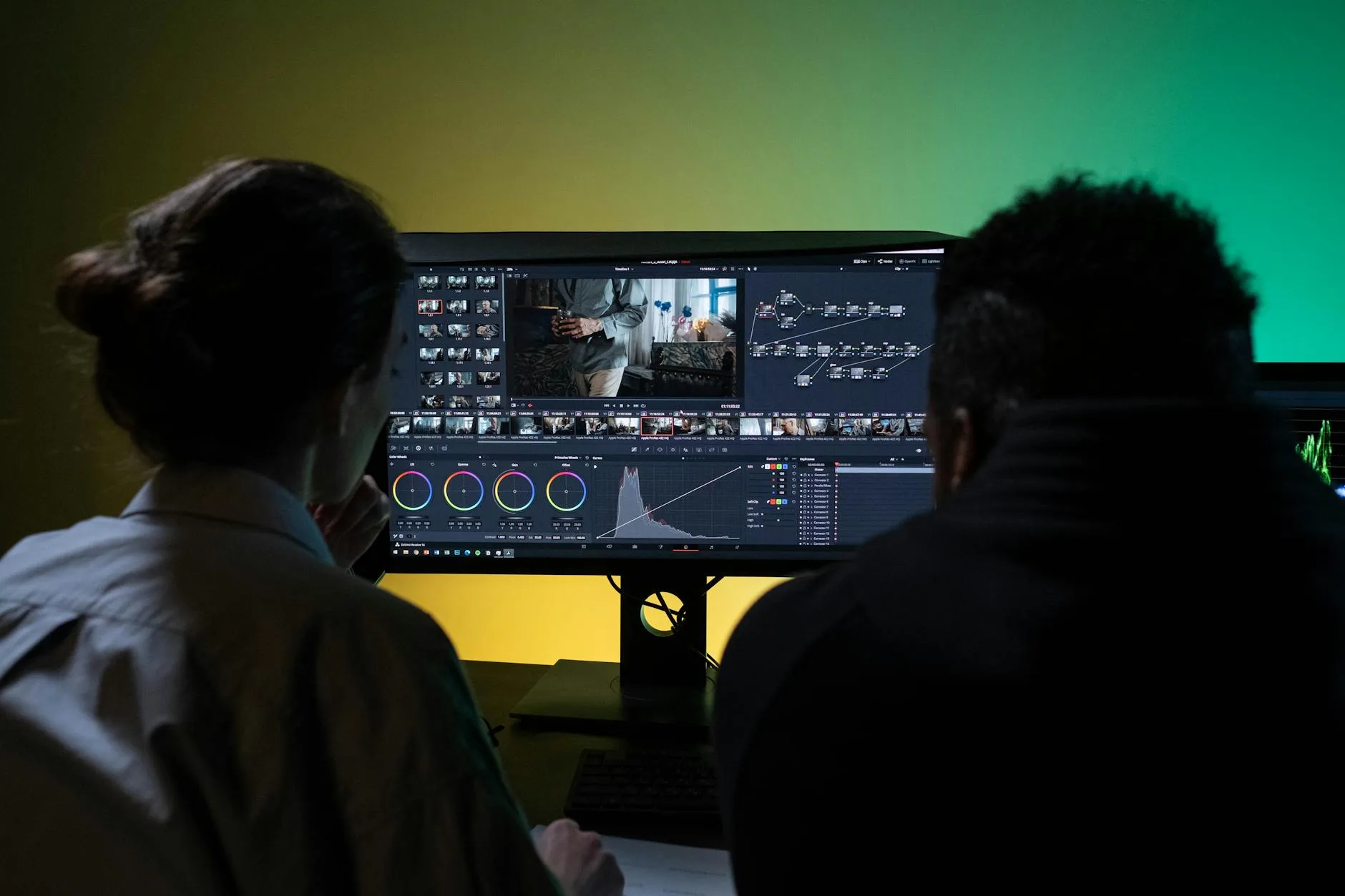
Use the monitor’s sRGB or Rec.709 preset for SDR delivery where available. Disable dynamic contrast, aggressive sharpening and vivid modes. Set brightness for the room rather than leaving it at the factory maximum; an overly bright screen encourages exports that look dark elsewhere. Our brightness and contrast setup guide covers the practical first steps.
Use hardware calibration when the work is paid
A colorimeter measures the actual panel and creates a correction profile. That matters more than copying settings from somebody else because two units of the same model can differ. Recheck periodically as the backlight ages. Free visual tools can help with gross errors, but your eyes adapt too readily to judge neutral colour with confidence.
Control the viewing environment
Avoid direct window reflections and strongly coloured light around the screen. Keep the room lighting repeatable when making final colour decisions. Position the top portion of the screen around eye level and far enough away that you can see the whole image without constant head movement; the HSE display-screen guidance also stresses suitable positioning, breaks and changes of activity.
Make the desk fit
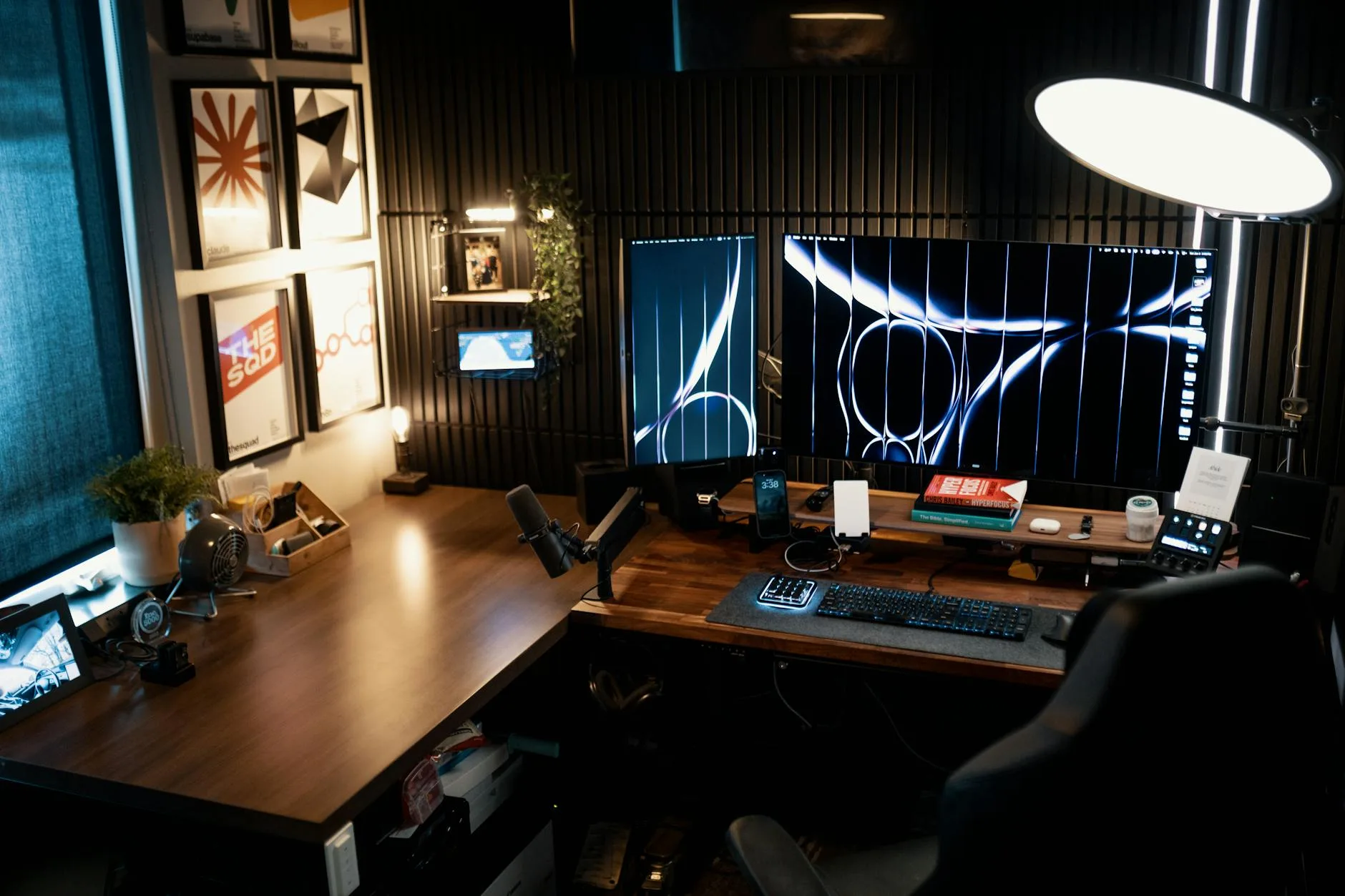
A good panel on a poor stand is still tiring to use. If the supplied stand is limited, a VESA arm can free desk space and improve height control. Check the mounting pattern and monitor weight first. Our guide to monitor height and ergonomics helps set the final position, while a broader budget home-office setup can prevent the screen from becoming the only well-positioned item.
The bottom line
The ASUS ProArt PA279CV is the monitor I would choose for most budget video-editing setups. Its 4K IPS panel, documented sRGB/Rec.709 coverage, factory calibration, USB-C and adjustable stand address the things editors use every day. Pick the MSI when price dominates, the Dell for mixed editing and general use, the LG for an affordable USB-C wide-gamut setup, or the BenQ when its KVM and creator workflow justify the extra spend.
Whichever model you choose, match the colour preset to the delivery format, control room lighting and calibrate when client work depends on accuracy. A cheaper measured display is more useful than an expensive screen left in an oversaturated showroom mode.
Frequently Asked Questions
Is 4K necessary for video editing?
No, but it is useful on a 27-inch screen because it provides a sharp preview and more workspace. QHD remains adequate for many 1080p projects.
Is IPS always best for video editing?
IPS is the safest budget choice because viewing angles and colour consistency are usually better than basic VA or TN panels. Individual model performance still varies.
What colour space should I use for YouTube?
Most SDR web video is prepared around Rec.709, which is closely related to sRGB. Use a suitable preset and a colour-managed workflow rather than choosing the widest-looking mode.
Can I edit HDR on a budget monitor?
You can work with HDR files, but an entry-level HDR badge does not make a monitor reliable for HDR mastering. Trustworthy HDR work requires much stronger brightness, contrast control and measurement.
Do factory-calibrated monitors need calibration?
Factory calibration is a useful baseline, not a permanent guarantee. Panels vary and drift over time, so paid colour-critical work benefits from periodic hardware measurement.
Is USB-C worth paying for?
Yes when it carries video, data and enough charging power for your laptop. Check the wattage and laptop requirements; otherwise a separate charger or dock may still be necessary.