A curved monitor can be good for documents, but only when the size, resolution and desk depth suit the way you read. The quick answer to “are curved monitors good for documents?” is yes for wide side-by-side work, mixed PDFs and spreadsheets, and long editing sessions on a 34-inch ultrawide; no for cheap 27-inch 1080p screens where the curve adds bulk without giving you useful document space.
In This Article
- Are Curved Monitors Good for Documents? The Short Answer
- Why Document Work Feels Different on a Curve
- Word, PDFs and Google Docs: Where Curved Screens Help
- Spreadsheets, Coding and Legal Documents
- Size, Resolution and Curve Radius to Choose
- UK Monitor Prices and Setups That Make Sense
- Ergonomics, Eye Comfort and Desk Fit
- Frequently Asked Questions
Are Curved Monitors Good for Documents? The Short Answer
Curved monitors are good for documents when they give you more usable width without forcing your eyes to keep refocusing at the far edges. That usually means a 34-inch ultrawide at 3440 x 1440, placed far enough back on the desk, with sensible scaling.
Where the curve helps
For document work, the curve is not about drama or immersion. It is about keeping the left and right edges of a wide screen a bit more comfortable to view.
That matters if you often work like this:
- Word or Google Docs beside research: draft on one side, source document or browser on the other.
- PDF plus notes: full-page PDF, notes app and email visible without alt-tabbing every minute.
- Spreadsheet plus report: wide data table open beside a narrative document.
- Two-page editing: comments, track changes and source material all visible at once.
A flat 27-inch 1440p monitor can already do a lot of that. A curved ultrawide helps when you want one continuous desktop instead of two separate screens with a bezel in the middle.
Where the curve does not help
A curved monitor is not automatically better for reading. A cheap 27-inch curved 1080p display can make documents look large but cramped because the pixel density is low. Text edges look softer than they should, and you do not gain much extra workspace.
If you mainly write one A4 document at a time, a good flat 27-inch 1440p IPS monitor around £180-£280 from Amazon UK, Currys or John Lewis is often the cleaner buy. Put the saved money into a better monitor arm, desk lamp or chair setup.
That is the key difference from our broader curved vs flat monitors for work guide. Here, the question is not which screen feels nicer overall. It is whether the curve improves document reading and editing enough to justify the space and cost.
Why Document Work Feels Different on a Curve
Documents are less forgiving than games or films. A racing game can look exciting on a curve even if the edges distort a bit. A dense contract, spreadsheet or 80-page PDF makes every small viewing issue more obvious.
Text clarity matters more than shape
For documents, resolution beats curvature. A 34-inch ultrawide at 3440 x 1440 gives you about 109 pixels per inch, which is comfortable for text at normal desk distance. A 27-inch 1080p monitor sits around 82 pixels per inch, which can make text look chunkier unless you sit farther back.
That is why I would rather use a flat 27-inch 1440p monitor than a curved 27-inch 1080p monitor for document work. The curve cannot fix low pixel density.
Our monitor size guide covers the size side in more detail, but the short version is simple: documents like sharp text, enough vertical height and a comfortable viewing distance.
Line length can become tiring
Wide screens tempt people to maximise a document across the whole panel. Do that on a 34-inch ultrawide and your lines become silly. Your eyes travel too far, you lose your place, and reading becomes slower.
The fix is window management. Keep a Word document at roughly A4 width, then use the remaining space for notes, email, a PDF or a browser. The curve helps because those side windows sit a little more naturally in your field of view.
Curvature changes edge comfort
A gentle curve, such as 1800R or 1500R, pulls the screen edges in slightly. On a wide monitor, that can reduce the feeling that the far left and right edges are drifting away from you.
For documents, I prefer a gentle curve. Very aggressive curves are more of a gaming taste. They can feel odd when lining up tables, page margins or side-by-side documents. No judgement if you love it, but for work I want the screen to disappear, not announce itself.
Word, PDFs and Google Docs: Where Curved Screens Help
The best document use for a curved monitor is not one giant page. It is a tidy set of windows where each document gets the space it needs.
Writing in Word or Google Docs
For writing, a curved 34-inch ultrawide is good if you use the middle of the screen for the document and keep supporting material at the sides. A typical layout might be:
- Centre: Word or Google Docs at a readable page width.
- Left: research notes, style guide or source material.
- Right: email, Slack, calendar or file browser.
That setup is much nicer than cramming everything onto a laptop screen. It also avoids the common dual-monitor problem where your neck spends the day angled towards one side.
If you only write full-screen in one document, the curve adds very little. You might be better with a flat 27-inch 1440p monitor and a good arm. Our guide to setting up a second screen on a laptop is useful if you are still deciding between a monitor upgrade and a simpler laptop-plus-screen setup.
PDFs and reference documents
PDFs are where ultrawide screens start earning their keep. A 34-inch curved screen can show a PDF page, notes and a browser side by side without feeling like a wall of tiny windows.
For academic papers, contracts, planning documents, manuals and long reports, I like a two-zone approach: PDF on one side, writing or notes in the centre, smaller utility window at the edge. The curve makes the edge window less forgotten.
The warning: portrait documents still need vertical space. A 34-inch ultrawide is wide, but not tall. If you read long A4 PDFs all day, a flat 32-inch 4K monitor or a second portrait screen can be better.
Comments, track changes and review panes
Curved ultrawides are strong for editing because review panes eat width. Track changes, comments and sidebars make a normal 24-inch screen feel cramped fast.
On a 34-inch ultrawide, you can keep the document readable while leaving the comments panel open. That sounds minor until you spend a full afternoon reviewing supplier terms or client copy. Less window juggling means less irritation.
This is one of the few document tasks where I would pay extra for the curved ultrawide rather than defaulting to a cheaper flat screen.
Spreadsheets, Coding and Legal Documents
Not all document work is prose. Some of the best curved-monitor use cases involve text-heavy layouts that are wider than a normal page.
Spreadsheets
Curved ultrawides are useful for spreadsheets because you can see more columns without zooming out until the text becomes miserable. A 3440 x 1440 panel gives a proper middle ground: much wider than 16:9, but still tall enough for rows, formulas and menus.
For Excel and Google Sheets, I would choose 34-inch ultrawide over 27-inch curved 1080p every time. The extra horizontal resolution matters. The curve is a comfort bonus, not the main feature.
If spreadsheets are your main workload, avoid very cheap VA panels with smeary text or poor viewing angles. Some are fine, but I would check reviews carefully before buying a £130 curved monitor just because it looks large in the product photo.
Coding and Markdown
For coding, curved monitors are more personal. Some people like having editor, terminal and preview side by side. Others prefer two flat screens because they can angle each one exactly.
For document-adjacent coding, such as Markdown, technical writing, HTML email or analytics dashboards, a gentle 34-inch curve works well. You can keep source, preview and documentation open together.
The same advice applies: do not maximise lines across the whole width. Keep readable columns. Your future self will swear less.
Legal, finance and compliance documents
Long contracts and finance documents are not glamorous monitor tests, but they show weaknesses quickly. You want crisp text, steady brightness, easy scaling and enough space for comments or a comparison copy.
A curved ultrawide helps when comparing two versions side by side. It is weaker if you need exact layout review, print proofs or design sign-off. For layout-critical work, a flat IPS 4K monitor is still the safer choice because straight lines and page geometry feel more neutral.
Size, Resolution and Curve Radius to Choose
The useful curved-monitor buying decision for documents comes down to three things: size, pixel density and how hard the curve is.
27-inch curved monitors
Most budget 27-inch curved monitors are not the best document choice. Many are 1080p VA panels around £100-£160, such as Samsung Essential/S3-style curved displays or AOC budget curved models. They are fine for basic admin, streaming and light gaming, but text space is limited.
If you want 27 inches for documents, I would usually buy flat 1440p instead. Expect to pay about £150-£250 for a decent 27-inch QHD office monitor from brands such as Dell, Lenovo, AOC, LG or Samsung.
32-inch curved monitors
A 32-inch curved monitor can work for documents if it is 4K or a good 1440p panel viewed at the right distance. A 32-inch 1440p screen gives larger text, which some people like, but it is not as crisp as 27-inch 1440p or 32-inch 4K.
UK prices vary a lot. Budget 32-inch curved 1440p monitors can sit around £220-£350. Better USB-C or office-focused models can be £400-£650. A 32-inch 4K office monitor, flat or curved, can range from about £300 to £800 depending on panel, stand and ports.
34-inch ultrawide curved monitors
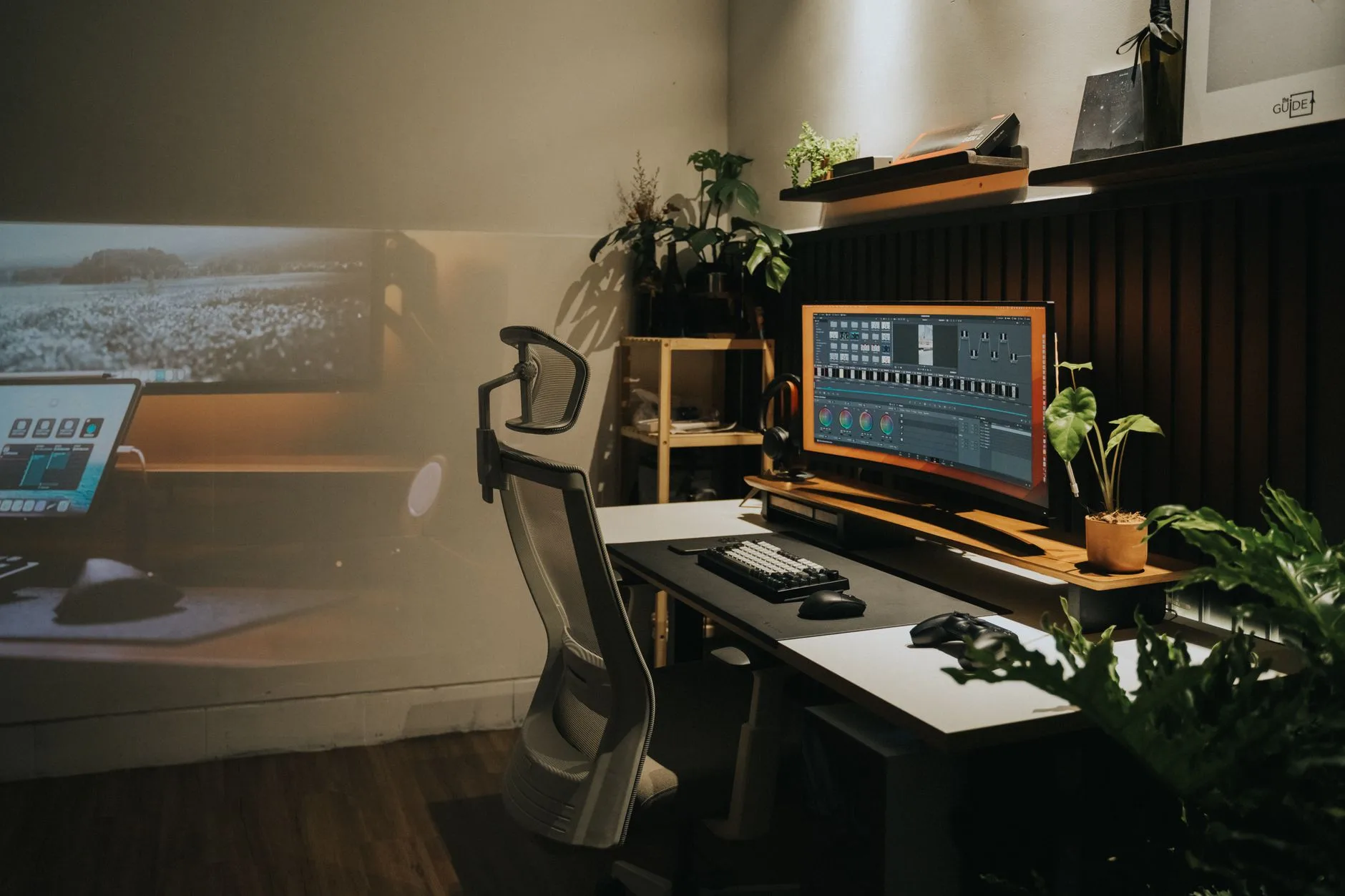
This is the document sweet spot. A 34-inch 3440 x 1440 curved monitor gives enough width for two or three useful windows and enough sharpness for normal text. It also fits many UK home-office desks better than two separate monitors.
Budget options from AOC, Philips, MSI and Samsung often sit around £250-£400. Dell and LG office-focused ultrawides with better stands or USB-C can be £450-£750. Premium colour-accurate or business hub models can pass £800.
If your desk is only 60cm deep, be careful. A big ultrawide pushed too close can feel huge. A monitor arm helps, but only if the desk is strong enough and there is room behind it.
Curve radius
Curve radius numbers are easy to overthink. For document work:
- 1800R: gentle and easy to live with; my default pick for documents.
- 1500R: still fine on many 34-inch screens, a bit more wrapped around you.
- 1000R: more intense; better for some gaming users than document-first workers.
If you are unsure, choose the gentler curve. Documents reward comfort more than spectacle.
UK Monitor Prices and Setups That Make Sense
There is no need to spend OLED gaming money to read documents well. In fact, many gaming features are wasted on Word, PDFs and spreadsheets.
Budget document setup
If money is tight, buy a flat 27-inch 1440p office monitor rather than a cheap curved 1080p screen. Look at Dell, Lenovo, AOC, Samsung and LG models around £150-£250 at Amazon UK, Currys, John Lewis, Box or Ebuyer.
Add a £35-£80 monitor arm if the stand is poor. That small upgrade can matter more than the curve because it lets you set height and distance properly. Our monitor height guide covers the setup basics.
Best-value curved document setup
For most document-heavy UK home offices, I would look at a 34-inch 3440 x 1440 curved ultrawide around £300-£550. This is where curved starts making sense for documents.
Good examples to compare include:
- Dell S3423DWC-style 34-inch USB-C curved monitor: often around £400-£550, useful if one cable to a laptop matters.
- AOC CU34/CQ34-style ultrawides: often around £280-£400, good value if you can live with a simpler stand.
- Samsung 34-inch curved ViewFinity/Odyssey-style models: often around £330-£650 depending on refresh rate and ports.
- LG 34-inch ultrawide office models: often around £350-£700, worth considering for better colour and office features.
For documents, USB-C power delivery is worth paying for if you use a laptop every day. A single cable for display, charging and USB hub duties cleans up the desk and reduces docking faff. A USB-C monitor can cost £80-£200 more than a basic HDMI model, but it may replace a separate £80-£180 docking station.
Premium setups I would skip for documents
I would not buy a £900-£1,400 OLED ultrawide for Word documents unless gaming or colour work is also a major use. OLED can look beautiful, but static toolbars and document windows are not the best match for long office days.
High refresh rates are also low priority. A 100Hz or 120Hz office ultrawide can feel smooth, but 165Hz and 240Hz do not make PDFs more readable. Spend on resolution, stand quality, anti-glare coating, USB-C and warranty first.
For a broader shortlist, compare this with our best monitors for home office work. That article is better if you have not yet decided between flat, curved, 4K and dual-screen setups.
Ergonomics, Eye Comfort and Desk Fit
A curved monitor can make documents easier to manage, but it will not rescue a bad workstation. If the screen is too close, too high, too bright or sitting on a cramped desk, your neck and eyes will complain either way.
DSE basics still apply
The Health and Safety Executive’s display screen equipment guidance says employers should assess DSE workstations, reduce risks, make sure workers take breaks or change activity, and provide eye tests if workers ask. That guidance does not say curved monitors are magic. It points back to setup, breaks and risk reduction.
For home workers, the practical takeaway is simple: treat the monitor as part of the workstation, not the whole solution.
Viewing distance and desk depth
A 34-inch ultrawide wants space. I would want the screen roughly an arm’s length away, with enough room to push it back if text feels too large or edges feel too close.
On a shallow 50-60cm desk, a large curved monitor on its factory stand can dominate the surface. A monitor arm can help by moving the panel back and freeing space underneath. Expect to pay £40-£120 for a decent arm that can handle ultrawide weight; check the rated load before buying.
If your current desk is small, our best desks for multiple monitors guide is useful even if you are buying one ultrawide, because the same depth and stability rules apply.
Eye comfort
Curved monitors do not remove the need for sensible brightness, contrast and breaks. If documents look harsh, lower brightness before blaming the panel. Many monitors ship far too bright for a normal UK home office.
Use dark text on a light background for most document work, keep room lighting even, and avoid placing the screen opposite a bright window. If glare is the problem, our monitor glare guide will do more for you than buying a different curve.
If blue-light settings are part of your setup, use them gently. Heavy warm modes can make documents look muddy. For eye comfort habits, see our guide to reducing eye strain at your desk.
Document holders still matter
If your document work involves paper, a curved monitor does not solve neck twisting. Put the paper source near the screen, ideally between keyboard and monitor or just beside the display at the same height.
A basic document holder costs about £12-£35 from Amazon UK, Ryman or office suppliers. Better adjustable copy holders can be £35-£80. That is cheap compared with a monitor upgrade and often fixes the real problem. Our document holder guide covers the options.
The bottom line: curved monitors are good for documents if you buy the right kind: usually a 34-inch 3440 x 1440 ultrawide with a gentle curve, decent stand or arm, and enough desk depth. That setup gives you room for documents, notes, PDFs and spreadsheets without the awkward central bezel of dual screens.
For document work, a £130 27-inch curved 1080p monitor is usually less useful than a £190 flat 27-inch 1440p office monitor. Text clarity and usable workspace win.
My practical UK pick would be a 34-inch curved ultrawide around £350-£550 if you regularly compare documents, use spreadsheets, review PDFs or work from a laptop with several windows open. If you mostly write one document at a time, buy a sharp flat 27-inch 1440p screen, a good arm and better desk lighting. Boring, but probably right.
Frequently Asked Questions
Are curved monitors good for reading Word documents? Yes, if the screen is wide enough to keep a document, notes and reference material visible without stretching the page full width. A 34-inch ultrawide works better than most 27-inch curved 1080p screens.
Is a curved monitor better than dual monitors for documents? It can be cleaner because there is no bezel in the middle, but dual monitors are more flexible if you like angling each screen. A 34-inch ultrawide is best when you want one tidy continuous workspace.
What size curved monitor is best for documents? A 34-inch 3440 x 1440 ultrawide is the safest curved choice for document work. Smaller 27-inch curved screens often lack the resolution and workspace that make the curve useful.
Are curved monitors bad for spreadsheets? No. A curved ultrawide can be very good for spreadsheets because it shows more columns at readable size. Avoid low-resolution curved screens if spreadsheet clarity matters.
Should I buy a curved monitor for PDFs? Buy curved if you read PDFs beside notes, email or a browser. If you mostly read single A4 pages, a taller flat 4K monitor or a second portrait screen may suit you better.
How much should I spend on a curved monitor for document work in the UK? Budget about £300-£550 for a sensible 34-inch ultrawide. Below that, check resolution and stand quality carefully. Above £700, make sure you are paying for office features you will use, not gaming extras.