Dual monitors only improve productivity when each screen has a job. The real dual monitor setup productivity gain comes from reducing tab switching, not from keeping twice as many distractions visible. If both displays become a dumping ground for Slack, email, browser tabs and half-finished documents, you have not built a better workspace; you have just made distraction wider.
In This Article
- The Dual Monitor Setup Productivity Layout That Works for Most People
- Choosing the Right Two Monitors
- Desk Space, Arms and Physical Positioning
- Laptop Docks, Cables and Connection Mistakes
- Windows and macOS Settings That Actually Help
- Workflow Rules for Maximum Productivity
- Posture, Glare and Daily Comfort Checks
- Frequently Asked Questions
The Dual Monitor Setup Productivity Layout That Works for Most People
The best dual monitor setup for productivity is one main screen directly in front of you and one support screen to the side. Put your writing, spreadsheet, design file, code editor or main work app on the central screen. Put reference material, calendar, chat, notes or preview windows on the side screen.
That sounds basic, but it fixes the biggest mistake: treating both monitors equally. If you split your attention 50/50 all day, your neck moves constantly and your focus follows it. A primary-and-secondary layout is calmer.
My Default Layout
For a normal UK home office, I would set it up like this:
- Main monitor: directly ahead, with the top of the screen around eye level.
- Second monitor: angled in by about 20-30 degrees on your weaker side or the side you glance at most naturally.
- Laptop: closed in a vertical stand, or open below the second screen only if you use it for calls.
- Keyboard and mouse: centred to the main monitor, not halfway between both screens.
I have tried the symmetrical “two screens as one giant wall” layout. It looks tidy in photos, but for writing, admin, research and client work it nudges you into constant head turning. The central main-screen layout feels less impressive and works better.
When a Balanced Layout Makes Sense
There are exceptions. If you compare two documents all day, edit video timelines, monitor dashboards or run support tickets beside a database, two equal screens can make sense. Even then, keep the join between the monitors close to your natural sightline so your head does not swing from far left to far right every few minutes.
The test is simple: after 20 minutes, are you turning your neck or just moving your eyes? If your shoulders start following the screens, the layout is too wide.
Choosing the Right Two Monitors
You do not need two premium monitors to get a good productivity setup. Matching size, resolution and height adjustment usually matters more than brand.
Size and Resolution
For most desks, two 24-inch monitors are the easiest win. They fit on a 120cm desk, work with cheaper arms, and still give enough room for two full-size windows. A pair of Dell P2425H 24-inch monitors can be around £120-£244 each depending on retailer and offer, with Amazon UK and business resellers often moving prices around.
Two 27-inch monitors are nicer for spreadsheets, timelines and side-by-side browser work, but they need more desk width and a deeper viewing distance. If you sit close, dual 27s can feel like the front row at the cinema. A 140-160cm desk is more realistic.
For resolution, I would choose:
- 24-inch 1080p: cheapest and fine for admin, email, web apps and documents.
- 24-inch 1440p: sharper text, good for long writing sessions, usually £200-£280 each.
- 27-inch 1440p: the best productivity sweet spot if your desk is wide enough.
- 4K: useful for design, photo work and very sharp text, but check scaling and laptop performance first.
The Lenovo ThinkVision P24h-30 is a good example of a 24-inch QHD work monitor at about £247 inc VAT from UK IT resellers. It costs more than basic 1080p, but the extra sharpness is noticeable if you spend all day in text.
Matching vs Mixed Monitors
Matching monitors look cleaner and are easier to align. Mixed monitors can still work if the sizes and pixel density are close. The awkward setup is one high-resolution screen beside one old, dim, low-resolution monitor. Your eyes keep adjusting, and text looks wrong on one side.
If budget is tight, buy one good main monitor now and use an existing screen as the support display. Then replace the weaker screen later. Our monitor size guide goes deeper on desk width and viewing distance, and the budget monitor guide is useful if you want current sub-£300 options.
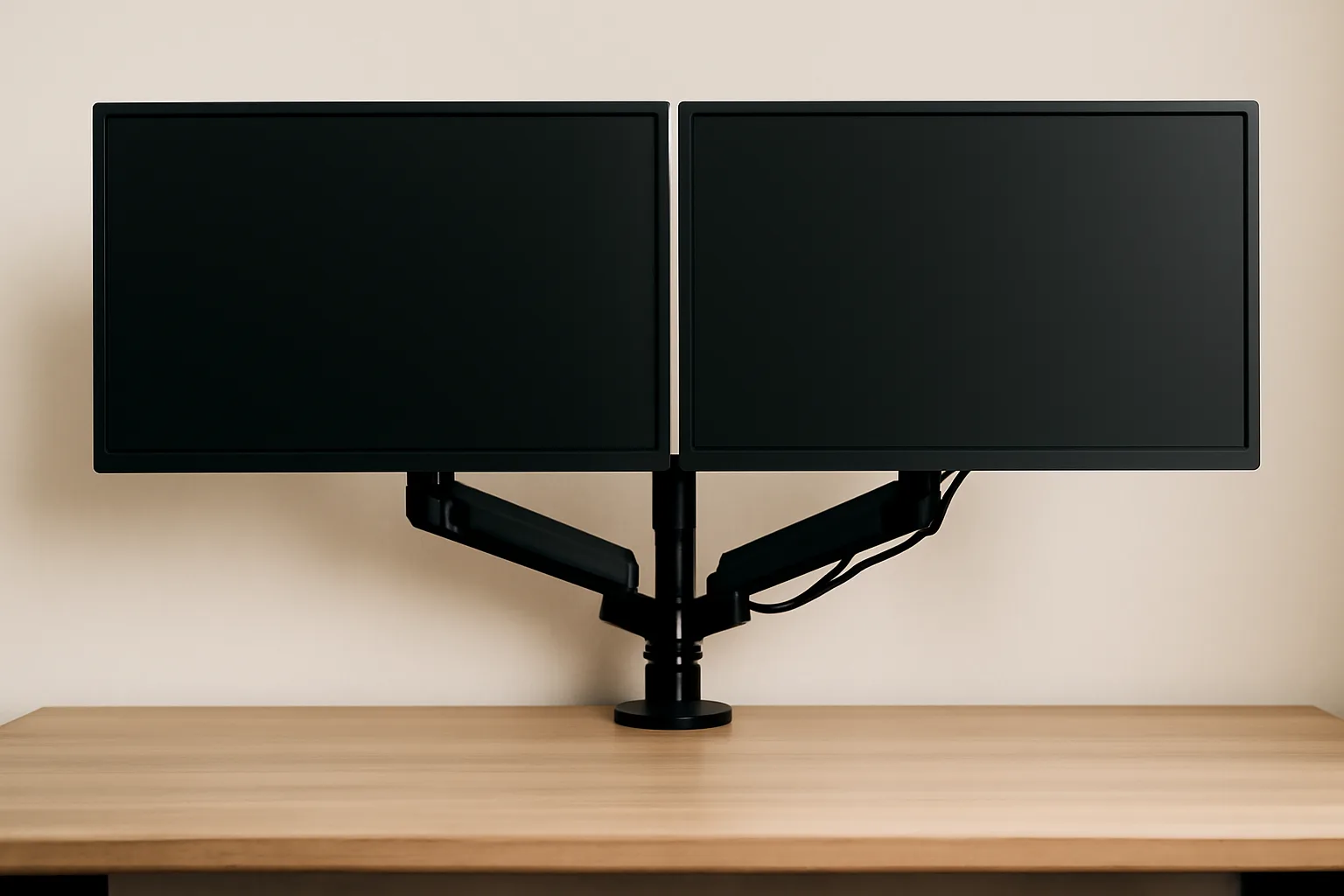
Desk Space, Arms and Physical Positioning
A dual monitor setup fails quickly on a shallow desk. Screens sit too close, stands eat the workspace, cables bunch behind the keyboard, and the whole thing feels like a call centre from 2009.
Desk Width and Depth
For two 24-inch monitors, I would want at least a 120cm wide desk. For two 27-inch monitors, 140cm is the sensible minimum and 160cm feels better. Depth matters too. A 60cm deep desk can work with monitor arms, but 70-80cm gives your eyes and keyboard more breathing room.
If your current desk is narrow, read our guide to desks for multiple monitors before buying more screen. A £170 monitor on a bad desk is still a bad setup.
Monitor Arms vs Standard Stands
Monitor arms are not just for aesthetics. They free desk space, make height alignment easier, and let you pull screens forward or push them back depending on the task.
Budget dual monitor arms start around £25-£50 on Amazon UK, but check weight limits and VESA compatibility. A Duronic DM352-style pole arm is cheap and stable for two 24-inch screens, though it is less flexible than gas-spring arms. Better gas-spring dual arms are usually £70-£150. Premium arms from brands like Ergotron can cost £250-£350, which is hard to justify unless you adjust screens all day or use heavier monitors.
Before buying an arm, check:
- VESA mount: most work monitors use 75x75mm or 100x100mm, but some budget screens need adapters.
- Monitor weight: use the screen weight without the stand, not the boxed weight.
- Desk clamp depth: thick, bevelled or glass desks can be awkward.
- Rear clearance: arms need space behind the desk if it sits hard against a wall.
Height and Angle
The main screen should sit directly ahead. The second screen should be close enough that you can glance at it without twisting. If one monitor is used far more, put that one central.
For a clean setup, align the top edges if both monitors are the same size. If one is bigger, align the active text area rather than obsessing over the plastic bezels. A few millimetres will annoy you on day one, then vanish once the workflow makes sense.

Laptop Docks, Cables and Connection Mistakes
The dullest part of a dual monitor setup is often the part that decides whether it works. Ports, docks, cables and charging capacity are where most “why is this only showing one screen?” problems start.
Check What Your Laptop Can Actually Output
Do not assume a USB-C port means dual monitor support. Some USB-C ports carry power and data but not display. Some support one external display. Some MacBooks, especially base models in recent years, have had limits on the number of external displays without extra workarounds.
Check the laptop specification for DisplayPort Alt Mode, Thunderbolt 3/4, HDMI version and external display support. If the spec says one external display, a £40 hub will not magically turn it into two.
Docking Station Prices
For simple 1080p dual monitors, a USB-C hub with HDMI and DisplayPort can cost £35-£80 from Amazon UK, Currys or John Lewis. For dual 4K, higher refresh rates, wired Ethernet and reliable laptop charging, budget more.
The UGREEN Revodok-style Thunderbolt docks often sit around £150-£180. The CalDigit TS4 is a premium option at about £369.99 from the CalDigit UK shop, and it is overkill for many people, but it makes sense if you run dual high-resolution screens, Ethernet, audio, SD cards and laptop charging from one cable.
My rule: spend on the dock only after confirming your laptop and monitors can use it. A dock cannot fix an unsupported graphics output.
Cable Clean-Up
Cables should be boring. Use the shortest sensible DisplayPort, HDMI or USB-C cables, label both ends if you swap kit often, and run monitor power cables down one side of the arm with display cables down the other. Velcro ties are better than plastic zip ties because you will change something later. You always do.
If your screens flicker, check the cable before blaming the monitor. A cheap HDMI cable that worked at 1080p may not be reliable for 1440p or 4K. DisplayPort is usually the safer choice for desktop monitors when your laptop or dock supports it.
Windows and macOS Settings That Actually Help
Once the hardware is right, the operating system needs five minutes of attention. Skipping this is why people end up dragging windows in the wrong direction all week.
Display Arrangement
In Windows, open Display settings, identify the screens, drag them into the same physical order, then set the main display. In macOS, use Displays settings to arrange screens and choose the main menu bar display.
Set scaling so text looks similar on both screens. Mixed 1080p and 4K displays can make this awkward. If the mouse jumps up or down when crossing between screens, the virtual screen heights are misaligned; drag the display rectangles until the pointer moves naturally.
Useful Settings
Set these once:
- Main display: your primary work monitor, not the laptop unless the laptop is central.
- Sleep behaviour: decide whether closing the laptop should keep external monitors active.
- Night light or colour temperature: match both screens so one does not look blue and harsh.
- Refresh rate: use the native refresh rate, especially if one screen defaults to 30Hz through a poor dock.
- Window snapping: learn the shortcuts for halves and quarters rather than manually resizing all day.
For display comfort, also check our guides to monitor brightness and contrast, monitor refresh rates and reducing monitor glare. Those settings matter more once you have twice as much screen shining back at you.
Workflow Rules for Maximum Productivity
The hardware gives you more space. The workflow decides whether that space helps.
Give Each Screen a Job
The best dual-monitor habits are boring and repeatable:
- Main work stays central: the document, spreadsheet, code editor or design file gets the prime screen.
- Reference lives to the side: browser research, briefs, source material and notes sit on the secondary display.
- Communication is contained: email and chat do not get permanent centre-stage access.
- Calls use a fixed layout: put the video call on one side and notes or agenda on the other.
- End-of-day reset: close the clutter, leave the next morning’s main file ready, and stop inheriting yesterday’s mess.
The most productive dual-monitor setup I have used was not the prettiest. It had one central writing screen, one right-hand research screen, and a hard rule that email only opened during planned checks. The extra monitor helped because it removed tab switching, not because it invited more apps to shout.
Use the Second Screen for Flow, Not Noise
Good second-screen uses include:
- Reference: brief, source document, style guide or product spec.
- Comparison: two spreadsheets, two contracts, two design versions.
- Preview: website preview beside code, slide preview beside notes.
- Calls: meeting window on one screen, notes on the other.
Bad uses include permanent inbox, social feeds, live news, too many dashboards and anything you keep checking without acting on. A second monitor makes those habits easier, which is not the same as making work better.
Posture, Glare and Daily Comfort Checks
Dual monitors can reduce friction, but they can also make posture worse if the setup pulls you sideways. HSE guidance on working safely with display screen equipment and the DSE workstation checklist both point back to the same practical idea: the workstation should fit the task and the person using it.
The Five-Minute Comfort Pass
After setting up, sit down and check:
- Neck: your main work should be straight ahead, not permanently off-centre.
- Eyes: text should be readable without leaning forward.
- Shoulders: keyboard and mouse should sit close enough that your elbows stay relaxed.
- Glare: windows should not reflect across either screen.
- Reach: frequently used items should not hide behind monitor stands.
If you feel better with the second monitor slightly lower, do that. The “top of screen at eye level” rule is a starting point, not a law of physics. Varifocal glasses, screen size and chair height can change the right answer.
What I Would Buy First
If starting from scratch on a sensible UK budget, I would buy two matching 24-inch work monitors at about £130-£220 each, a sturdy dual arm at about £50-£100, and a dock only if the laptop needs one. That puts a good dual-monitor productivity setup around £310-£620 before the desk and chair.
If you already own one decent monitor, spend first on the arm and cable setup. A tidy, correctly positioned mixed pair beats two new screens shoved onto poor stands. If your desk wobbles under the weight, fix that before buying anything else; our wobbly desk guide will save you from blaming the monitors.
Frequently Asked Questions
Are dual monitors actually better for productivity? They can be, if each screen has a clear role. They help most with research, comparison, calls, spreadsheets and preview work. They are less useful if the second screen becomes a permanent distraction panel.
What size monitors are best for a dual setup? Two 24-inch monitors are the easiest fit for most home offices. Two 27-inch monitors are better for spreadsheets and creative work, but they need a wider and deeper desk.
Should both monitors be the same model? Matching monitors are easier to align and look cleaner, but they are not mandatory. Try to keep size, resolution, brightness and colour close enough that switching between screens does not feel jarring.
Do I need a monitor arm for dual monitors? You do not need one, but it often makes the setup much better. A dual arm frees desk space, improves height alignment and makes cable routing cleaner. Budget around £50-£100 for a decent home-office option.
Why will my laptop only run one external monitor? The laptop may only support one external display, or the USB-C hub may not support the display mode you need. Check the laptop’s external display specification before buying a more expensive dock.
Where should I put my second monitor? Put your main monitor directly in front of you and the second monitor to the side, angled slightly inward. If you use both screens equally, keep the join near your central sightline to reduce neck movement.